Gunbot on MT4 and MT5: how the strategy workflow differs from a standalone EA
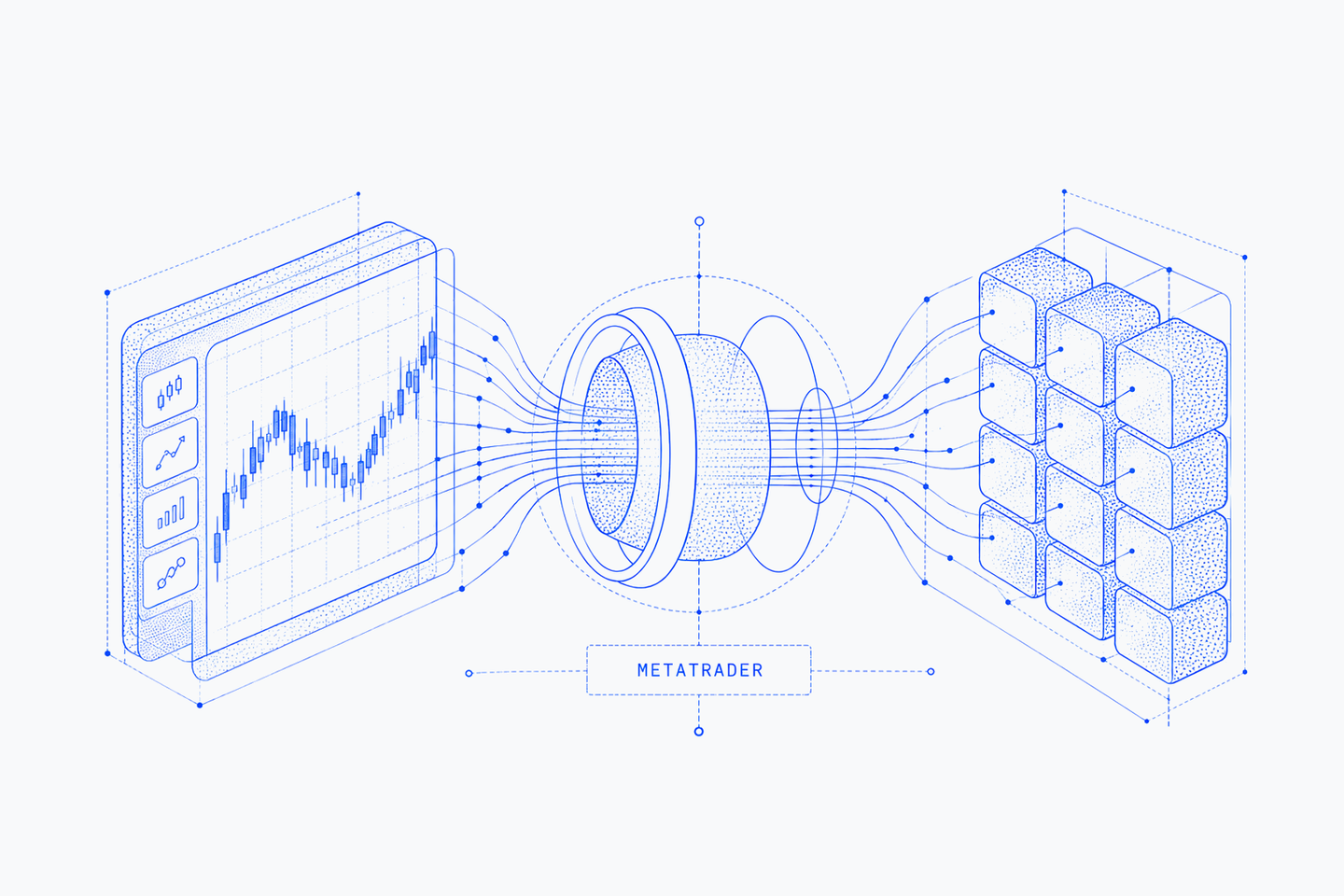
You have a MetaTrader account, a chart you know and a broker you want to keep. Adding Gunbot gives you another choice of automated trading strategies—and a different place to configure and follow them.
For an existing Gunbot user, names such as StepGrid, SpotGrid and StepGrid Scalp offer a familiar starting point. For an MT4 or MT5 trader who uses Expert Advisors, the useful question is practical: what changes when the strategy runs in Gunbot?
Keep the terminal, choose the strategy
MetaTrader already provides an environment for automated trading. The reason to add Gunbot is its strategy selection, with configuration, charts, positions and orders together in the Gunbot workspace.
The integration includes adapted versions of classic Gunbot strategies such as StepGrid, SpotGrid and StepGrid Scalp, alongside specialist strategies. You select a strategy and configure it for the account and instrument you want to use. Your MetaTrader terminal remains connected to your broker. If you also run exchange bots, you can switch between those setups and MetaTrader in Gunbot rather than adding a separate monitoring workspace.
These are editions built for the platform. If you know a strategy from crypto trading, use that familiarity to find it in the catalog, then read its MetaTrader settings. The implementation does not reproduce every aspect of the original crypto runtime’s DCA inventory, hedging or market-making behavior.
Where you make changes
With a typical standalone EA, the strategy logic runs inside MetaTrader and you change its inputs there. MetaQuotes describes Expert Advisors as programs that automate analytical and trading processes.
With Gunbot, the strategy engine runs in Gunbot. An EA called GunbotBridge connects it to the terminal, sharing account and chart data and submitting broker operations.
| Your task | Typical standalone strategy EA | Gunbot with MT4/MT5 |
|---|---|---|
| Choose and configure trading rules | Select an EA and edit its inputs | Select a supported strategy and edit its settings in Gunbot |
| Set up the terminal connection | Attach the strategy EA to its chart | Attach GunbotBridge to the dedicated chart |
| Follow the strategy | Use the terminal and the EA’s tools | Use the connected charts, positions and orders in Gunbot |
| Execute broker operations | Through MetaTrader | Through MetaTrader |
You still use an EA, but its role is the connection. The trading rules and the workspace you return to are in Gunbot.
A familiar name, a new account setup
Suppose you use StepGrid in Gunbot and want to try its MetaTrader edition. Start by choosing the broker’s symbol, the chart period and a demo account. Those choices define the market data and account context the strategy will use.
Next comes sizing. In Gunbot, Lots per strategy unit converts the strategy’s quantity into broker lots. One strategy unit is not automatically one lot. Set that conversion and the maximum size deliberately, using the broker’s instrument specifications.
The rest of the configuration belongs to this account too: use a distinct magic number and the correct broker-history UTC offset. Save the reviewed configuration, then enable the saved strategy as a separate action.
Now compare what you see in Gunbot with the demo terminal: the intended symbol, order size, protective levels and exits. This gives you a concrete view of how the strategy works in its new environment, rather than relying on the familiar name alone.
What to check before choosing a profile
The chart is part of the setup. For example, EmaVwap, an EMA/VWAP specialist profile, uses two-minute data; MT4 needs a maintained offline M2 chart for that period. Other profiles have different inputs. The setup guide lists those requirements together with the available strategies.
Your testing workflow changes too. GunbotBridge uses WebRequest, which is unavailable in MetaTrader’s Strategy Tester. Use the connected demo-account workflow to observe this integration; it is not a self-contained Strategy Tester EA.
Once it is running, Gunbot gives you the connected view of positions and pending orders, plus available order and stop/target controls. Gunbot and the terminal connection need to remain active for software-managed actions. The guide covers those operating details.
Bring your strategy workflow to MetaTrader
The integration gives you a way to use Gunbot strategies while keeping your MetaTrader broker account. Choose a supported profile, configure it for that account and follow its trading activity in Gunbot.
Explore the Gunbot MetaTrader 4/5 integration for the product overview and Unlimited inclusion. When you want to connect a terminal and try a strategy, follow the MT4/MT5 setup guide.