How to Create and Run a Custom Trading Bot Strategy in Gunbot
This guide walks through creating, configuring, and running a custom Gunbot strategy.
Preparation
Create a JavaScript file (e.g., awesomeStrategy.js) for your custom strategy and save it in the ./customStrategies folder within your Gunbot installation directory. You can use the built-in code editor in the Gunbot interface or any code editor of your choice.
Info
A custom strategy in Gunbot is a user-defined set of rules and logic, written in JavaScript, that dictates how the trading bot will operate for a specific trading pair.
Creating a Custom Strategy
Follow these steps to write and set up your custom strategy:
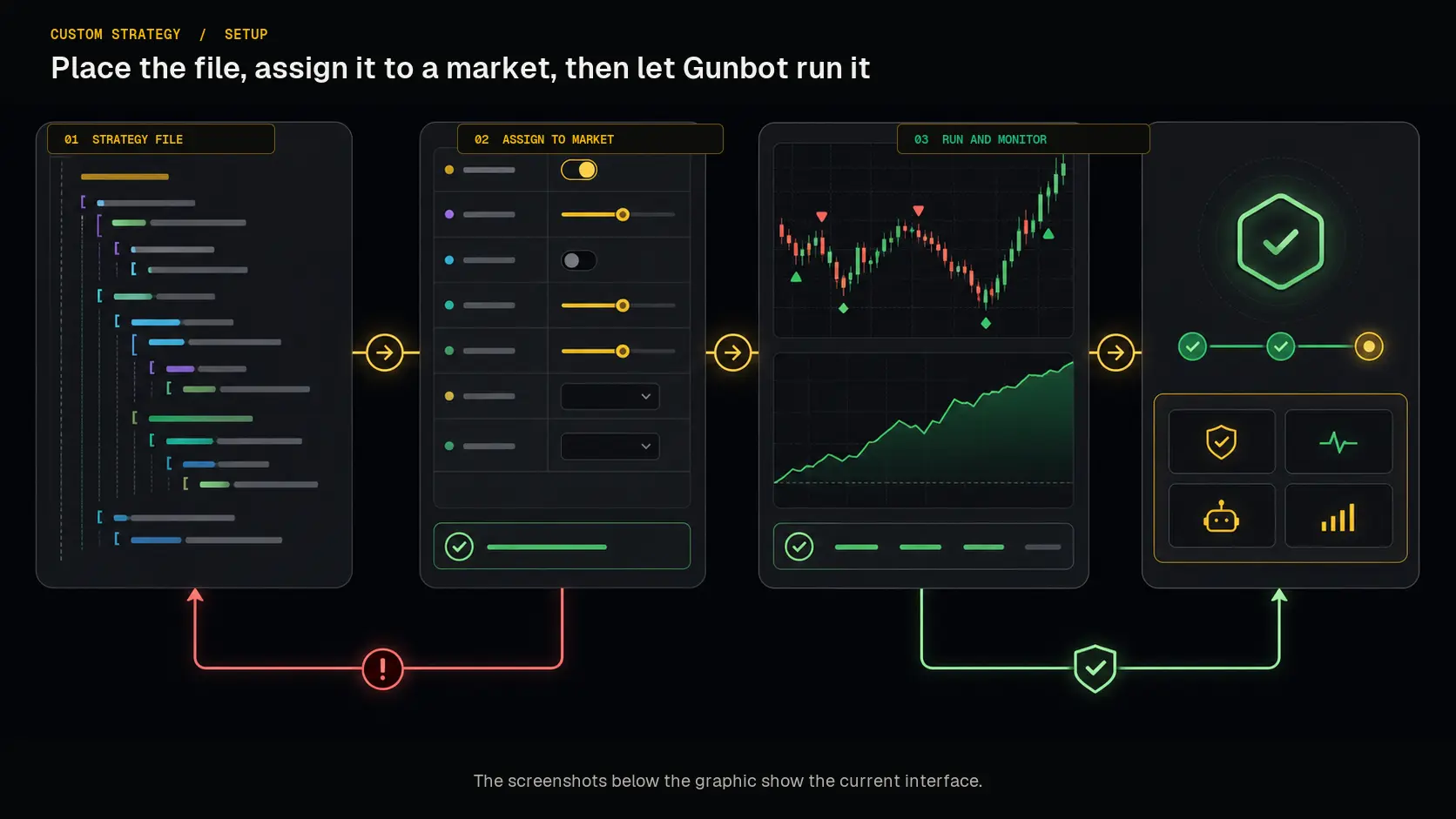 The stable sequence is to place the strategy file, assign it to a market, and let Gunbot run it; the authentic screenshots below show the current interface.
1. Writing the Strategy
Start by writing your custom strategy logic in the JavaScript file you created. You can use the built-in Gunbot code editor.
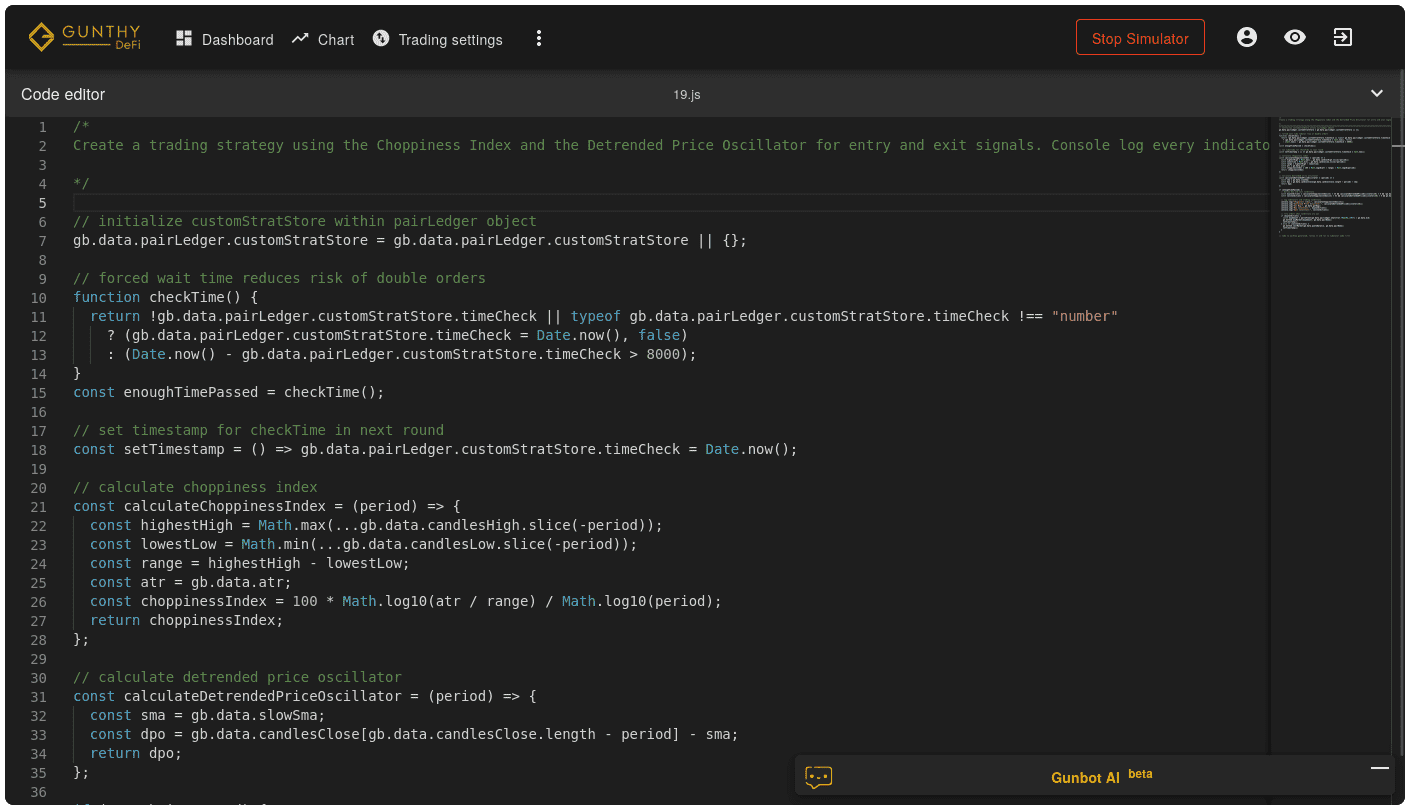
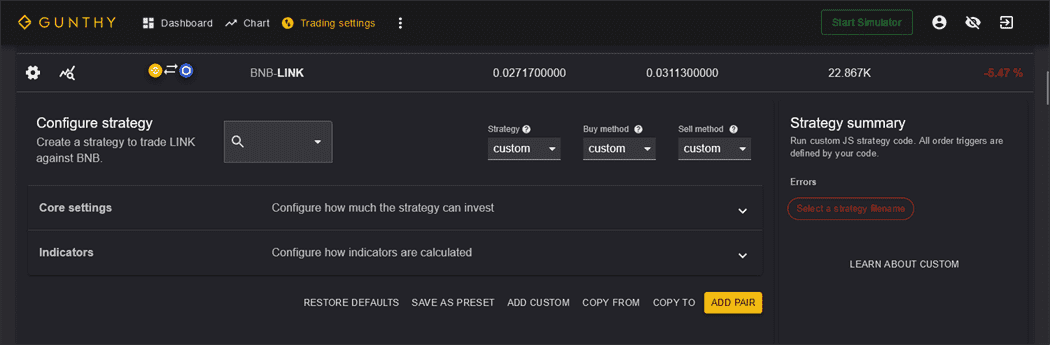
2. Selecting the Strategy for a Trading Pair
When adding or modifying a trading pair in Gunbot, choose "Custom" as your strategy type.
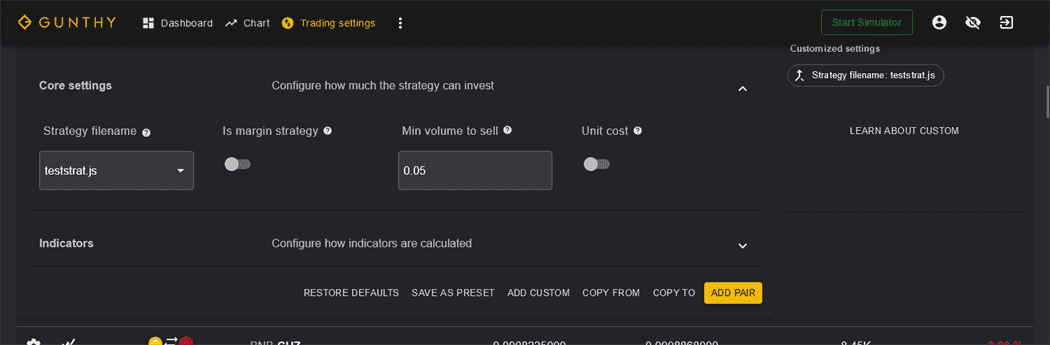
3. Choosing the Strategy File
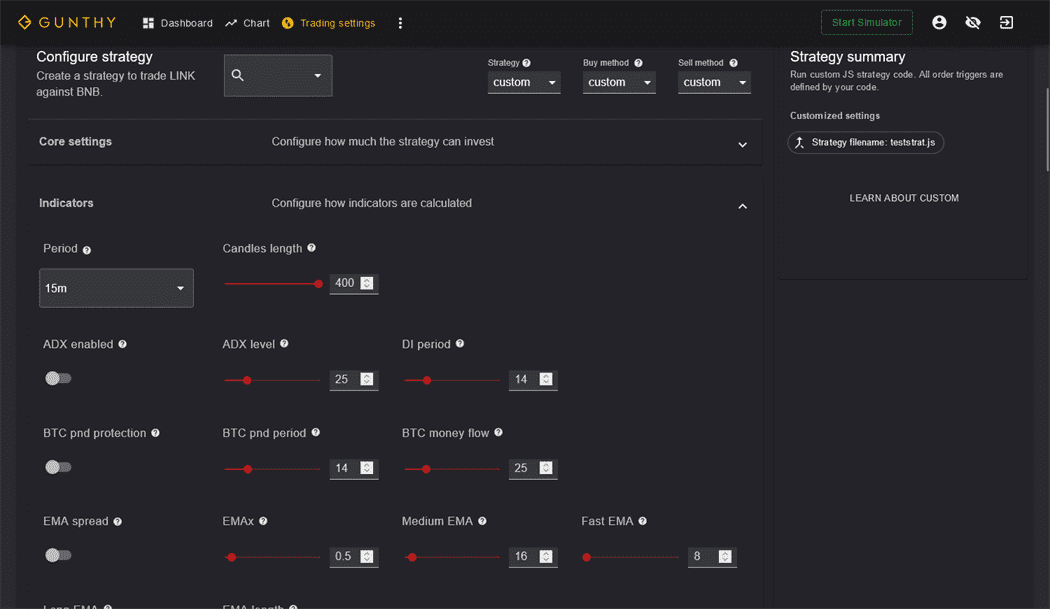
In the "Filename" field that appears after selecting "Custom", select the JavaScript file containing your custom strategy.
Setting Up Indicators
The "Indicators" tab in the Gunbot strategy settings controls how pre-calculated indicator data is generated. These indicators are accessible inside your custom strategy script. You are not limited to these pre-calculated indicators; your custom strategy can calculate its own or use raw market data.
tip
It is recommended to disable the global "Cancel Orders" option when running a custom strategy, as your strategy script should ideally manage its own order lifecycle.
Running the Custom Strategy
After completing the above steps, your custom strategy is ready to be executed. Ensure all settings align with your trading objectives and enable the strategy for your selected trading pair.