How to Add a New Exchange in Gunbot
This guide walks you through adding a new exchange connection, from opening the management interface to saving the setup.
Info
In Gunbot, an "API Slot" represents a connection to a single exchange account. Your Gunbot license determines the number of API slots you can use simultaneously.
Accessing Manage API Slots
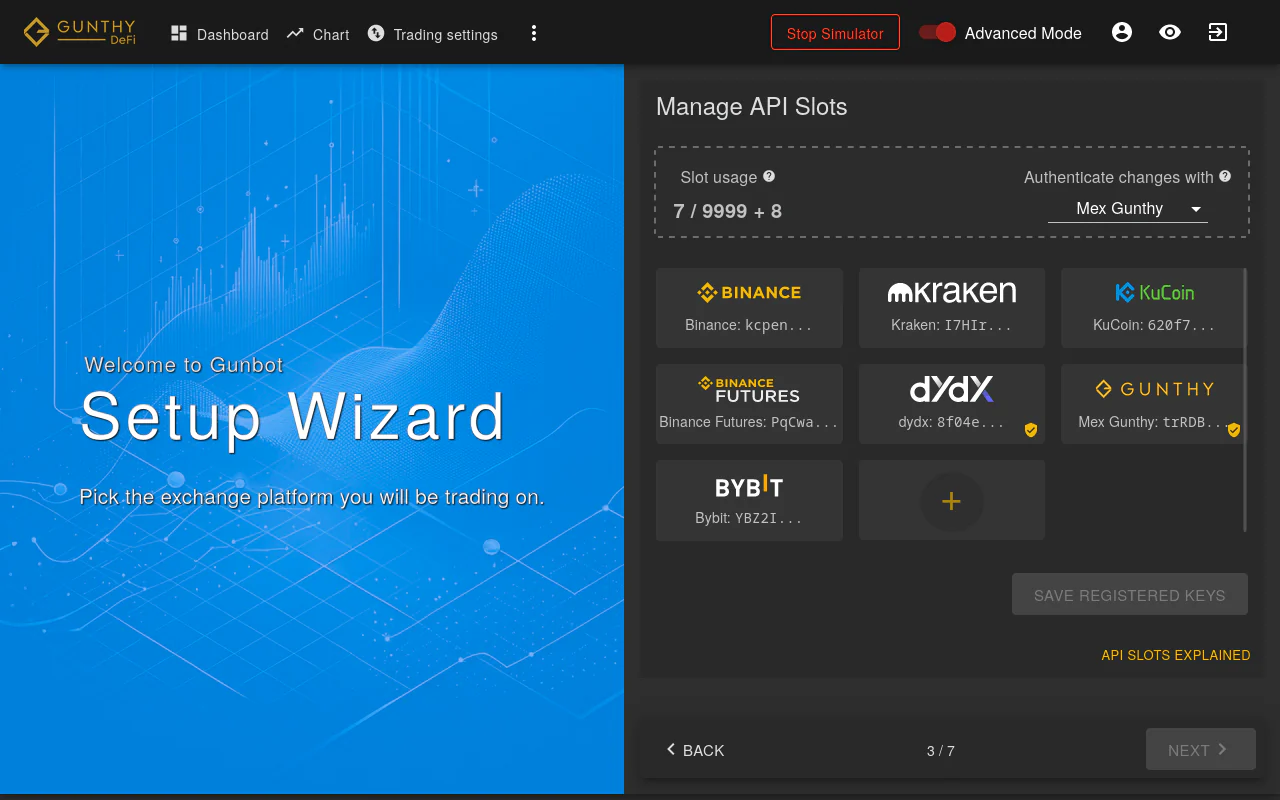
First, navigate to the Manage API Slots section in your Gunbot interface. This is where you manage exchange connections.
Checking for Free Slots
Look for a free slot in your API slots list. A free slot shows a '+' symbol. Click it to begin adding a new exchange.
Note
If you have no free slots and need to add a new exchange, you must first remove an existing API key. Use the 'trash can' icon next to an existing exchange connection to free up a slot.
Selecting the Exchange
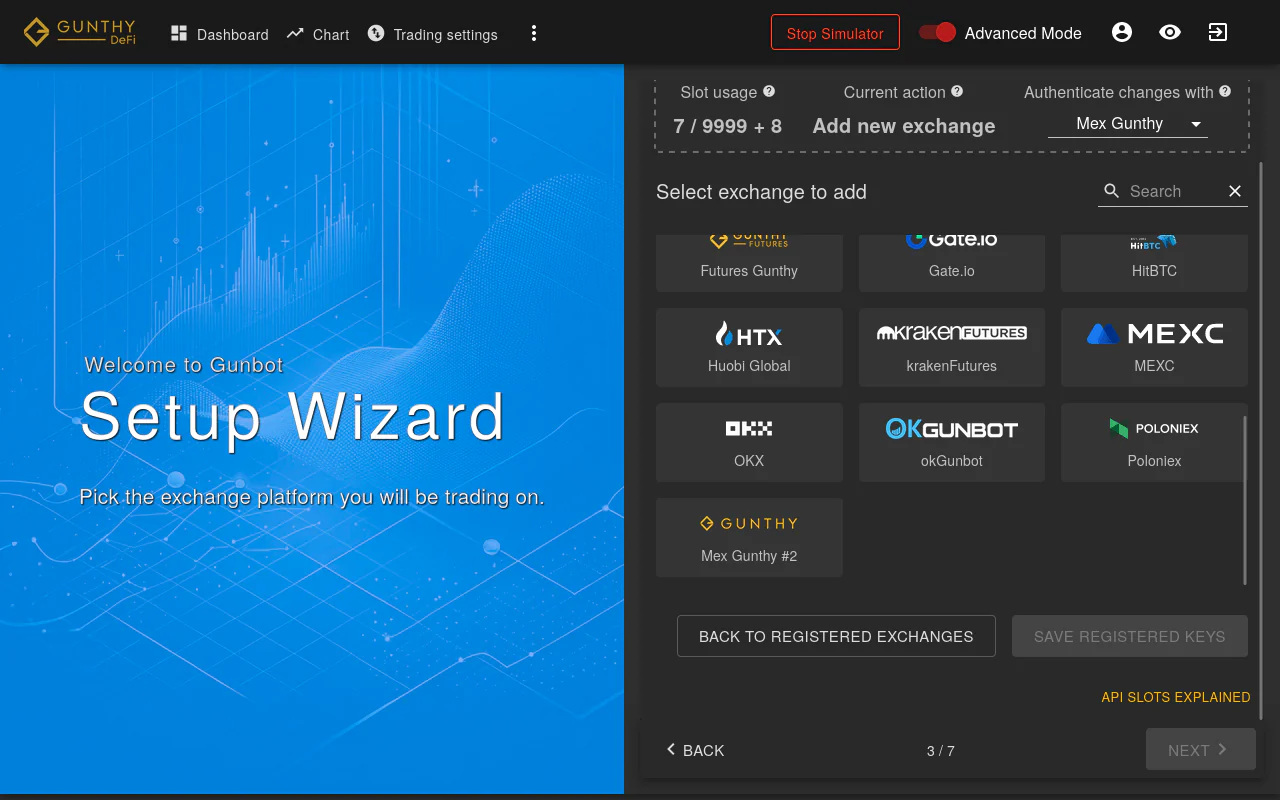
From the list, select the cryptocurrency exchange you want to connect to Gunbot.
Entering Credentials
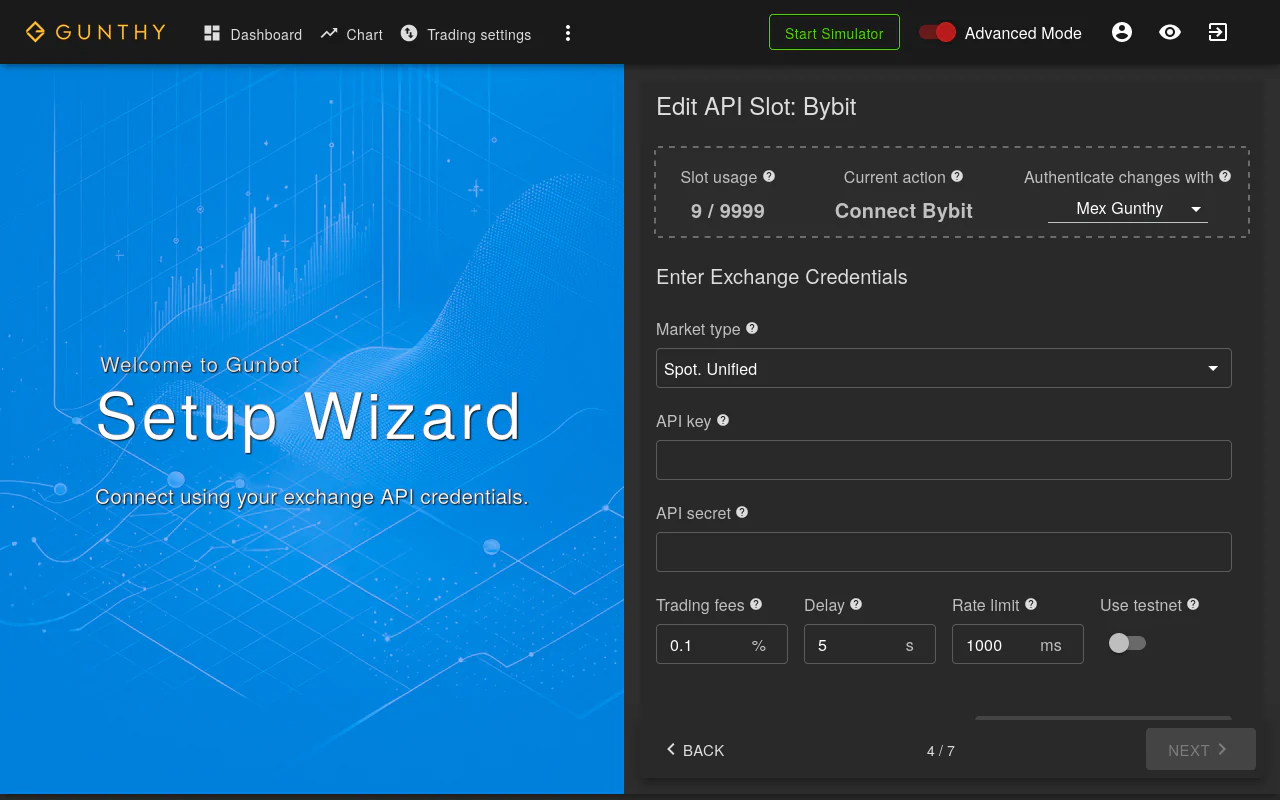
Enter your exchange API credentials in the provided fields, typically an API key and secret. Ensure the details are correct to establish a successful connection.
Saving and Authentication
After entering your credentials, save your settings. Gunbot may require an active exchange connection to validate and save the changes.
Finalizing and Using the New Exchange
Once these steps are completed, the new exchange is added to Gunbot. You can now open the trading settings page to configure and add trading pairs for this exchange.
Additional Information for Additional Exchange Slots
If your Gunbot license includes additional exchange slots (for example, multiple accounts on the same exchange or additional exchanges), the process stays the same. The only difference may be choosing a duplicate entry, such as 'Binance #2' when adding a second Binance account.