Creating an Aster API Key for Crypto Trading Bots
Set up API access for Aster, a decentralized exchange, by connecting your Web3 wallet, signing an authorization, and configuring your trading bot with the generated keys.
Info
Aster offers both Spot and Futures trading. In Gunbot, these are treated as separate exchanges. Select either Aster or Aster Futures depending on which market you intend to trade.
1. Fund Your Wallet
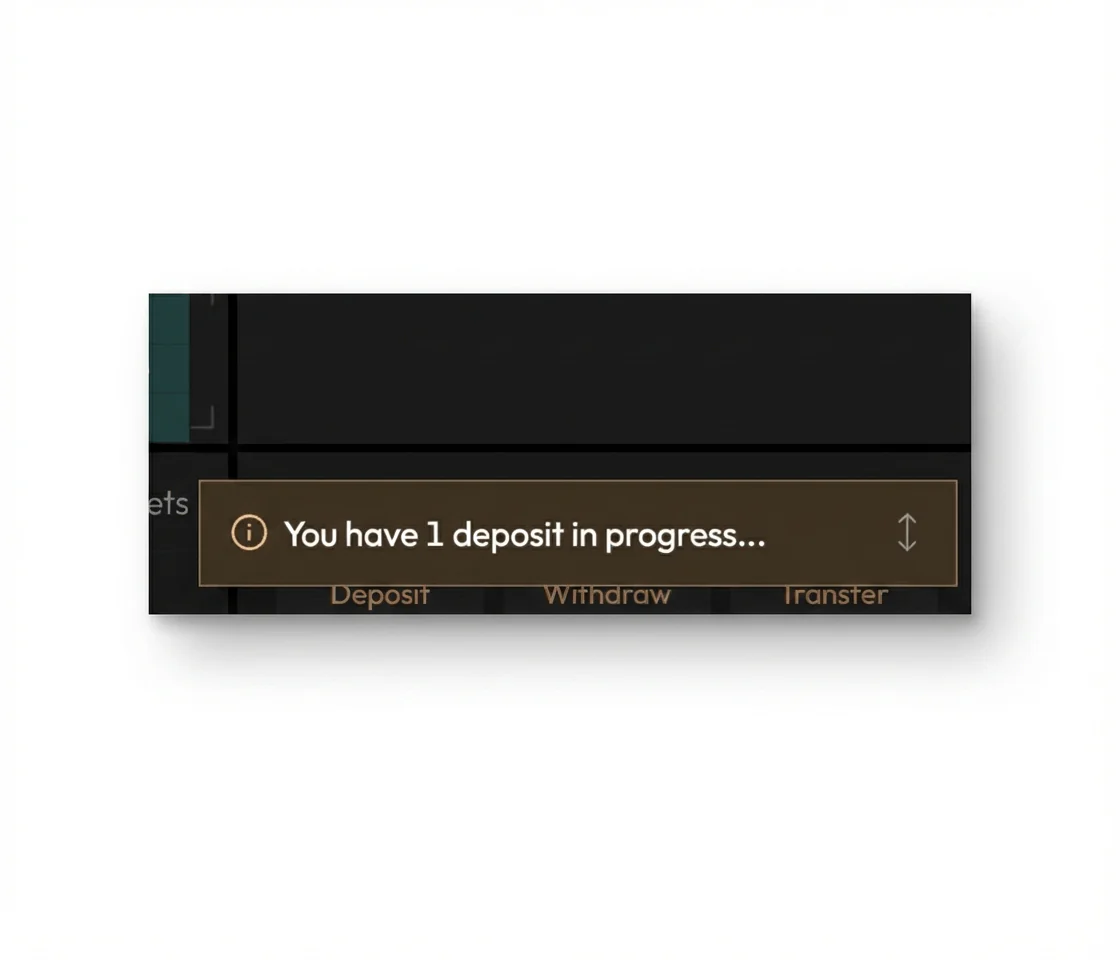
Important: You must deposit funds into your Aster exchange account before you can create an API key. The exchange prevents API creation for empty or unfunded accounts.
- Deposit Assets: Send the assets you intend to trade (e.g., USDT, USDC, ETH) to your Aster wallet address or deposit them via the portfolio section on the exchange.
- Wait for Confirmation: Ensure the deposit has cleared and appears in your "Overview" or "Portfolio" balance.
2. Connect Wallet and Access API Management
- Navigate to the Aster website and connect your wallet (e.g., MetaMask).
- Ensure you are connected to the correct network (e.g., Arbitrum One).
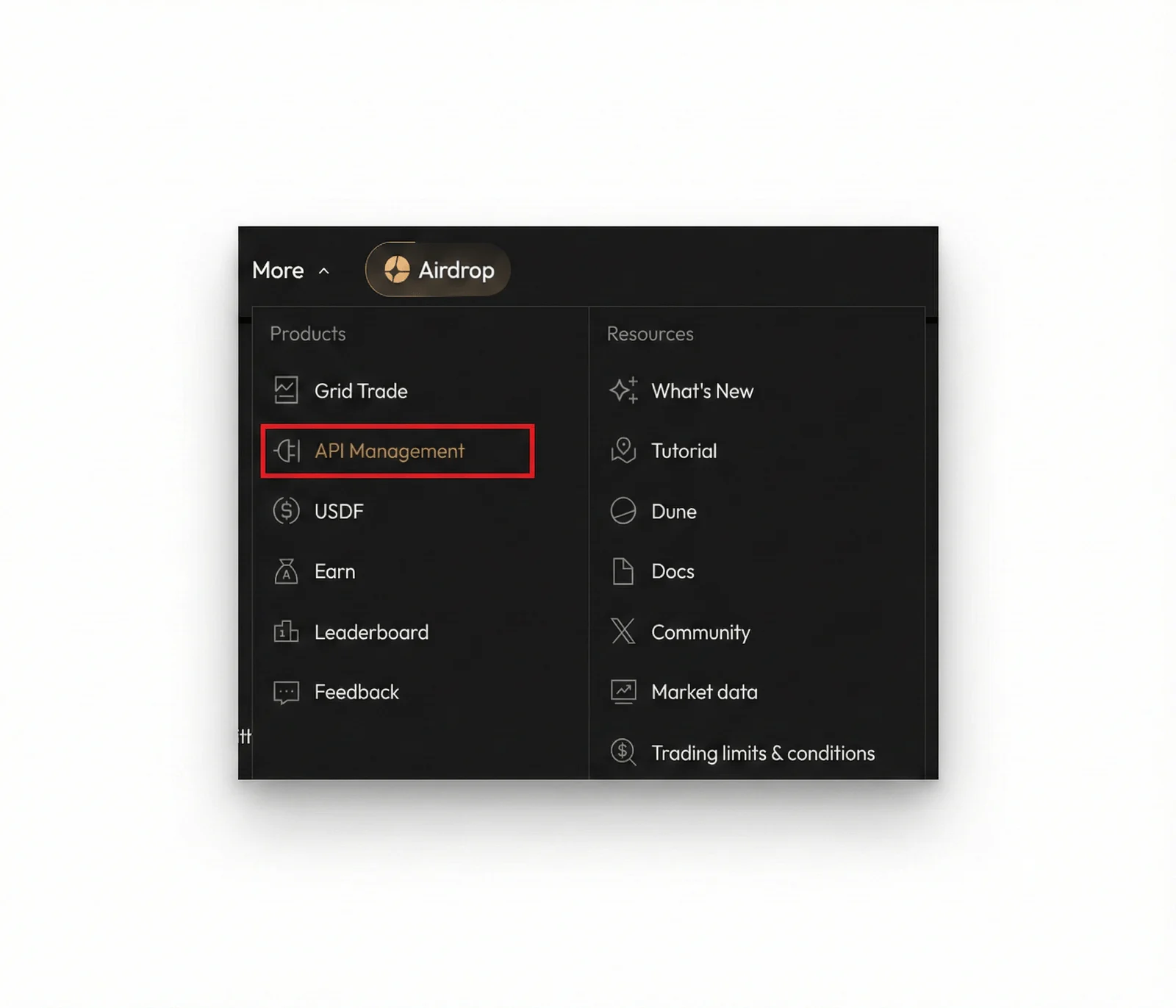
- Hover over the More menu (or Products tab) in the top navigation bar.
- Select API Management from the dropdown menu.
3. Initiate API Creation
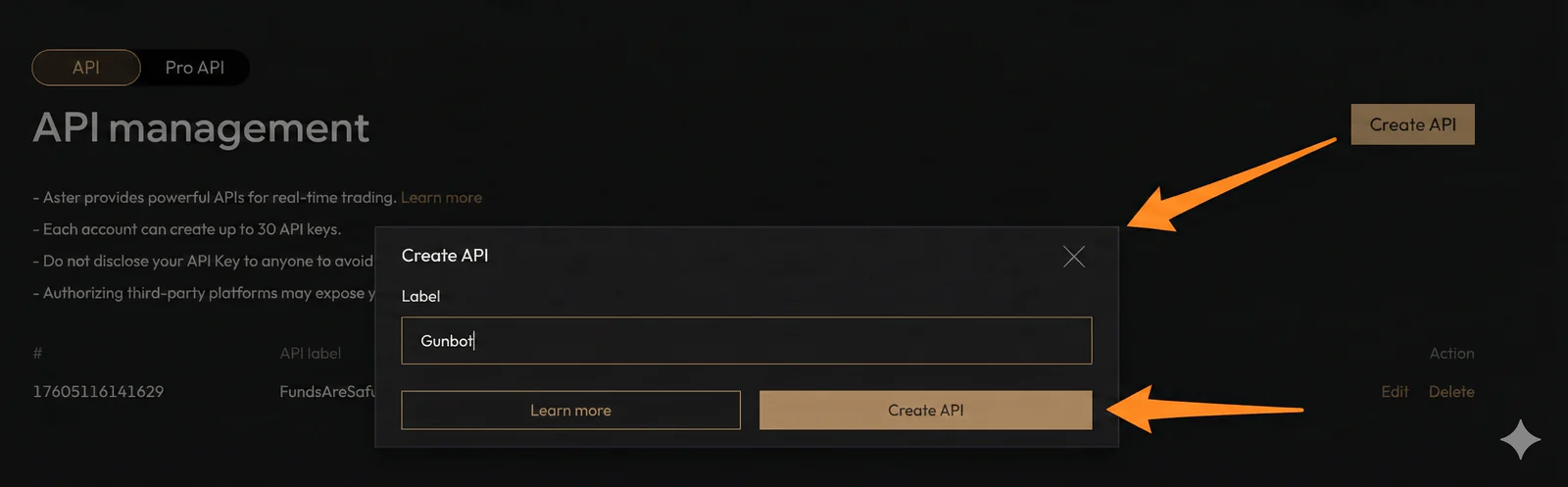
- In the API Management dashboard, click the Create API button to start the process.
4. Label Your Key
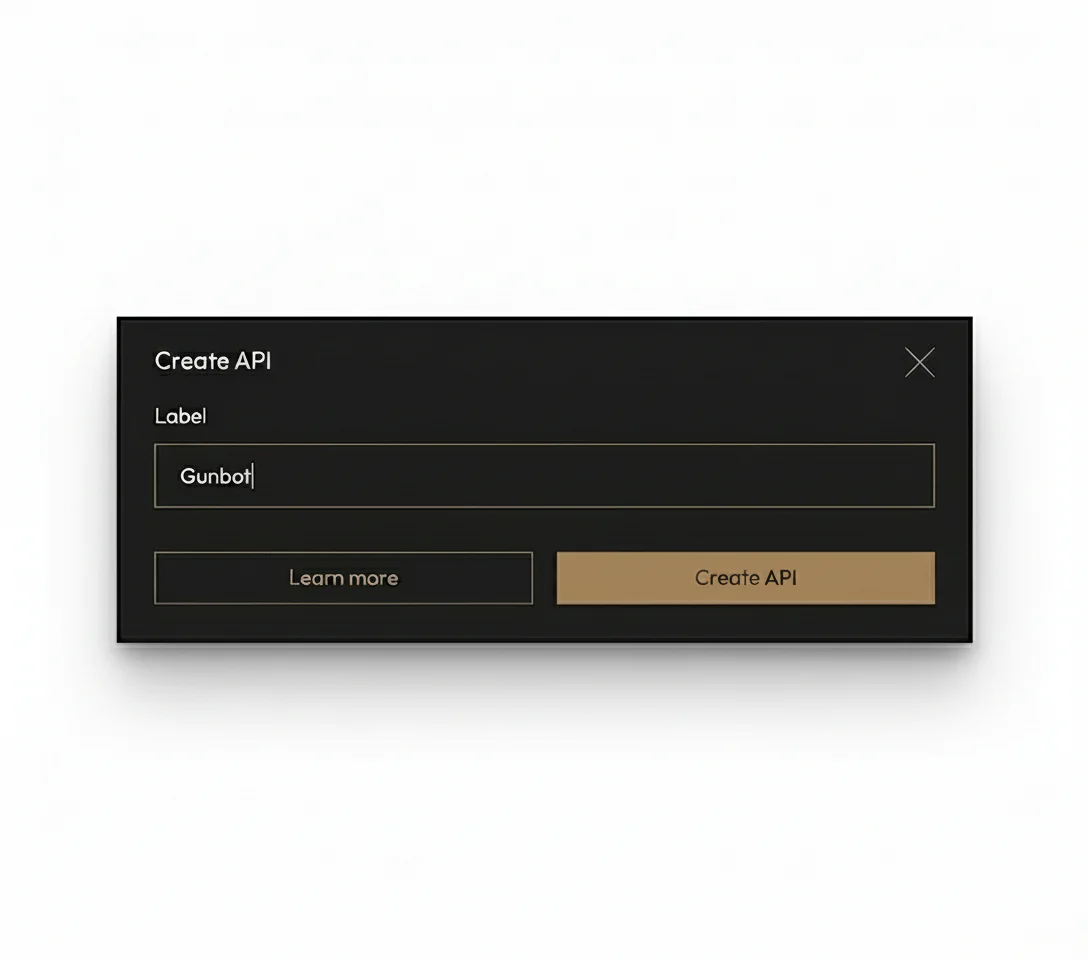
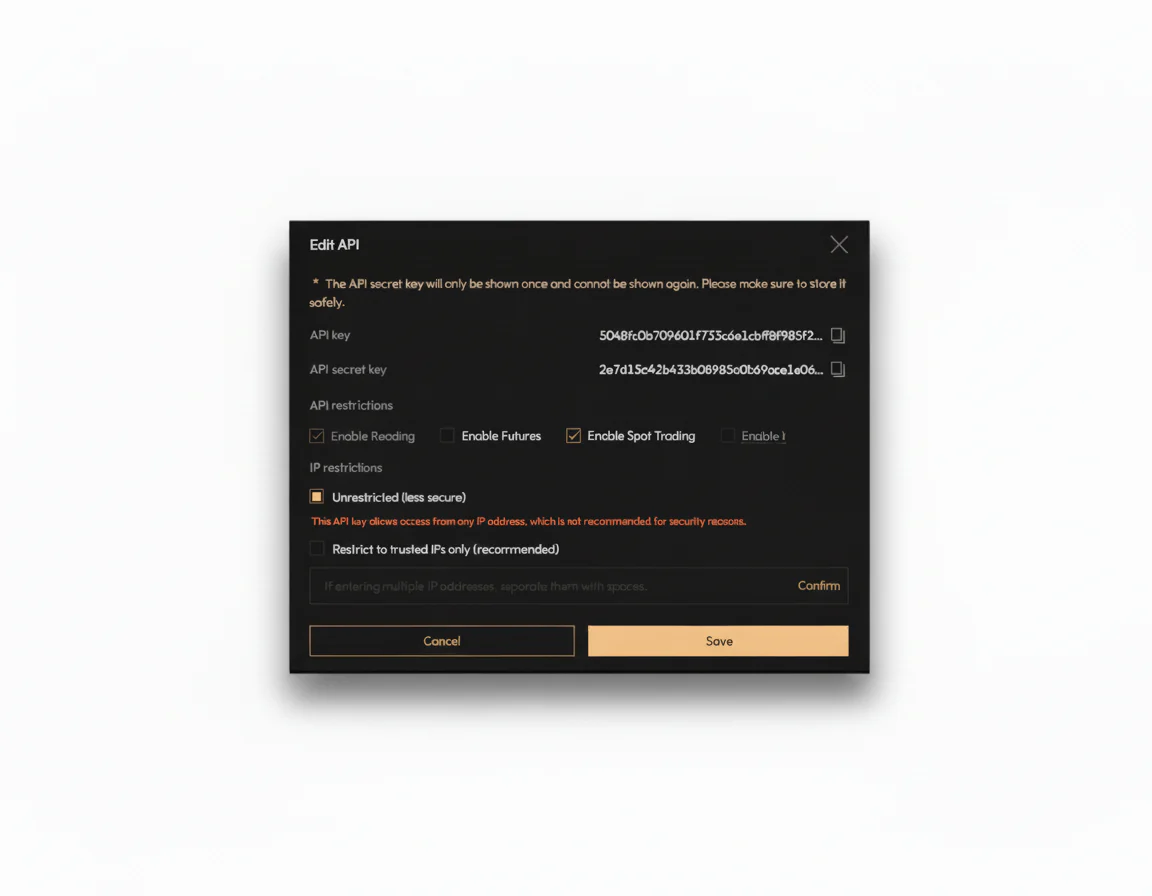
- A dialog box will appear asking you to label your new key.
- Label: Enter a recognizable name (e.g.,
Gunbot) so you can easily identify it later.
- API Restrictions: Enable Spot or Enable Futures; use one unique API key for each market.
- IP Restrictions (Optional): You can whitelist your bot's IP address here for added security; it is optional.
- Click Create API to proceed.
5. Authorize with Your Wallet
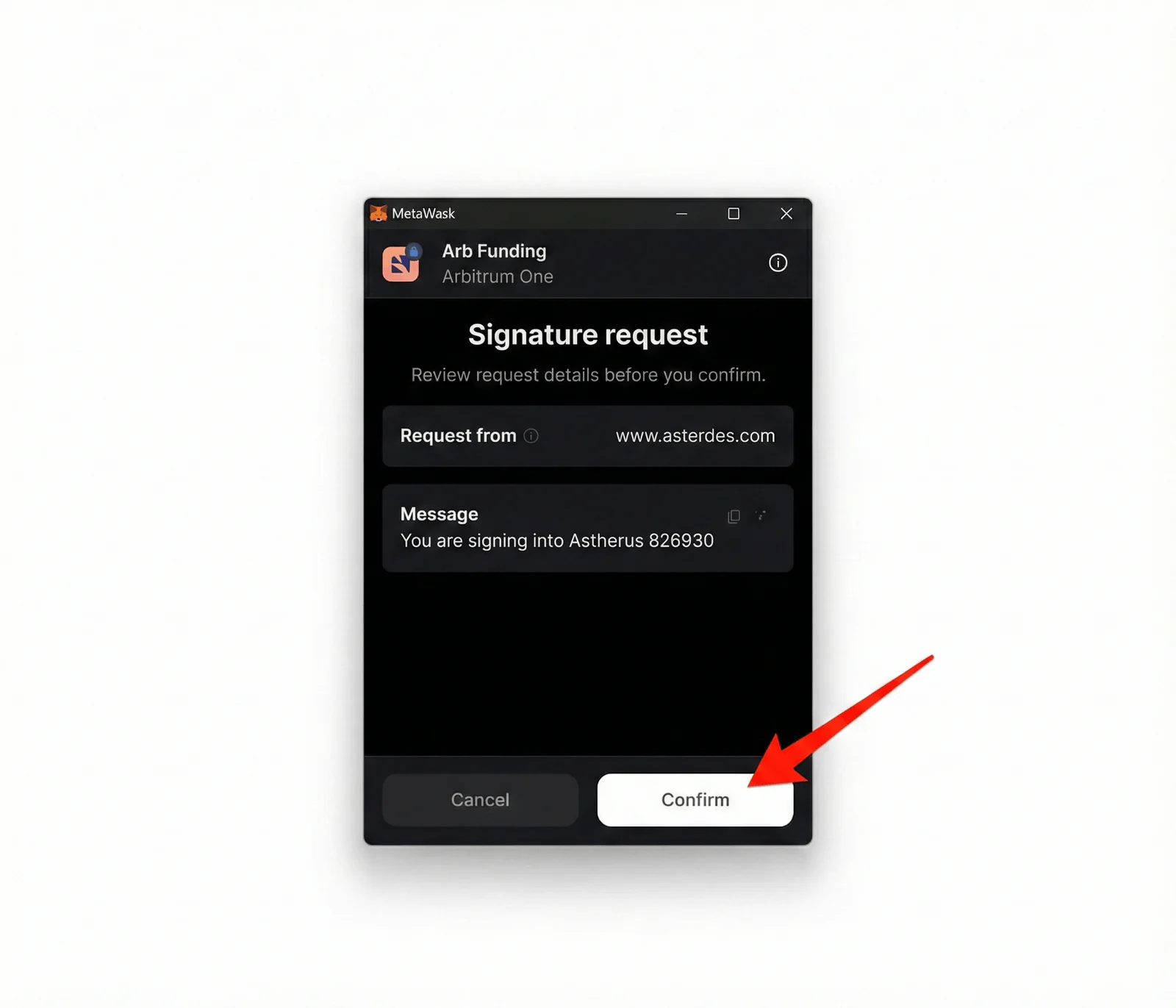
- Your Web3 wallet (MetaMask) will pop up with a Signature request.
- This is a security step to verify ownership of the wallet. Review the request details and click Confirm (or Sign) to proceed.
6. Retrieve and Store Credentials
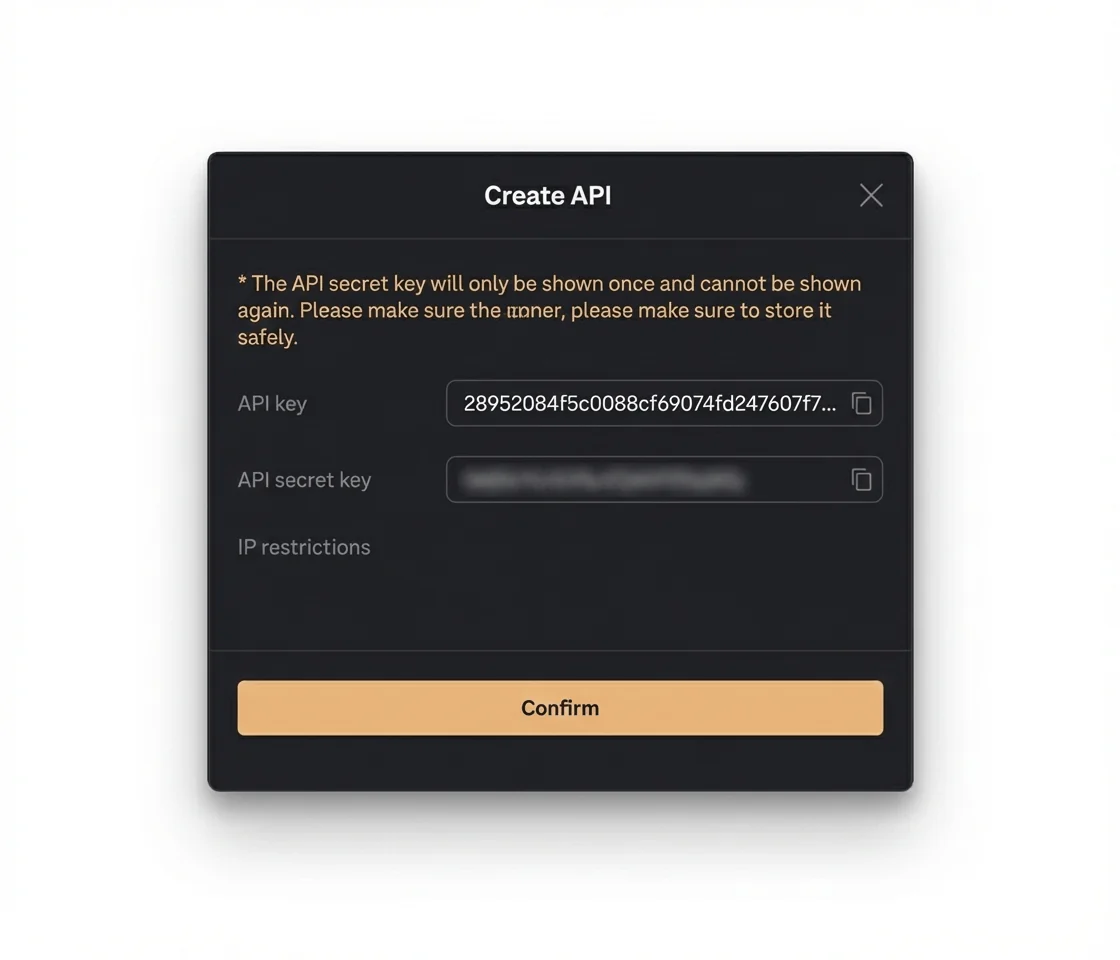
- Once the signature is confirmed, Aster will display your API Key and API Secret Key.
- Critical Step: You must copy the API secret key immediately. It will only be shown once.
- Store both the API Key and Secret Key in a secure, offline location.
7. Configuring Gunbot
Add the credentials to Gunbot.
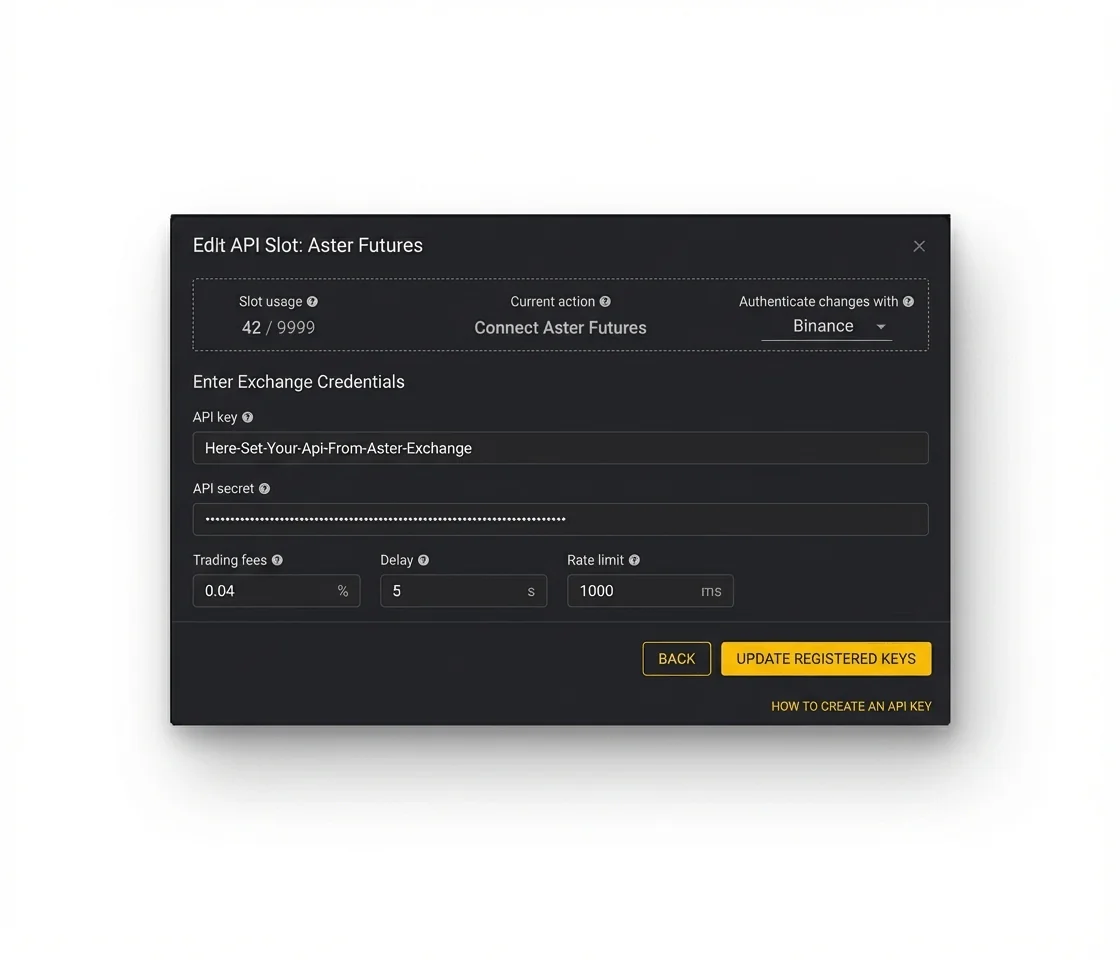
- Open your Gunbot GUI and navigate to Manage API Slots.
- Select the Exchange:
- Choose Aster if you are trading Spot pairs.
- Choose Aster Futures if you are trading Perpetual Futures.
- Enter Credentials: Paste the API Key and API Secret you generated into the corresponding fields.
- Adjust Settings: Set your target Trading fees (e.g., 0.04%) and Delay (latency).
- Save exchange configuration: click UPDATE REGISTERED KEYS button.
Important
If you plan to trade on both Spot and Futures, you will need to set up two separate API slots in Gunbot: one using the Aster selector and another using the Aster Futures selector.
Verification Steps
- Save Configuration: Verify all API settings and save the changes in Gunbot.
- Test Connection: Add a trading pair and check for data updates to ensure the connection is active.
- Monitor: Watch for the initial balance checks to confirm the bot can read your wallet balance correctly.
For a practical next step after API setup, review the supported exchange overview and choose a strategy that matches the market type you enabled.