Creating an API Key with the Coinbase Developer Platform
This guide walks you through creating an API key using the Coinbase Developer Platform for automated trading with Gunbot.
This guide shows how to get Coinbase API key access for Gunbot. Coinbase API keys used as a trading bot API key should have trading permissions only, with withdrawals disabled.
Important
New API keys may take up to 48 hours to activate after creation. Plan accordingly.
Info
Coinbase Advanced uses the Developer Platform for API key creation to enable automated trading bots.
Access your API settings directly through the Coinbase Developer Platform API Management.
Step-by-Step Guide to API Key Creation
1. Log Into Coinbase and Access Developer Platform
- Visit the Coinbase website and log in to your account.
- Ensure Two-Factor Authentication (2FA) is enabled on your account.
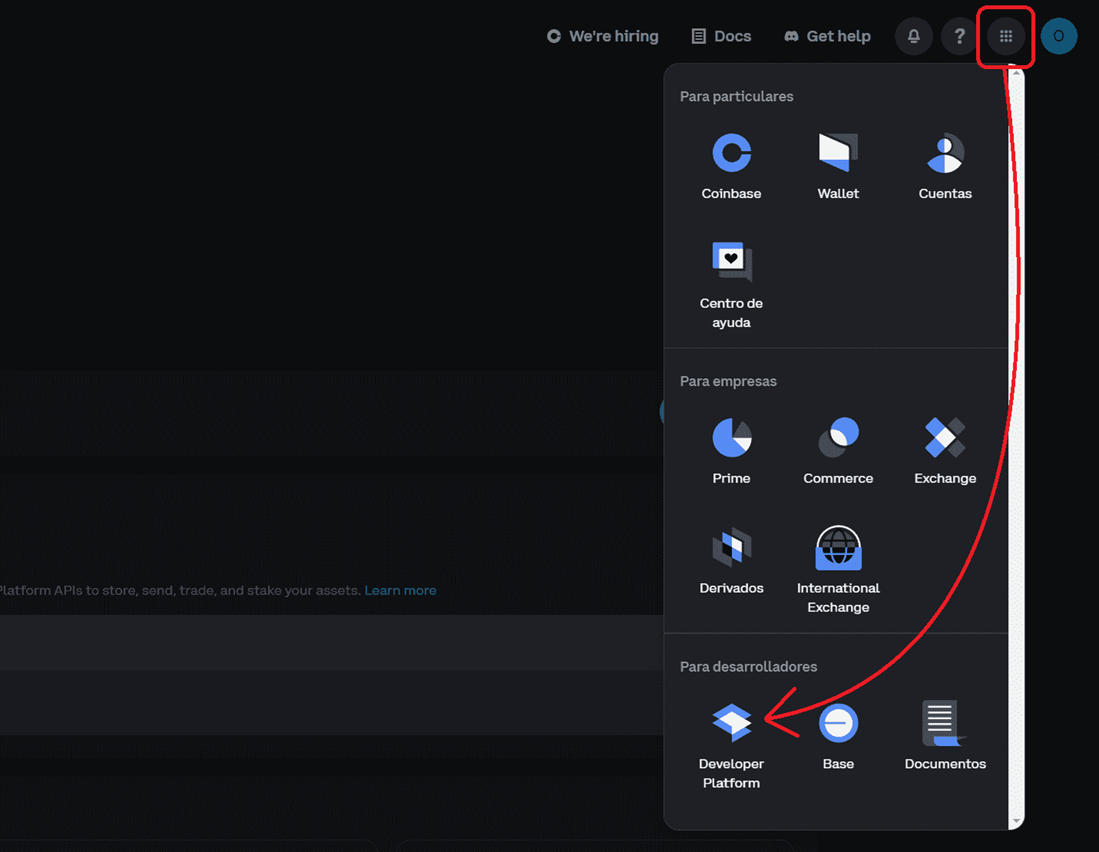
- Click on the grid icon (a square made of dots, often labeled "Apps") in the top-right corner of the Coinbase dashboard.
- Select Developer Platform from the menu.
2. Navigate to API Key Management
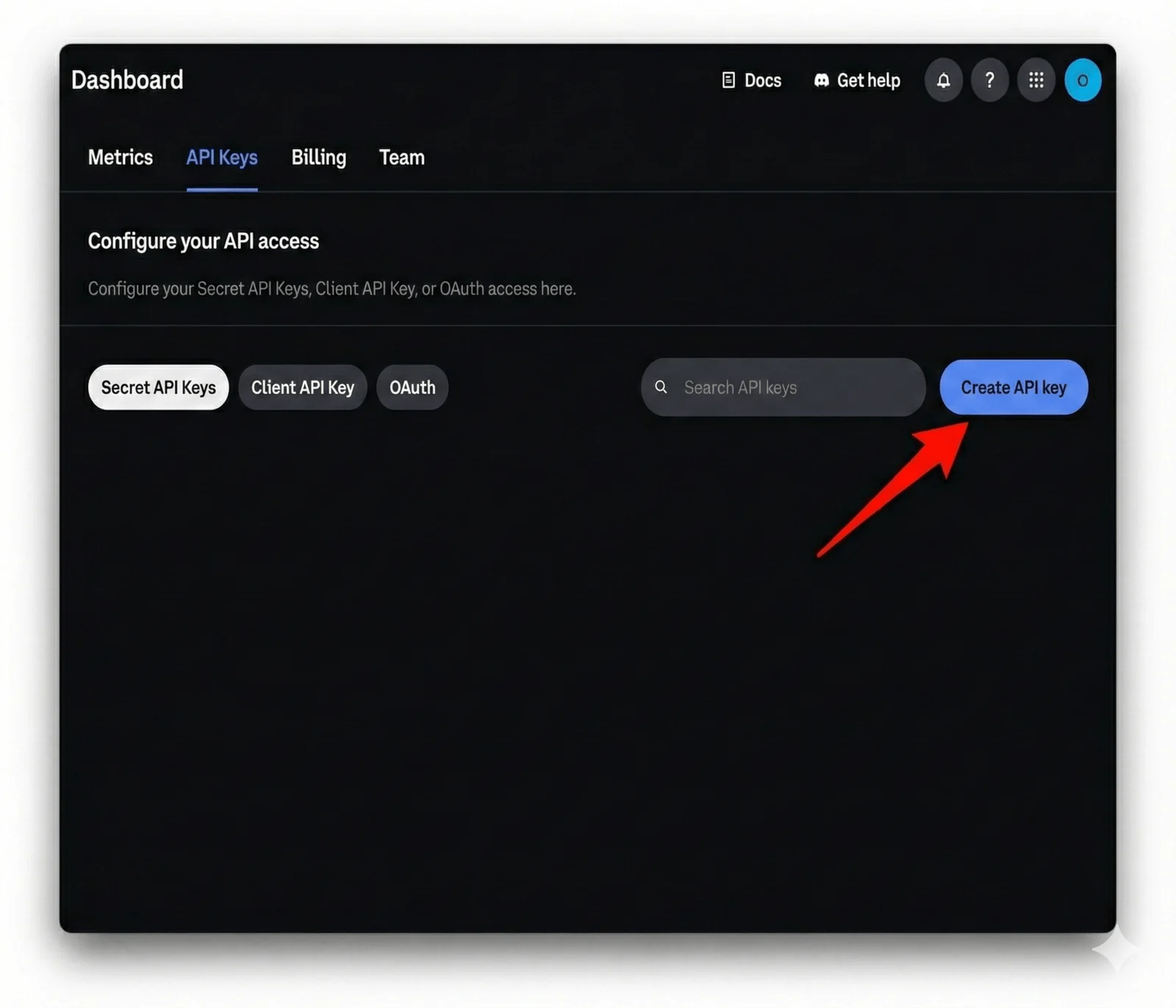
- Once in the Developer Platform, click API Keys in the top navigation bar.
- Click the Create API Key button to proceed to the configuration interface. You will likely be prompted for 2FA verification.
3. Configure API Key Settings and Permissions
This step involves naming your key, setting security controls, and defining permissions.
-
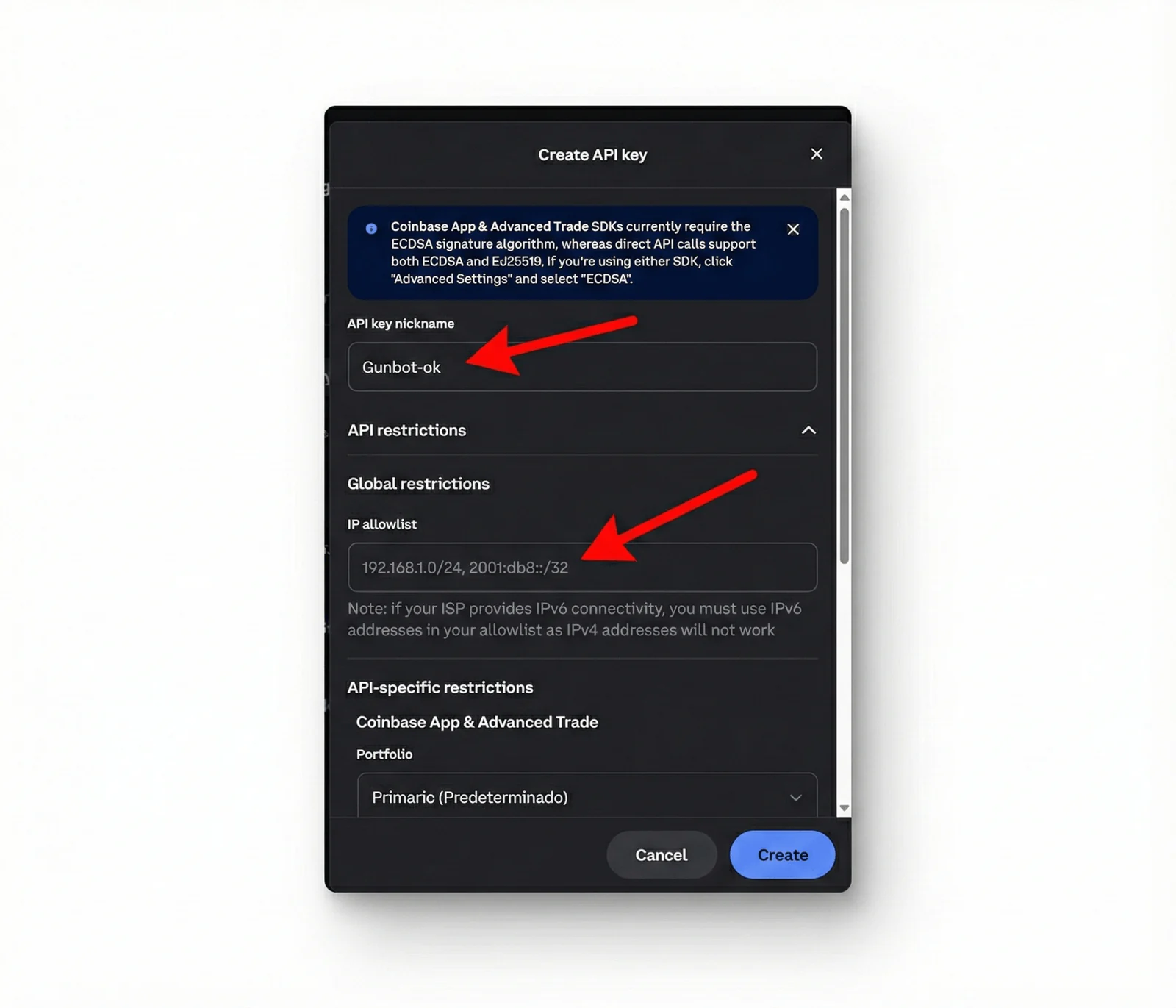
Nickname: In the "Create API key" modal, give your key a recognizable nickname (e.g., "Gunbot-ok"), as pointed out by the first red arrow in the image below.
-
Global Restrictions (IP Allowlist): For maximum security, enter the IP address of your Gunbot trading server in the "IP allowlist" field, indicated by the second red arrow. This ensures the key can only be used from that location.
-
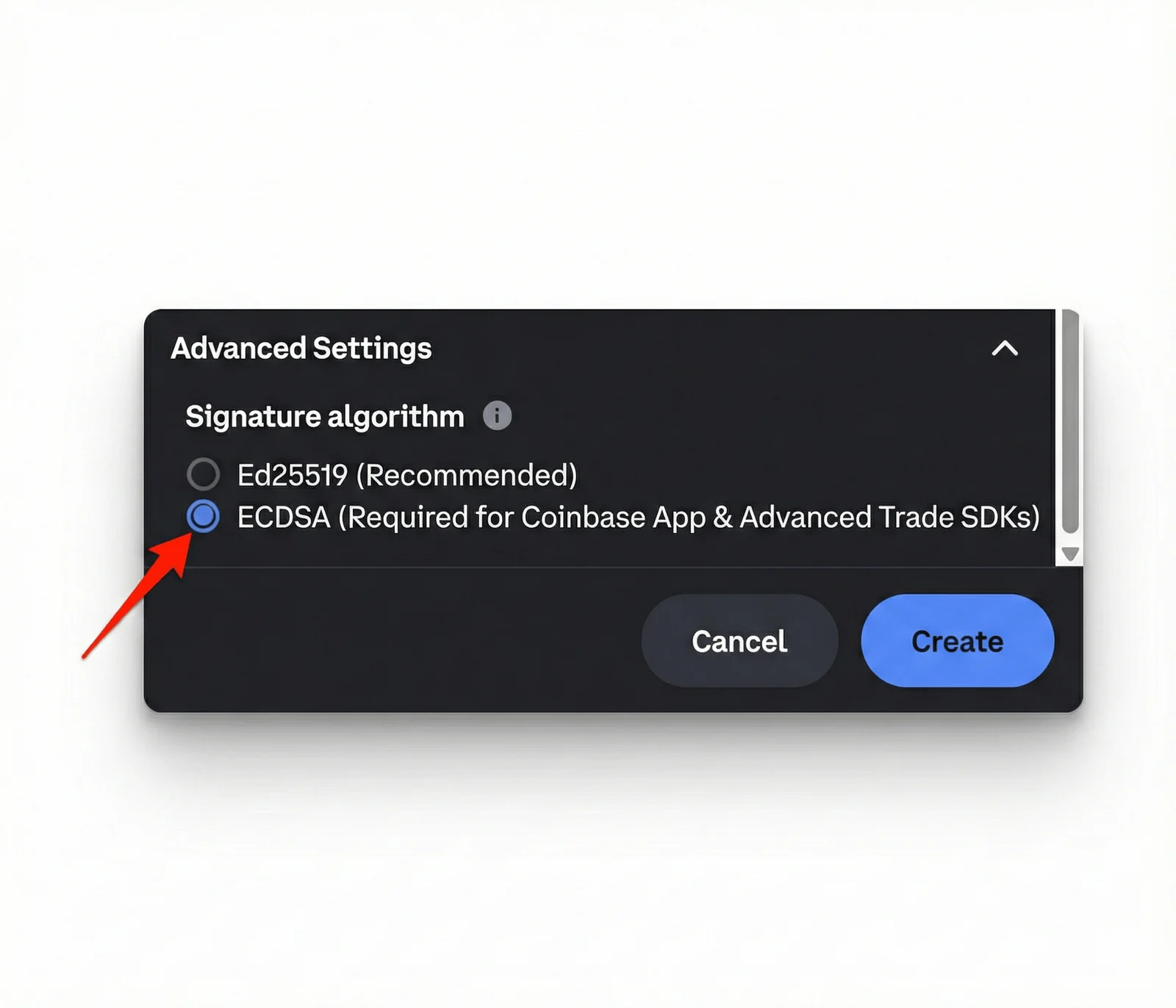
Signature Algorithm (Important Step): Select the correct algorithm for trading SDKs. Click the Advanced Settings dropdown.
-
Ensure ECDSA is selected, as pointed out by the red arrow in the image below. As noted in the interface, this is required for Advanced Trade SDKs.
-
API-specific restrictions: Under this section, ensure "Coinbase App & Advanced Trade" is selected. Choose the appropriate "Portfolio" from the dropdown menu that you want Gunbot to trade with.
- Security Note: By default, these keys usually do not have withdrawal permissions. Always double-check and ensure withdrawal capabilities are disabled unless you have a very specific reason and understand the risks. Keep permissions minimal - grant only what the bot needs to trade.
4. Securely Store Your API Credentials
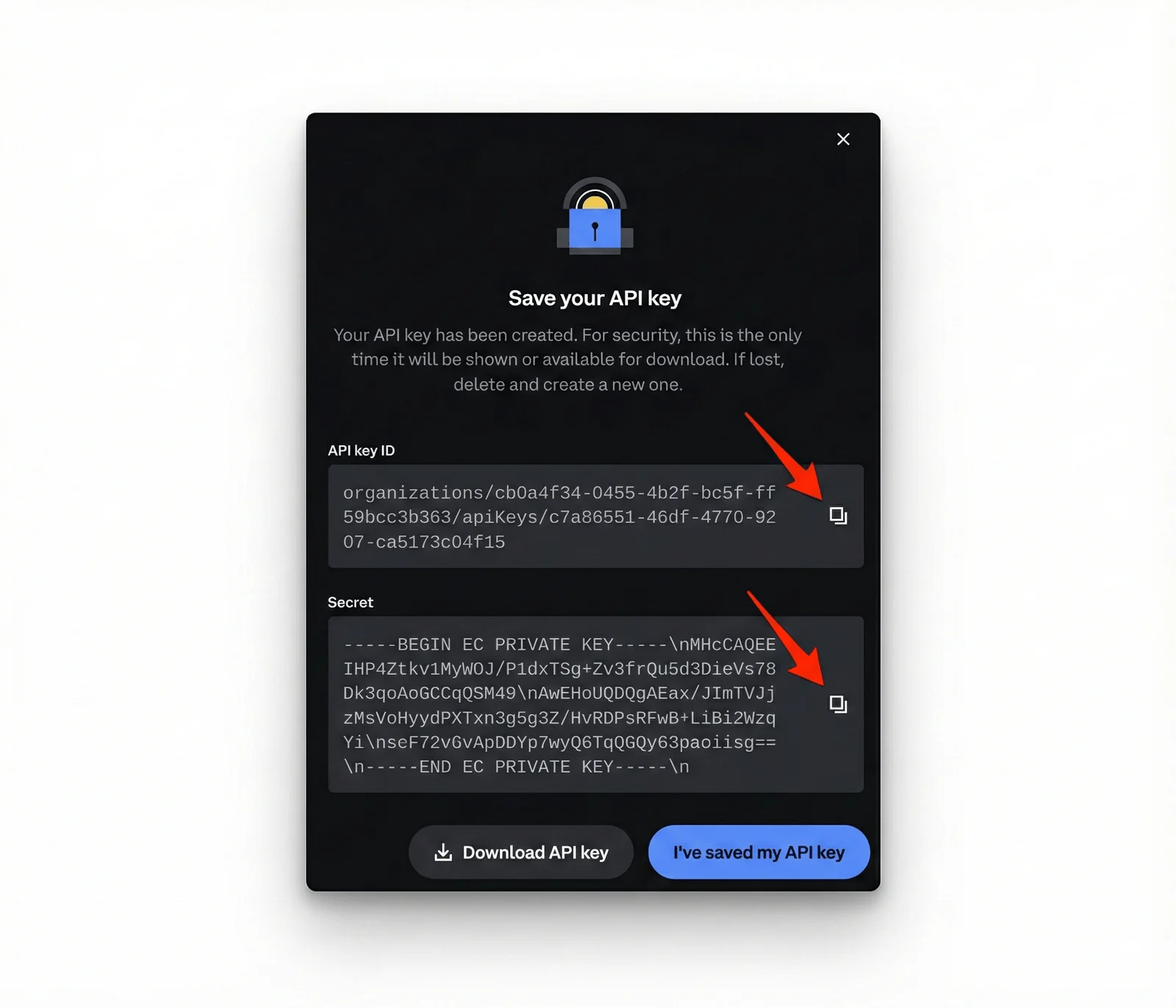
Once you click "Create" on the configuration screen, you will be presented with your final credentials.
-
This is the only time the Secret Key will be shown.
-
You will see an API key ID and a Secret (which is a long EC PRIVATE KEY block).
-
Use the copy icons, pointed to by the red arrows in the image below, to copy both credentials immediately and store them in a secure location, such as an encrypted password manager. You can also click Download API key to save a text file backup.
-
Do not share these credentials with anyone.
Once saved, input these credentials into your Gunbot configuration. Remember the potential 48-hour activation period for new keys.
Video Guide
The video below shows the general steps needed to create new Coinbase Advanced API credentials.
Ready to Start API Trading on Coinbase Advanced?
Transform your trading approach with automated strategies designed for Coinbase Advanced. Explore our Coinbase Advanced Trading Bot features for best performance.