Creating a dYdX v3 API Key for Trading Bots
This guide shows how to set up API access for dYdX, a decentralized exchange that uses MetaMask for authentication.
Understanding the dYdX Connection
dYdX generates API credentials automatically when connecting your MetaMask wallet. These credentials are stored in your browser's local storage.
Info
dYdX is a decentralized exchange (DEX) that allows users to trade perpetual contracts with leverage. Unlike centralized exchanges, users maintain custody of their funds via a connected wallet like MetaMask.
info
Wallet Requirements: Use a MetaMask wallet without a hardware wallet connection, as hardware wallets cannot sign the required messages.
info
Order Execution: dYdX uses 'fill or kill' for market orders - orders that can't be filled immediately are canceled. Trading strategies typically handle this by placing new orders at the next opportunity.
Step-by-Step dYdX API Setup
Step 1: Connect Your Wallet
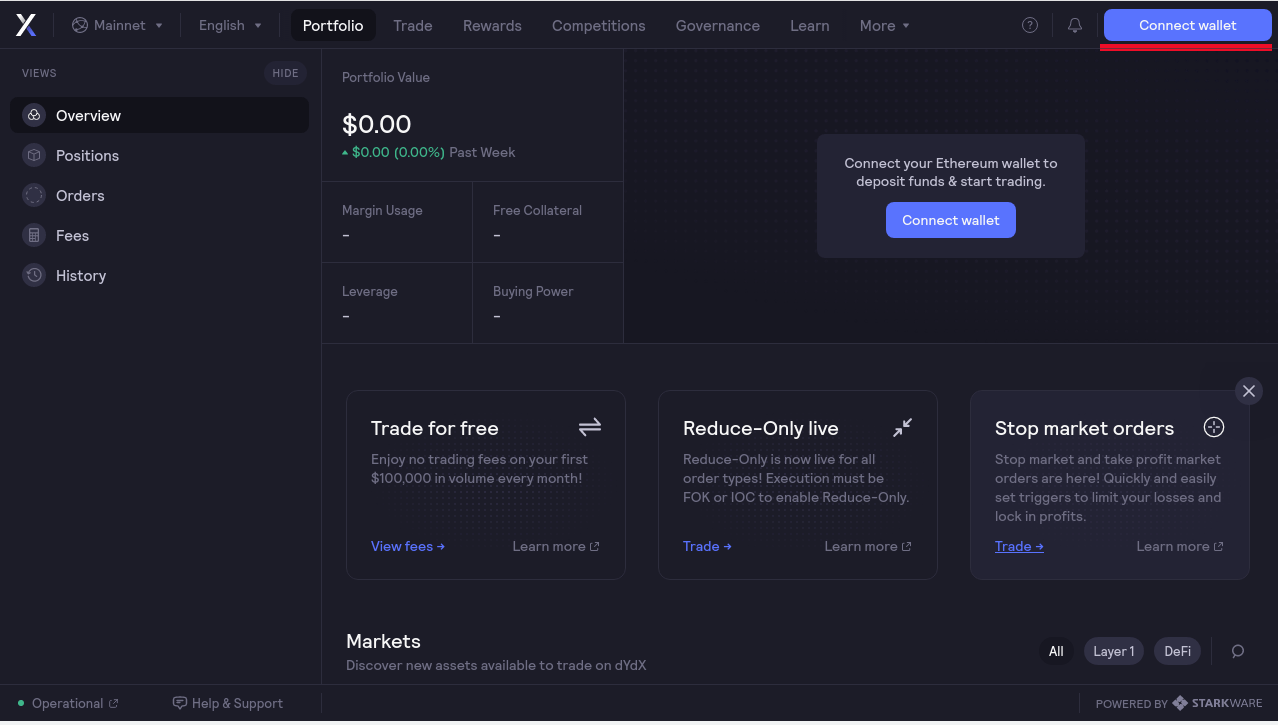
- Visit the dYdX trading platform
- Select 'Connect wallet'
Step 2: Choose MetaMask
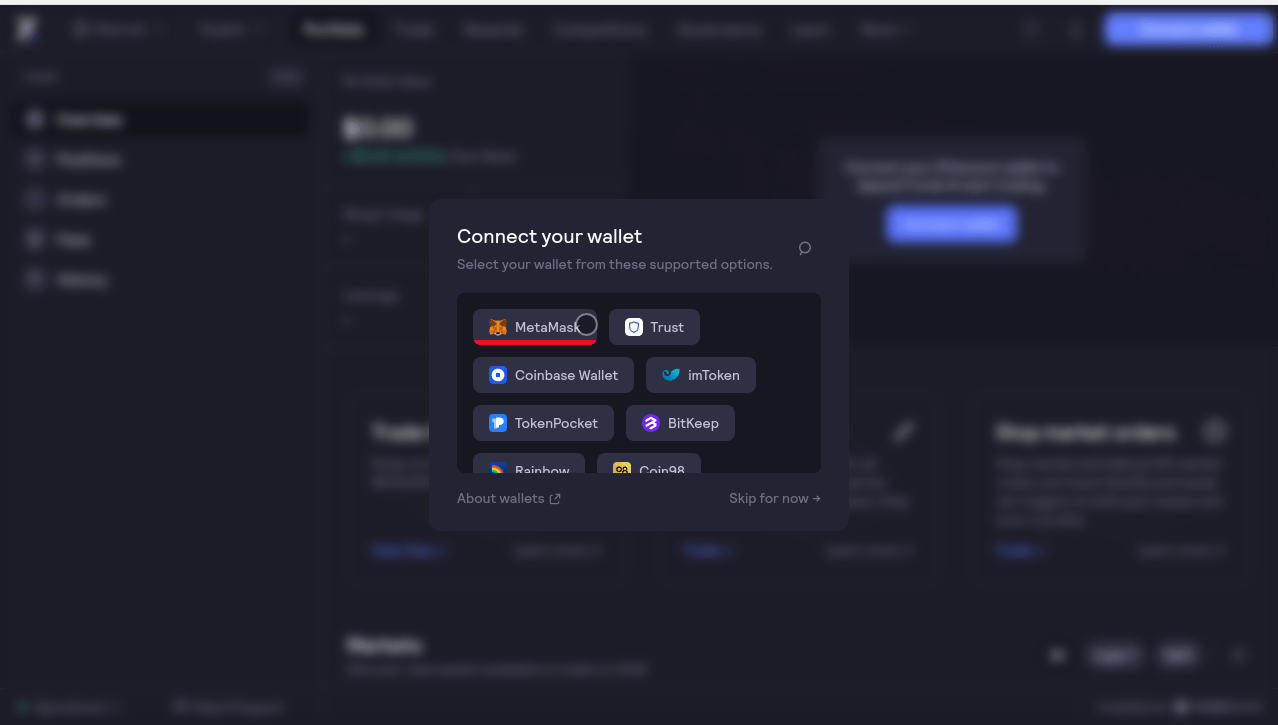
- Select the MetaMask option.
Step 3: Confirm Connection
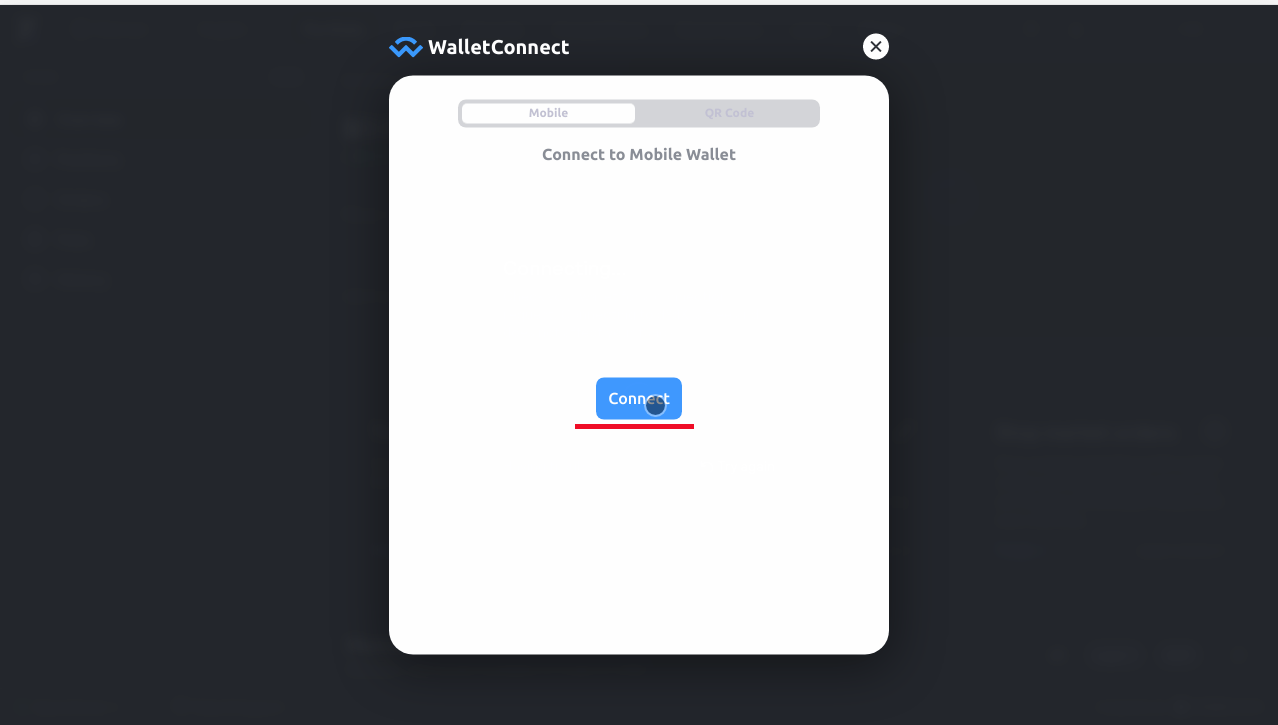
- Click 'Connect' to link your wallet.
Step 4: Authenticate with MetaMask
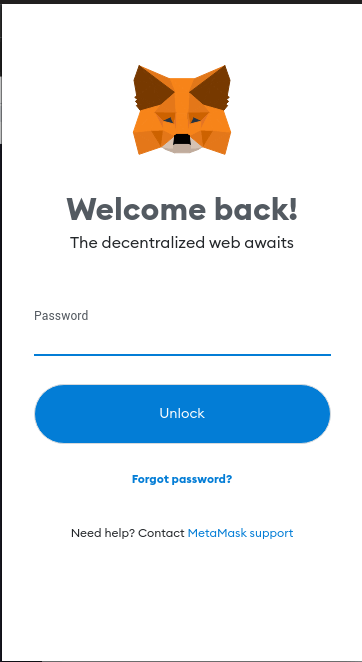
- Enter your MetaMask password.
- Complete authentication.
Step 5: Enable "Remember Me"
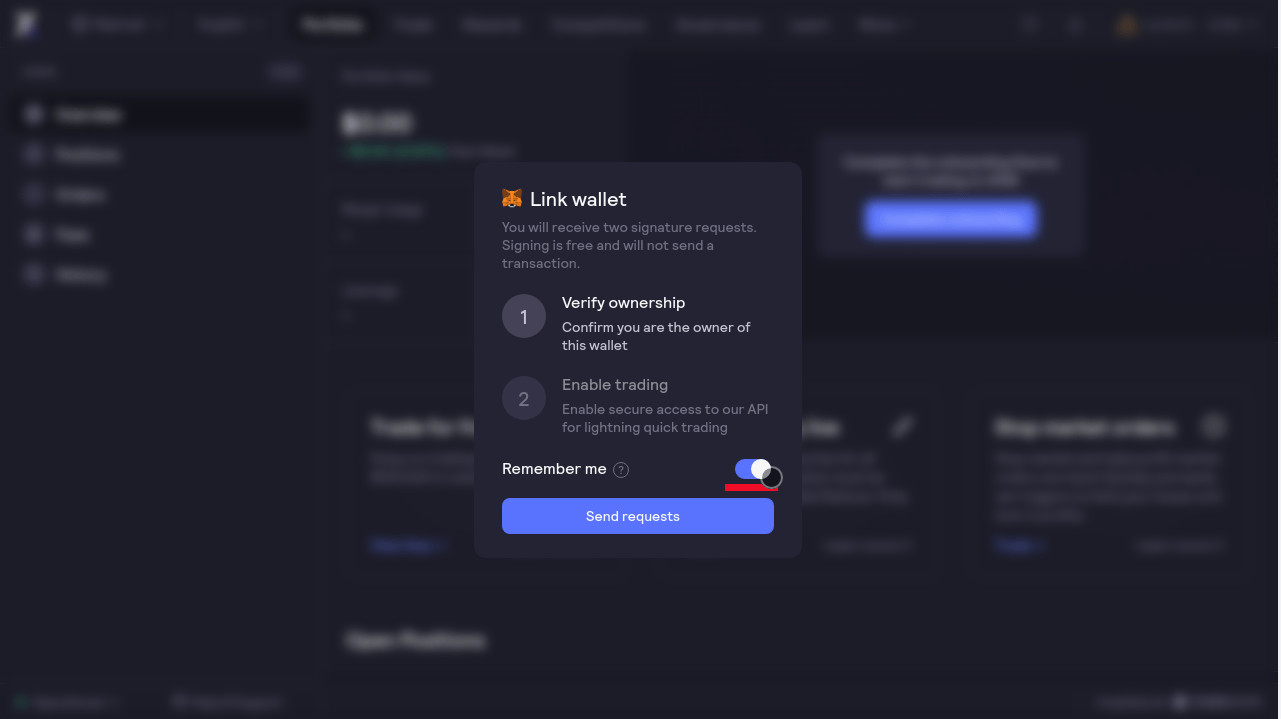
- Check 'Remember me'.
- Click 'Send requests'.
- Approve MetaMask prompts.
- Log out and back in to verify the connection.
Step 6: Export Private Key (Optional)
For Layer 2 position tracking:
- Open MetaMask settings.
- Select 'Account details'.
- Choose 'Export private key'.
- Store it securely.
Step 7: Access Local Storage
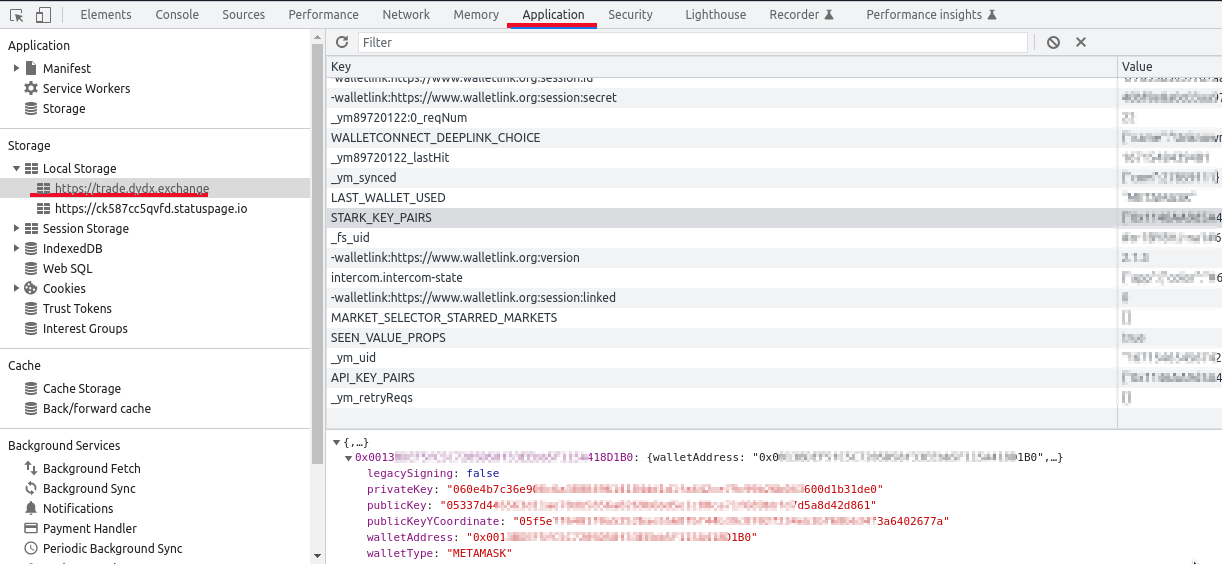
- Open developer tools (usually by pressing F12).
- Navigate to Local Storage.
Step 8: Save Stark Private Key
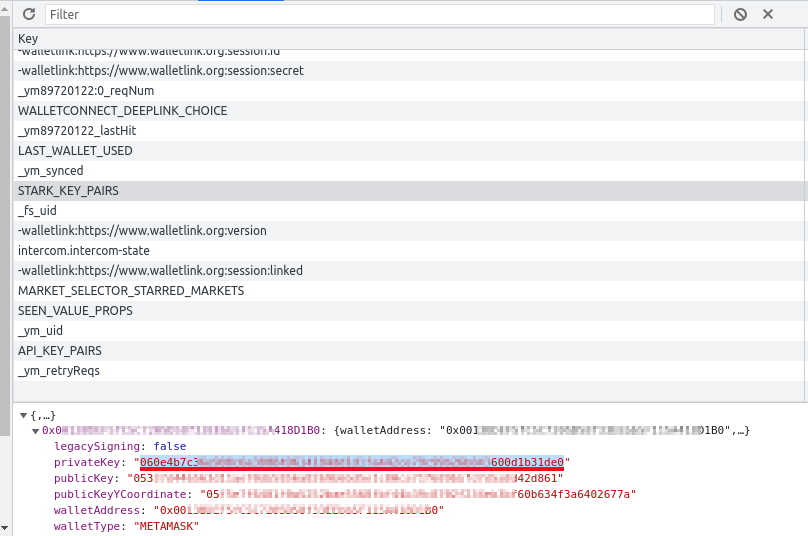
- Find 'privateKey' in 'STARK_KEY_PAIRS'.
- Save this key for transaction signing.
Step 9: Save Wallet Address
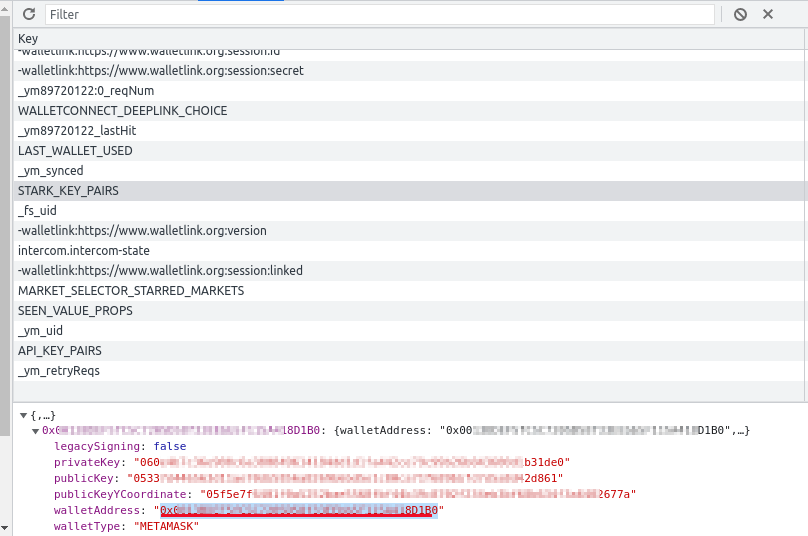
- Copy 'walletAddress' from 'STARK_KEY_PAIRS'.
Step 10: Retrieve API Key
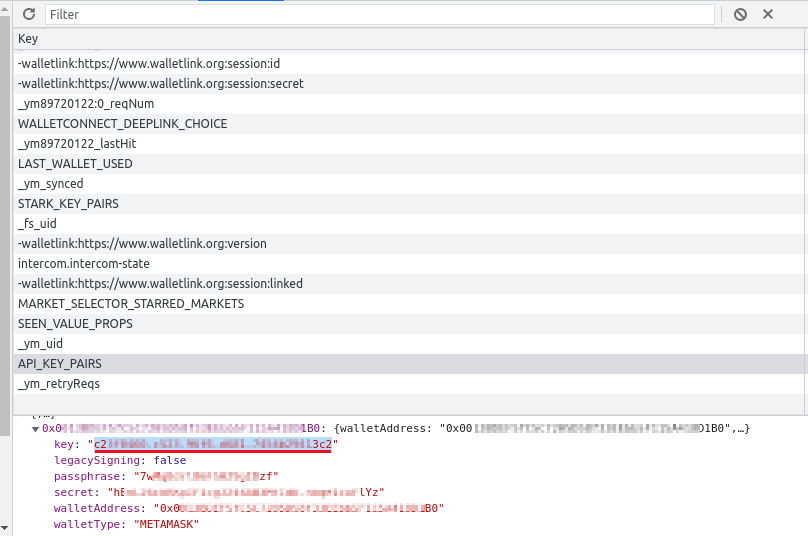
- Save 'key' from 'API_KEY_PAIRS'.
Step 11: Retrieve API Secret
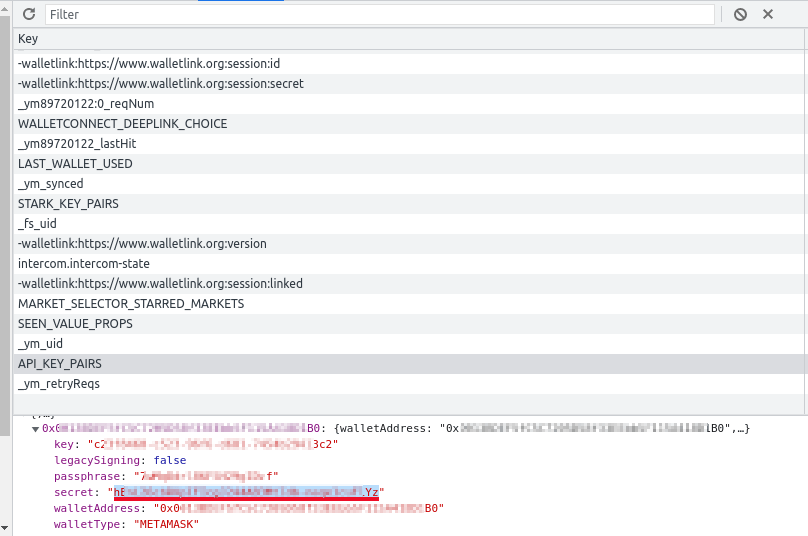
- Save 'secret' from 'API_KEY_PAIRS'.
Step 12: Retrieve API Passphrase
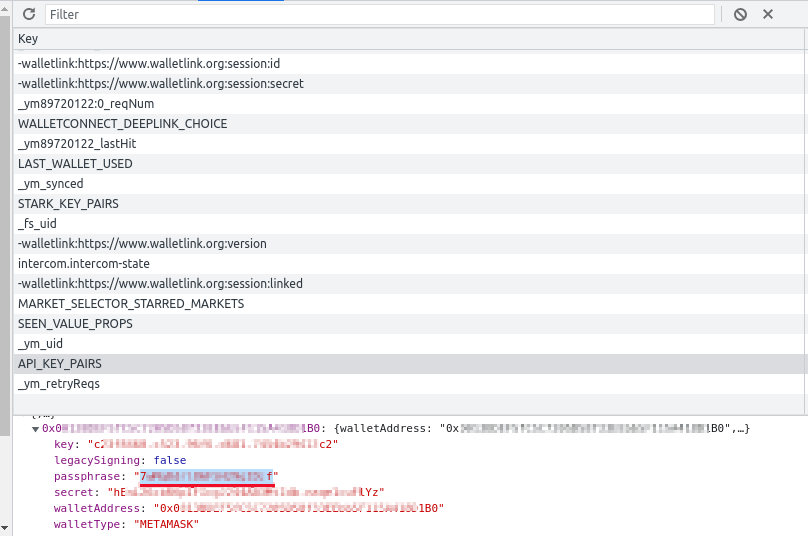
- Save 'passphrase' from 'API_KEY_PAIRS'.
Step 13: Configure Your Trading Bot
- Enter the saved credentials into your bot's API configuration.
- Verify the connection before trading.
Security Best Practices
- Clear browser data after setup.
- Store credentials securely.
- Never share API information.
- Regularly review permissions.
- Monitor account activity.
Your trading bot will encrypt and store these credentials securely in its configuration file.
Ready to Start Trading on dYdX?
Explore our dYdX Trading Bot features.