Set up ATAS X with Gunbot
Run Gunbot strategies on an ATAS X chart and follow their activity in Trading platforms → ATAS in Gunbot. You configure, start and stop the strategy in ATAS. The Gunbot dashboard shows strategy status, recent signals and simulated orders and positions. Strategies submit orders only to the ATAS Market Replay account, and only when you enable that setting.
The integration is included in Gunbot Unlimited. ATAS access and historical data are separate. If you want to study a signal in context, ATAS footprint charts show how much volume traded at each price within a candle.
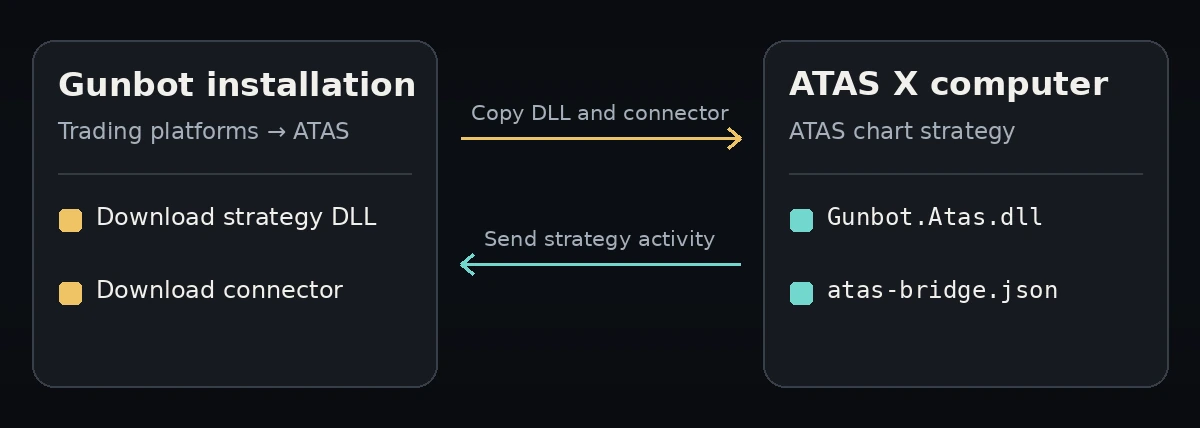
Before you start
- ATAS X on Windows or macOS, with access to Market Replay and historical data for your instrument. Check ATAS plans for Replay access.
- A running Gunbot installation with Trading platforms → ATAS and its connector download. Open the GUI served by that installation so it can generate the connection file and receive strategy updates.
Install the strategy DLL
-
In Gunbot, open Trading platforms → ATAS and click Download Gunbot.Atas.dll. You can also download the ATAS X DLL directly. Classic ATAS on Windows requires a separate build.
-
Copy
Gunbot.Atas.dllinto the Strategies folder for your operating system. Create it if needed and replace any older copy of the DLL.ATAS X runs on Strategy folder macOS ~/Library/Application Support/ATAS/Strategies/Windows %APPDATA%\ATAS X\Strategies\On macOS, use Finder → Go → Go to Folder. On Windows, paste the path into the File Explorer address bar.
-
Reopen the chart's strategy list. Look for entries that start with Gunbot. If they are missing, check the ATAS log for a DLL load error.
Connect ATAS to Gunbot
-
Sign in to the Gunbot GUI. When both apps run on the same operating system, open Gunbot on
http://127.0.0.1:3012with your actual GUI port. If ATAS runs on another computer or in a VM, use an HTTPS address it can reach with a certificate it trusts. A VM's loopback address points to the VM itself. -
In Trading platforms → ATAS, click Download connector or Download connector again. The downloaded file is
atas-bridge.json. -
Save it at the path below on the machine or VM running ATAS. Create the Gunbot folder if needed. The file contains a private credential. Keep it out of screenshots, shared logs and messages. If the Gunbot address changes, download a fresh connector and replace the old one.
ATAS X runs on Connector file macOS ~/Library/Application Support/Gunbot/atas-bridge.jsonWindows %APPDATA%\Gunbot\atas-bridge.json
Run a signals-only session
- Open a 2-minute chart with UTC feed timestamps and load at least 20 bars. Use an instrument with Replay history.
- In Market Replay, select a historical period. In the chart's Trading Panel, select the Replay account.
- From the chart's strategy list, add Gunbot EMA / VWAP. Leave Send orders in Market Replay off. Start the strategy in ATAS and press Play in Market Replay.
- In Gunbot, check for Connected and a running strategy instance for the instrument. A qualifying crossover appears in the ATAS log and in Recent signals in Gunbot. The strategy can stay connected while it waits for a setup.
Check simulated orders and fills
- Pause playback. In ATAS, check that the Replay instrument has no open position or working orders.
- Stop the strategy. In its Execution settings, enable Send orders in Market Replay and check the order quantity. Restart the strategy and resume playback.
- When an order fills, check the filled quantity in Simulated orders and the average entry price in Replay position. Follow the session through an exit and confirm the position returns to flat. A limit entry, such as one from MarketMaker, can expire without a fill.
- Before stopping the strategy, check that the Replay position is flat and no working orders remain in ATAS. Stop, target and trailing levels are managed by the running strategy. If you stop while a position is open, review working orders and close any remaining Replay position in ATAS before restarting.
Strategies and chart requirements
| Strategy | Chart and data to check |
|---|---|
| EMA / VWAP | Use 2-minute candles with UTC timestamps and at least 20 bars. It looks for EMA9 and VWAP crossovers during the developing candle. VWAP resets at 5 p.m. Chicago time. |
| Meeks | Use 2-minute candles with UTC timestamps. Check the session and strategy date filters against the Replay period. Some Markov configurations can use up to 35,000 bars. |
| Runner Guard | Use 2-minute candles with UTC timestamps, bid/ask volume and enough history for at least 21 completed hourly bars. The optional GEX feed is unavailable in this integration. |
| Confluence Edge | Start with a 610-tick chart and enough history for at least 56 completed 5-minute bars. The strategy builds those bars from chart data, so the result can differ from a separate 5-minute series. |
The DLL also includes these profiles:
- Grid profiles: GridBot, GridBotAdvanced, StepGrid, SpotGrid, SpotGridAdvanced, StepGridHybrid, StepGridScalp, FuturesGrid and StepGridHedge.
- Classic Gunbot profiles: Builder, BuilderFutures, Tenkan, MarketMaker, MarketMakerFutures and SgsFutures.
The grid and classic profiles use adapted Gunbot logic with one net position per instance. Exchange-native grids, independent long and short positions, and custom JavaScript strategies are outside the ATAS integration.
Troubleshooting
| What you see | What to check |
|---|---|
| Gunbot strategies are missing in ATAS | Check the DLL edition and Strategies folder. Reopen the chart strategy list and look for load errors in the ATAS log. |
| Waiting for ATAS or Disconnected in Gunbot | Start the strategy in ATAS. Check the connector filename and folder. From the ATAS machine, confirm the Gunbot address is reachable. If it changed, download the connector again. |
| Connected with no signals | Confirm Replay is playing, the chart has enough history, and the Replay period fits the strategy's session and date filters. |
| Signals with no simulated orders | Check the Replay account, Send orders in Market Replay, and quantity. Look for an existing position or working orders on the same instrument. |
| Instrument tick value is missing | Set Point value override to the monetary value of a one-point move per contract. If the Replay balance is unavailable, the strategy uses the configured starting equity. |