Set up MetaTrader 4 or 5 with Gunbot
Use Gunbot automated trading strategies with your MetaTrader account. The strategy engine runs in Gunbot; GunbotBridge, an Expert Advisor (EA), sends terminal data to Gunbot and submits broker operations from MT4 or MT5.
Both integrations are included in Gunbot Unlimited and the current Gunbot downloads. Start with a demo account so you can check the connection, strategy settings and execution before using a real account.
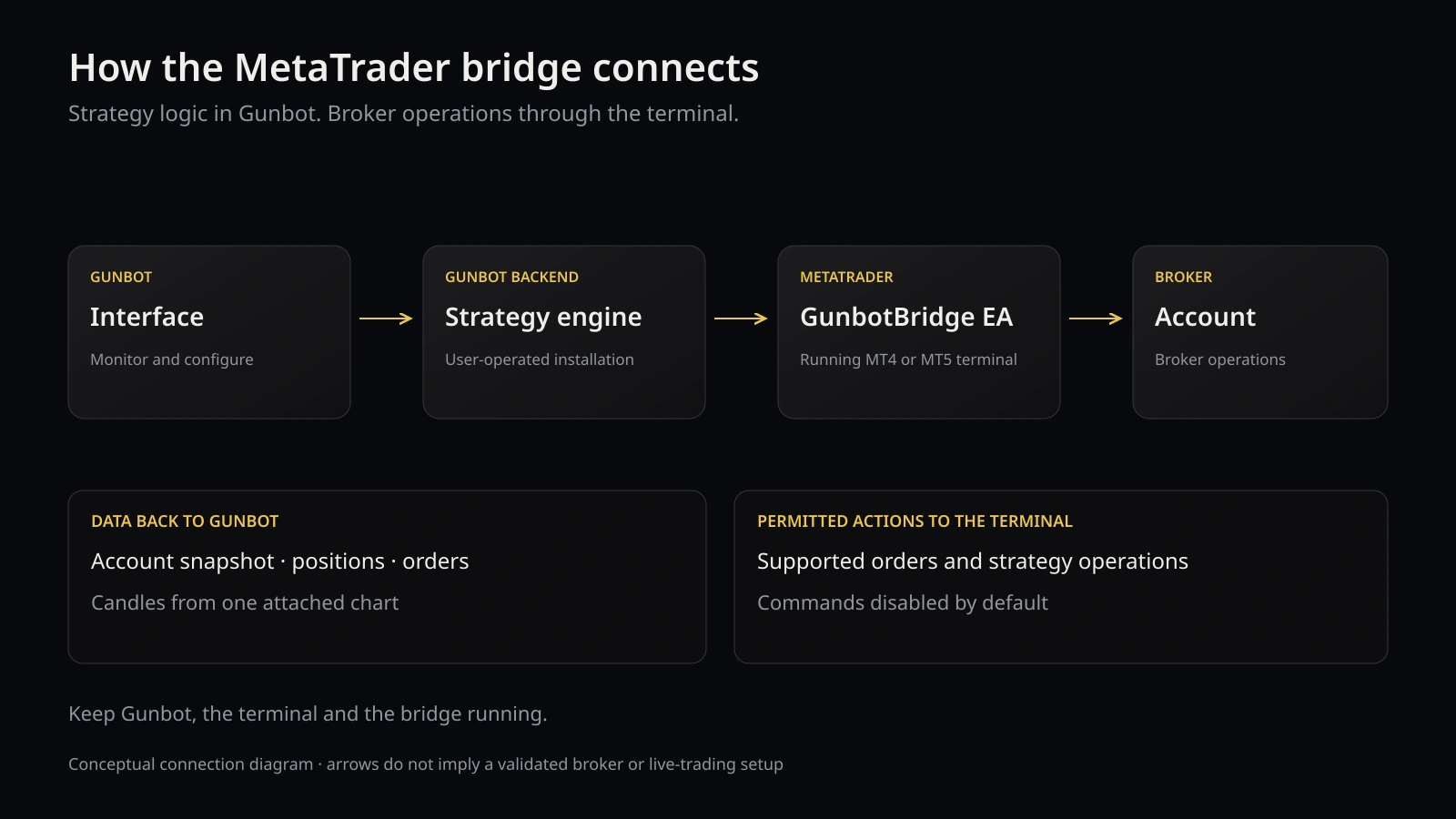 Conceptual connection diagram. Account and chart data return to Gunbot; the terminal submits broker operations.
Before you start
You need a running Gunbot installation, access to its interface, MetaTrader 4 or 5 desktop signed into your broker account, and one dedicated chart for the bridge. Broker access and any platform/data costs are separate from Gunbot.
Keep Gunbot, the terminal and the bridge chart running. You can close the browser after setup. Opening the hosted Gunbot workspace alone does not supply the local connection gateway.
Choose where Gunbot runs:
Then install the matching MT4 or MT5 bridge and configure a strategy.
Connect on the same Windows computer
- Start Gunbot and MetaTrader, and sign in to your demo account in MetaTrader.
- Open MT4/5 in Gunbot. The sidebar may call it MetaTrader 4 / 5.
- Choose MT4 or MT5 to match your terminal.
- Set the Gunbot connection address to your local Gunbot address followed by
/api/metatrader/bridge. For the usual port, this ishttp://127.0.0.1:3012/api/metatrader/bridge. Use your actual port if different. - Click Set up MetaTrader, or Save connection if already configured.
- Click Download MT4 bridge or Download MT5 bridge.
The downloaded EA contains a private connection credential. Keep it private; do not share it with screenshots or logs. Continue with the matching EA installation below.
Connect from another host or a VM
Gunbot can run on Linux, macOS or a different computer from the terminal. Download the bridge from Gunbot and install it in the MetaTrader terminal that will execute operations.
- Open Gunbot from a browser on the terminal computer and confirm that you can sign in.
- Set Gunbot connection address to a reachable HTTPS address ending in
/api/metatrader/bridge, such ashttps://gunbot.example.com/api/metatrader/bridge. - Save the connection and download the correct MT4/MT5 bridge again.
- Install that download in MetaTrader and allow its server origin for WebRequest as described below.
Use a trusted HTTPS certificate for remote connections. localhost and 127.0.0.1 refer to the computer or VM running MetaTrader, not a separate Mac/Linux host. Being able to open a browser page does not move the Gunbot backend into the VM.
Install the bridge EA
MetaTrader 4
- In MetaTrader, choose File → Open Data Folder.
- Put the downloaded
GunbotBridge.mq4inMQL4/Experts. - Press F4 to open MetaEditor, open the bridge file and press F7 to compile. Confirm 0 errors.
- Return to MetaTrader and refresh the Navigator → Expert Advisors list if needed.
MetaTrader 5
- Choose File → Open Data Folder.
- Put
GunbotBridge.mq5inMQL5/Experts. - Open the file in MetaEditor and compile with F7. Confirm 0 errors.
- Return to Navigator → Expert Advisors.
The configured download includes the common adapter; ordinary installation does not require a separate .mqh file. Use the bridge for your actual terminal: an MT4 EA is not an MT5 EA.
Allow the connection and attach the bridge
- Open Tools → Options → Expert Advisors in MetaTrader.
- Enable Allow WebRequest for listed URL and add the server origin, including protocol and port, but without
/api/metatrader/bridge. For the local example, addhttp://127.0.0.1:3012. - Open a dedicated chart for your intended symbol and timeframe.
- Attach GunbotBridge from Navigator to that chart and accept its inputs.
Do not replace another trading EA on its chart. One terminal and one attached chart connect to each gateway. WebRequest does not run in MetaTrader's Strategy Tester; this connection is for the running terminal.
Check the connection
Return to Gunbot and check that the bridge is connected. Compare the account login and broker server, balances, positions and pending orders with MetaTrader. Open MT4/5 Chart, or choose the symbol under MT4/MT5 in the Chart market list.
Checkpoint: the intended symbol is present and the candle count is greater than zero. Candles follow the attached chart's timeframe and use broker time. Monitoring does not require a separate trading strategy; terminal AutoTrading/Algo Trading can remain off for this check.
If the account or candles do not match, use the troubleshooting table before enabling orders.
Choose and enable a Gunbot strategy
Choose a supported strategy and its chart period. If you already use Gunbot, StepGrid, SpotGrid and StepGrid Scalp are familiar names in the catalog. Review the MetaTrader edition’s settings and lot sizing before using it on your account. Specialist profiles have additional chart requirements, listed below.
- Reserve the chart symbol for this strategy. Do not mix manual trading or another EA on the same symbol while it manages a position.
- In the EA inputs, set
BrokerUtcOffsetMinutesto the broker history's actual UTC offset, then setConfirmBrokerUtcOffset=true. This is the broker's history timezone, not your computer timezone. - Set
AllowCommands=true, and bindAllowedLoginandAllowedServerto the exact account login and server shown in Gunbot. - Set
MaximumOrderLotsandSlippagePointsfor your intended test. Enable terminal AutoTrading/Algo Trading and the EA's own trading permission. A non-demo account additionally requiresAllowLiveCommands=true. - In Gunbot, choose the strategy while entries are paused. Review its settings, Lots per strategy unit, Maximum lots and a unique positive Magic number.
- Click Review configuration, inspect the values and confirm the save.
- Separately click Enable saved strategy and complete its confirmation. Saving a configuration does not start it.
- Follow its status and compare the resulting demo orders, protective levels and exits with the terminal account history.
A strategy unit is multiplied by Lots per strategy unit to produce broker lots. It is not automatically one lot. Broker minimum/maximum/step and the configured maximums still apply. Monetary limits use account currency per strategy unit.
Available profiles and important differences
| Family | Profiles |
|---|---|
| Classic Gunbot strategies | GridBot, GridBotAdvanced, StepGrid, SpotGrid, SpotGridAdvanced, StepGridHybrid, StepGridScalp, FuturesGrid, StepGridHedge, Builder, Tenkan, BuilderFutures, MarketMaker, MarketMakerFutures, SgsFutures |
| Specialist | EmaVwap, ConfluenceEdge, RunnerGuard, Meeks |
These are platform-specific strategy implementations. They do not import arbitrary custom JavaScript or reproduce every aspect of the crypto runtime's inventory, DCA, hedge or market-making behavior.
- EmaVwap: use two-minute bars. MT4 needs a maintained offline M2 chart/period converter; M2 is not a standard online MT4 timeframe.
- ConfluenceEdge: this bridge uses broker time bars and a tick-volume proxy, not NinjaTrader's native 610-tick/volumetric input. Set
UseVolumetricDelta=falsefor this adaptation. - RunnerGuard: external GEX and true signed historical delta are not supplied. Set
UseGammaConfluence=false; leavingUseOrderFlow=trueblocks entries through the missing-data guard. Set it false only when choosing the non-order-flow variant deliberately. - Meeks: M5 bars, sufficient broker history and the correct broker UTC offset matter. Check history coverage before interpreting a missing signal.
Manual controls
The integration also offers market/limit/stop entries, full closure of a position ticket, pending-order cancellation and SL/TP editing. New entries require a positive protective stop; TP can be zero. Partial manual closure and stop-limit entries are not offered.
Review the account, symbol, volume, ticket and protection before typing the requested action:login@server confirmation. Accepted means submitted, not filled. Check terminal orders, positions and history for the actual outcome.
Pause, disconnect and recover
Pause entries stops new strategy entries; it is not a command to close every position. Broker-held stops/targets may remain at the broker, while Gunbot-managed trailing and software exits need the backend and bridge connection.
A restart or bridge-session change pauses entries. Gunbot does not automatically adopt pre-existing strategy positions after restart. If a command becomes unknown, inspect the account before doing anything else; it is not automatically resent. Resolve remaining positions/orders and history, then use Reset after reconciliation only once all strategy tickets are closed. That reset also clears in-memory strategy risk counters.
Troubleshooting
| Symptom | Check | Next action |
|---|---|---|
| Bridge disconnected | Correct backend address, terminal running, WebRequest origin | Read MetaTrader's Experts log, including the latest bridge HTTP response |
| No symbol or candles | EA attached to dedicated chart; terminal history available | Compare symbol/timeframe and inspect the bridge log rather than waiting indefinitely |
| Commands disabled | AllowCommands, login/server binding, terminal and EA permissions | Correct the actual account permissions; a live account also needs AllowLiveCommands |
| Order rejected | Lot minimum/step/maximum, protective stop and broker constraints | Review the rejection and terminal state before changing the order |
| Strategy saved but paused | Save and enable are separate | Review the saved values, then confirm Enable saved strategy |
| Unexpected session/history behavior | Broker UTC offset and history coverage | Correct the broker-history offset and reconcile the strategy before restarting entries |
Related reading
See the MetaTrader integration overview for the commercial feature and Gunbot Unlimited for the wider toolkit. For the operating-model explanation, read how the MT4/MT5 workflow differs from a standalone EA.