Set up NinjaTrader 8 with Gunbot
Run Gunbot automated trading strategies inside NinjaTrader 8 and follow their activity from Gunbot. NinjaTrader executes the strategies and broker operations; the bridge publishes their account, order and chart information to Gunbot.
The integration is included in Gunbot Unlimited and the current Gunbot download. Start with Sim101 to check the account, instrument, strategy and controls.
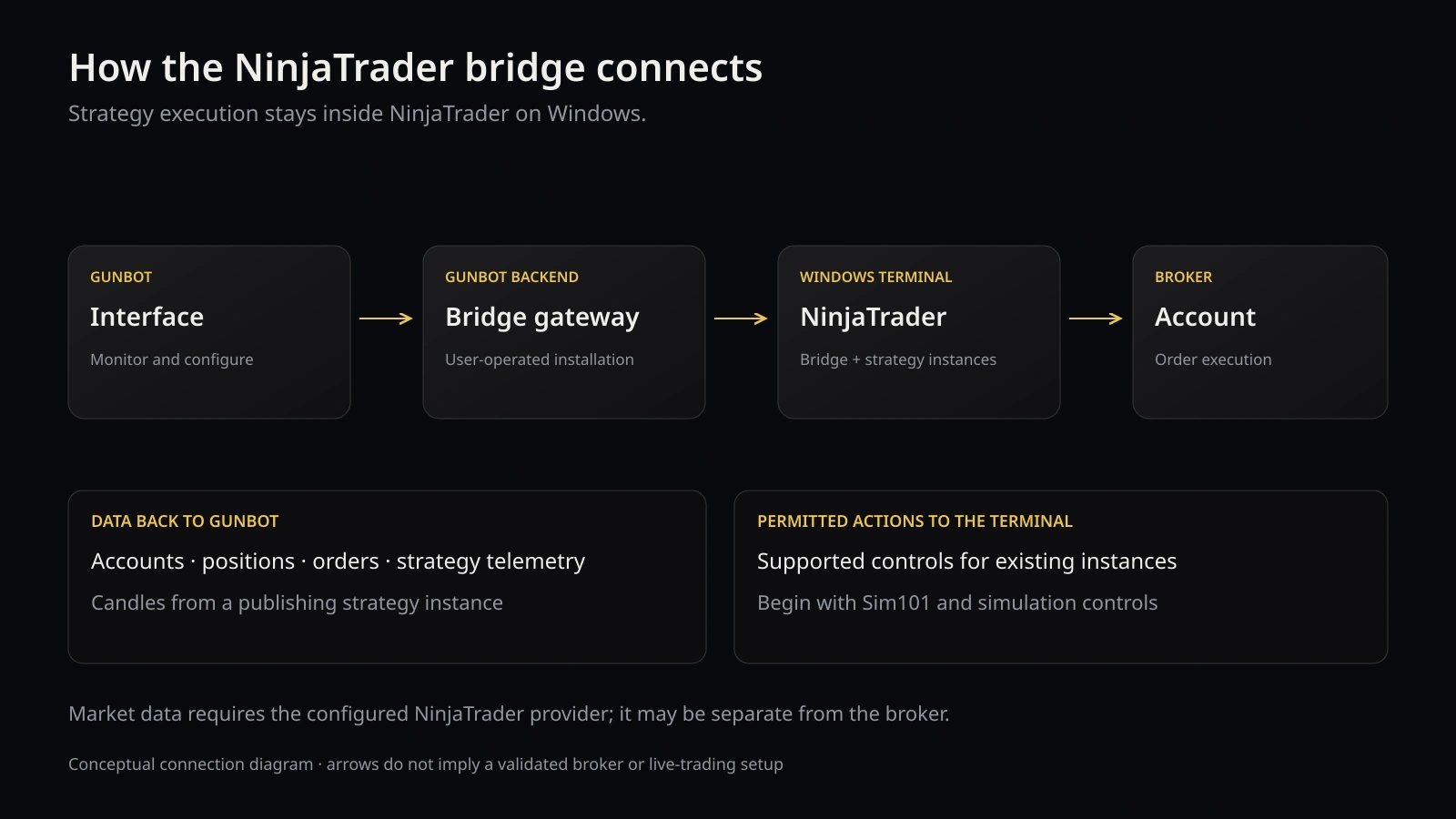 Conceptual connection diagram. NinjaTrader runs the strategy; its data provider may be separate from the broker.
Before you start
You need NinjaTrader Desktop on Windows, Gunbot running, a configured account and a data connection for the instruments you want to use. Broker/platform/data access is separate from Gunbot. The hosted Gunbot website alone does not provide the local bridge gateway.
Choose where Gunbot runs:
NinjaTrader Desktop still runs on Windows in either arrangement. A Windows VM and its Mac host are separate computers for connection purposes.
Start on the same Windows computer
- Start NinjaTrader and connect your account/data source.
- Start Gunbot on the same Windows setup.
- Open NinjaTrader in Gunbot and check the connection and account selector. The current Windows setup handles the local connection automatically.
- Select the actual simulation account, normally
Sim101, and compare it with NinjaTrader's Accounts tab.
Checkpoint: Gunbot reports a connected bridge and the intended account. Starting the applications does not by itself create a trading account, choose a market-data provider or add a strategy to a chart.
If this is not connected, open Connection options, check NinjaTrader runs on this Windows account and use Set up NinjaTrader or Save connection. Automatic local configuration applies to the Windows user running the terminal. For an existing/manual installation, follow the recovery bridge instructions below.
Use Gunbot on another host
If Gunbot runs on Linux, macOS, another Windows computer or under a different Windows user, download its connector for the computer running NinjaTrader:
- In Gunbot, open NinjaTrader → Connection options.
- Set Gunbot connection address to a reachable HTTPS address ending in
/api/ninjatrader/bridge, such ashttps://gunbot.example.com/api/ninjatrader/bridge. - Set NinjaTrader accounts to the exact names available in the terminal, such as
Sim101. Separate multiple names with commas. - Clear NinjaTrader runs on this Windows account if the terminal is elsewhere, then save.
- Click Download Windows connector and open
Connect-Gunbot-NinjaTrader.cmdin the Windows account that runs NinjaTrader. It saves the bridge connection settings. - Keep the NinjaTrader bridge running and return to Gunbot to verify the account.
The connector contains a private credential. Keep it private, and download/run a fresh connector when changing the host, address or account configuration. In a VM, localhost means the VM, not its Mac/Linux host. Remote connections use HTTPS with a trusted certificate; same-machine loopback can use local HTTP and the actual Gunbot port.
Manual bridge install or recovery
Use this path when a bridge is not installed, when updating an older installation or when the automatic setup needs recovery:
- In Gunbot, click Download NinjaTrader bridge.
- Leave the ZIP intact. In NinjaTrader Control Center, open Tools → Import → NinjaScript Add-On and select the download.
- Finish the import and restart NinjaTrader.
- If using a source import, compile in New → NinjaScript Editor and read any actual compiler errors. Do not install both source classes and a compiled DLL containing the same classes.
The download provides a compiled package when available and a source import package otherwise. Use the import package, not a developer -source.zip as though it were an Add-On archive. Keep the bridge and strategies from the same package when updating.
Verify accounts and data
In NinjaTrader, check Control Center → Accounts for the intended account and Connections for the data source. Sim101 is an account, not a data feed. Typing its name in Gunbot does not create it.
If available, Simulated Data Feed supplies generated test prices for checking the setup; those prices do not represent the real market. A configured broker/data-provider connection supplies the data access for your instruments. An end-of-day feed is not streaming intraday data.
In Gunbot, select the account and compare cash/equity, positions and orders. A connected bridge with no accounts usually needs an exact account-name/allowlist check. A disconnected bridge needs a connection check first.
Run a Gunbot strategy in Sim101
- In NinjaTrader, open the instrument's chart with the bars and trading-hours template required by the strategy.
- Right-click the chart, open Strategies and choose the relevant
GB...strategy. - Select
Sim101. Review quantity, protection and strategy settings before allowing orders. - Enable the NinjaTrader strategy instance so it runs and publishes telemetry. The instance's Enabled checkbox is different from its Enable orders setting; you can publish data while keeping order entry off.
- In Gunbot, verify the same account, instrument and strategy instance.
- Use Open … in Chart to inspect its published candles. In Chart, use Source to select the exact account/instance if more than one reports the instrument.
- Once the monitoring check is complete, enable strategy entries through the appropriate strategy setting/control and observe the Sim101 orders and exits.
Create/remove instances and choose chart data series inside NinjaTrader. The Gunbot page controls existing published instances; it does not create a chart strategy for you.
Strategy and chart compatibility
| Family/profile | Primary chart / context |
|---|---|
| GBMeeks | 5 Minute |
| GBEmaVwap | 2 Minute |
| GBConfluenceEdge | 610 Tick; 5 Minute secondary context |
| GBRunnerGuard | Minute bars; 60 Minute secondary context |
| Classic Gunbot strategies | Minute bars; inspect the selected profile's settings |
Classic Gunbot strategies include GBGridBot, GBGridBotAdvanced, GBStepGrid, GBSpotGrid, GBSpotGridAdvanced, GBStepGridHybrid, GBStepGridScalp, GBFuturesGrid, GBStepGridHedge, GBBuilder, GBTenkan, GBBuilderFutures, GBMarketMaker, GBMarketMakerFutures and GBSgsFutures.
These are NinjaTrader implementations of Gunbot strategy profiles. They do not embed arbitrary Gunbot JavaScript or exactly reproduce crypto-specific DCA inventories, simultaneous market-maker ladders or hedge accounting. Similar names across platforms do not guarantee identical signals or trades. Review the native instrument's tick size, point value, contracts and session; do not reuse MetaTrader lot-unit assumptions.
Enable simulation controls
In Gunbot Connection options, select Allow simulation controls and save. On another computer/user, update the connector if the settings changed. This switch does not enable live-account permissions or override the strategy's own account guards.
| Action | What it does |
|---|---|
| Pause new entries | Stops new strategy entries; existing orders and positions remain active |
| Enable new entries | Allows entries for that instance, subject to its native guards |
| Cancel order | Requests cancellation of the selected order |
| Close position / flatten | Closes the selected account/instrument position and cancels its orders; can affect manual or other-strategy activity |
| Apply parameter | Changes an offered numeric/boolean parameter on the current instance |
Pause new entries and make the strategy flat before applying parameter changes. Save permanent templates/defaults inside NinjaTrader. Confirm each action with the requested account name and check the resulting account state. Accepted means submitted to NinjaTrader, not a confirmed fill or closure.
Flatten does not disable strategies: a running strategy can enter again afterward. Pause relevant entries before flattening when that is your intention.
Disconnect and recover
Keep Gunbot, NinjaTrader and the bridge running. Disconnect view stops browser polling; it is not proof that the terminal bridge stopped. On stale data the controls are unavailable.
If a command times out or a bridge session changes, unresolved operations can become unknown. They are not automatically sent again. Compare the terminal's actual positions, orders and history before retrying or enabling more entries. Strategy/session behavior remains under NinjaTrader's control.
Troubleshooting
| Symptom | Check | Next action |
|---|---|---|
| No connection on Windows | Same user, Gunbot address, bridge installation | Save the local connection or use the manual bridge recovery path |
| Bridge connects but account list is empty | Exact account names in NinjaTrader versus allowlist | Update the account list and remote connector if needed |
| Account appears but no candles | Running GB instance, correct account, chart data | Enable the instance for telemetry; inspect NinjaTrader's Log and data connection |
| Wrong chart/source | Instrument plus account/instance | Select its exact Chart source; accounts' candles are not merged |
| Import/class conflict | Duplicate source and compiled DLL classes | Use one current package; inspect the compiler's named error |
| Controls disabled | Account connected, simulation switch, native guards | Correct the relevant permission; simulation does not grant live access |
| VM/remote host cannot connect | Address reachable from Windows, trusted HTTPS | Replace a host-local address with the actual reachable Gunbot address |
Related reading
See the NinjaTrader integration overview and Gunbot Unlimited. For help selecting a profile, read choosing a Gunbot strategy for NinjaTrader 8.