Use Gunbot Agents
Gunbot Agents works with the selected Gunbot instance and its trading context. You can review recorded activity, investigate reported issues, prepare pair settings and develop custom JavaScript strategies without moving between unrelated tools.
The useful difference from a separate AI chat is the connection to Gunbot: agents can use filtered pair state, recorded orders and public parameter descriptions, then prepare something you can open in the settings editor, Add Pair, Code Editor or Backtesting.
Open Agents on your bot
In Gunbot Live, select the Gunbot instance you want to work with, then open Agents. Check the selected pair when your question concerns a particular market. Use All pairs for a broader overview where the workflow supports it.
Use a current Gunbot backend and matching workspace. If the interface reports that the backend is outdated or Agents is unavailable, update the selected Gunbot installation using the update guide.
Connect an AI provider
- Open Agent settings using the settings button.
- Choose OpenAI, Other provider (custom URL) or Local model server, as appropriate for your provider.
- For a custom endpoint, enter its API base URL. The official OpenAI address is filled in automatically when OpenAI is selected. A local model server must be reachable from the computer running the Gunbot backend.
- Enter your provider API key when required, then choose Load models.
- Select a model that supports function calling and choose Save settings.
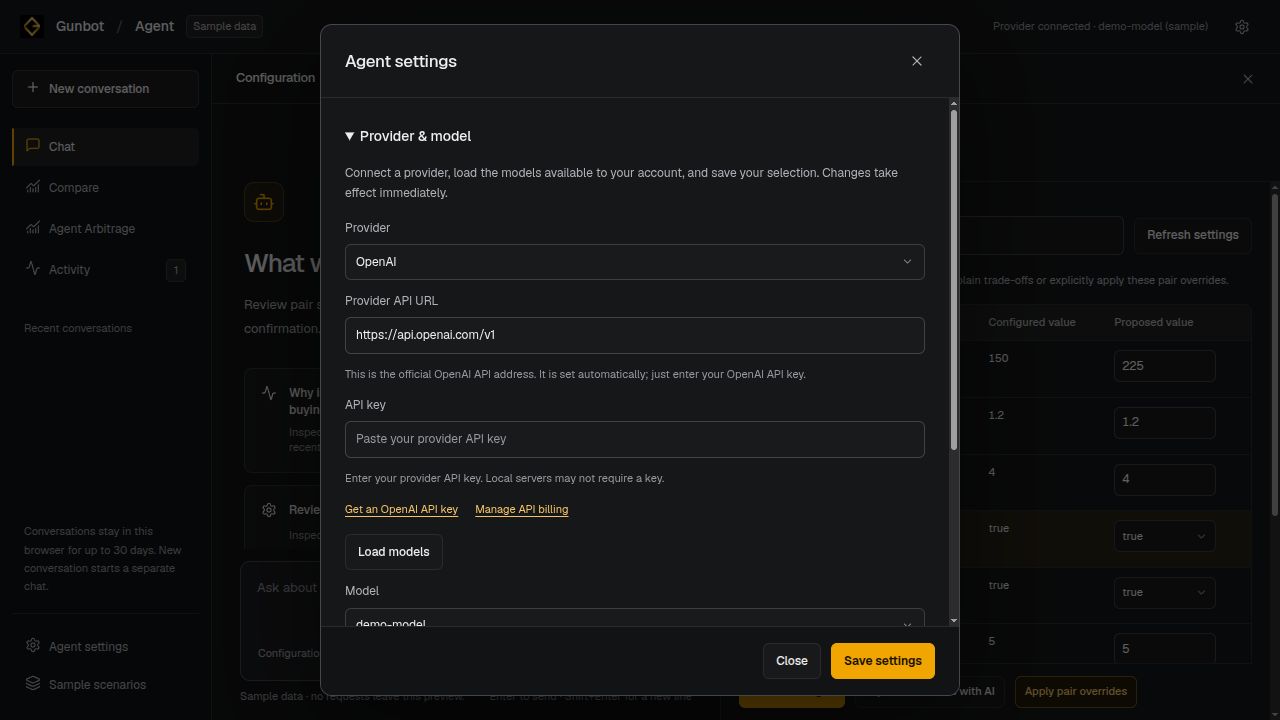
Provider API usage may incur separate charges. The provider determines model access and usage costs. Local model servers may not require an API key, but they still need a compatible model and endpoint.
The provider key is stored on the selected Gunbot server and is not returned to the browser. When you send an AI request, your text and filtered evidence from the selected context go to that provider. Explicitly attached custom code and backtest details are included in the relevant strategy conversation. Exchange-secret custody and AI request context are separate concerns; review the context you choose to share.
Start with a useful question
Choose a workflow and enter a request. Starter buttons select a workflow and prepare a draft; they do not send it for you.
For example, choose Trade Review, select a pair and ask:
Review the recorded fills for this pair over the last week. Explain the recorded PnL and identify missing information.
For workflows that support recorded history, Time period appears with a selected pair. Expand it to filter the review. An omitted range uses the available recorded history.
Trade Review uses recorded order PnL rather than inventing a second accounting model. Missing values and incomplete history are identified. Fills are not necessarily complete round-trip trades, and current settings do not prove which settings were active at an earlier time.
For a behavior question, use Diagnostics:
Inspect this pair’s current settings and reported issues. What can the available evidence explain about it not buying?
Read the observations, timestamps and missing evidence. Current state can identify restrictions or reported failures; it cannot reconstruct every past strategy decision. Use Diagnose unexpected behavior for the broader troubleshooting process.
Prepare settings and review the differences
Choose Configuration and describe the change you want to inspect. Agents can use public strategy and parameter documentation alongside current and configured values.
- Open the proposal with Review in settings editor.
- Inspect the current, configured and proposed values. Edit the proposal if needed.
- Choose Review changes and read the differences.
- Apply the pair overrides only when the review matches what you intend, or cancel and return to the conversation.
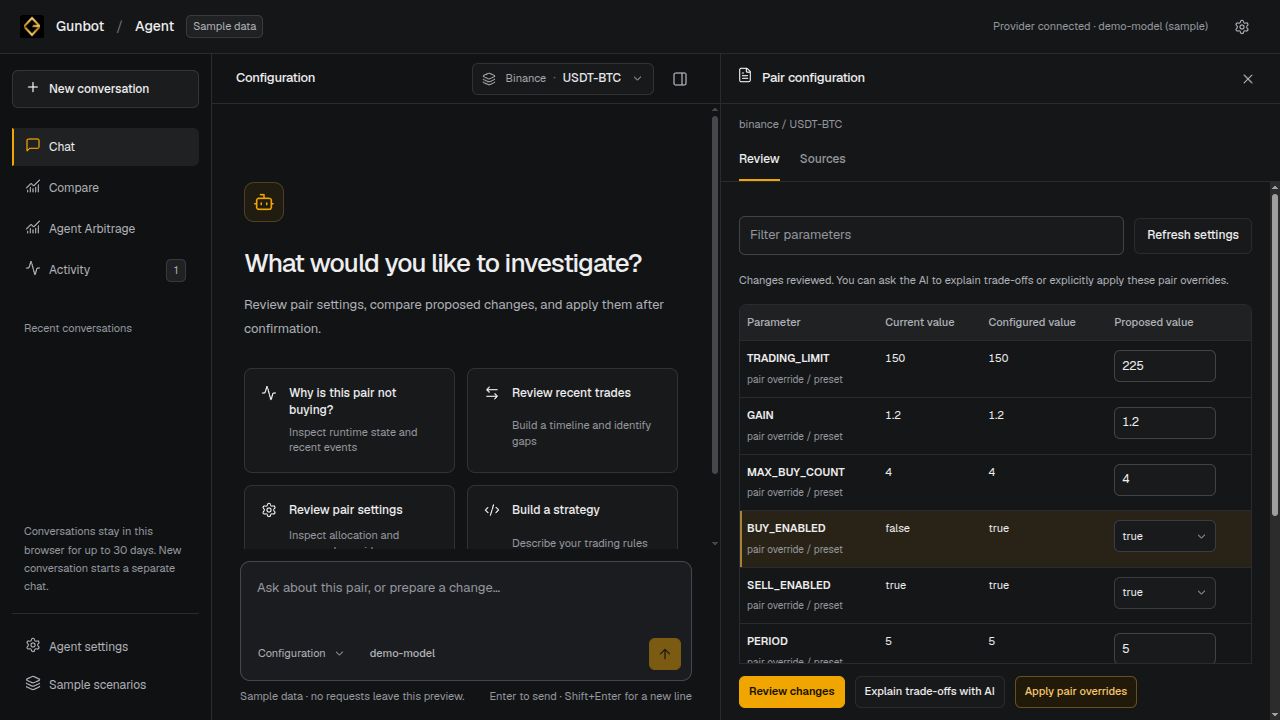
A settings explanation is not a measured improvement. Use an appropriate backtest or simulation if your decision depends on trading performance.
Prepare a new pair
Choose Setup Assistant. Specify the configured exchange, pair, market type, intended behavior and order budget. For example:
Prepare a spot setup for USDT-LTC with an existing strategy and a 100 USDT order budget. Ask me for anything else you need.
An available setup proposal offers Review in Add Pair. This opens a draft in the existing pair editor; it does not save or enable the pair. Review the strategy, budget and other required fields there. See First trading setup for the complete setup process.
Develop code or compare strategies
- Custom strategies connects a strategy conversation to saved code versions, Code Editor and an explicit backtest. Follow Develop custom strategies.
- Compare opens Multiverse Agent for native spot strategy simulations. Follow Compare strategies. AI explanation is optional; running a comparison does not switch the live strategy.
Activity also shows operational observations and reported issues. Investigate with Agent prepares the corresponding AI workflow. Local checks do not automatically make AI requests.
Conversations and connection problems
Conversations are stored in this browser, scoped to the signed-in user and selected bot; the conversation list describes retention. Keep saved strategy files or downloads for code you need to retain independently of browser storage. Deleting a strategy conversation does not delete saved Gunbot strategy files.
| What you see | What to check |
|---|---|
| Provider settings unavailable | Check that the selected bot is reachable before re-entering a key. A failed read does not establish that saved settings were removed. |
| Provider/model not connected | Open Agent settings, load available models, select a function-calling model and save. |
| Provider request error | Check the endpoint, account access, model compatibility and provider billing. Your request can be revised and retried. |
| Backend outdated or Agents unavailable | Confirm the selected instance and update its backend and workspace together. |
| History not visible | Check the selected bot, signed-in user and browser. Conversations are not a cross-device account archive. |
See the Agents FAQ for feature and provider questions, or explore Gunbot Agents for the product overview.