Connect Gunbot Live to your bot
If you are setting up a new Unlimited license for the first time, use the Gunbot Unlimited quickstart. It includes the order, wallet, and first exchange registration steps.
Use this page when Gunbot is already installed and you want to connect that installation to Gunbot Live, or add another Gunbot installation later.
Start Gunbot and open the local page
Start Gunbot on the computer or server that will run it. Then open this address in a browser on that same machine:
http://localhost:3001
If you configured another GUI port, use that port instead.
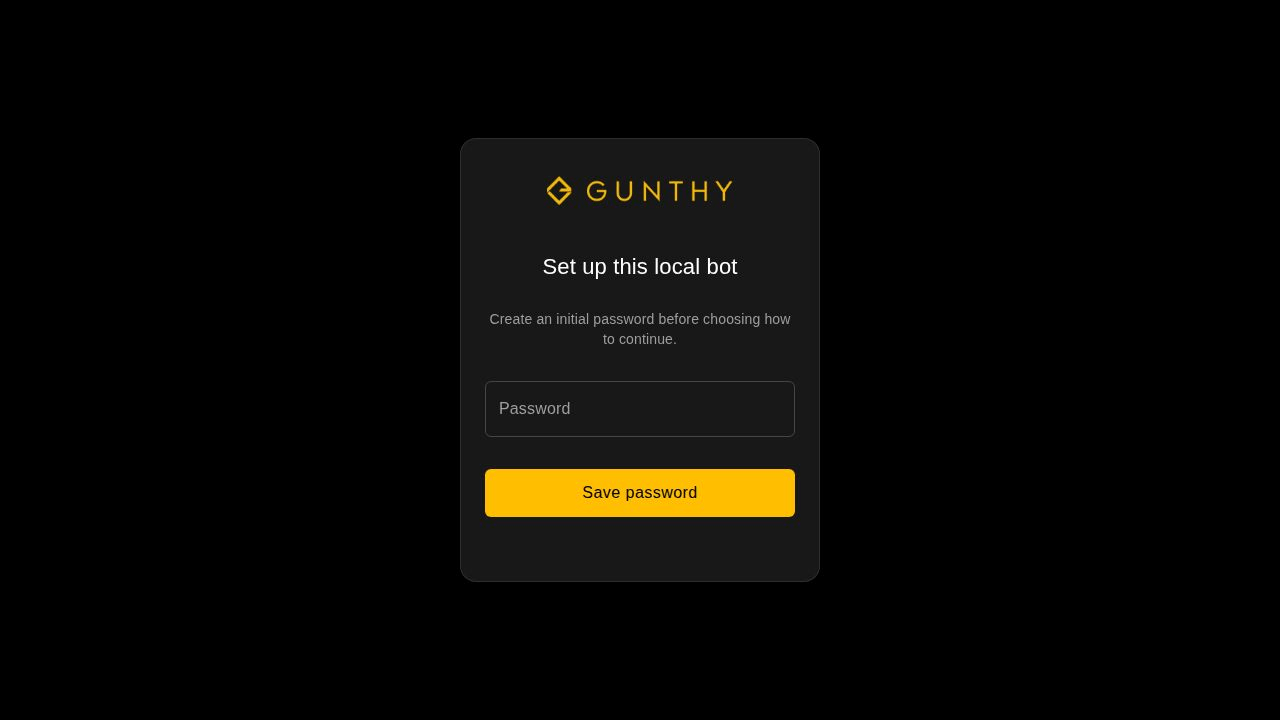
On first run, create the local Gunbot password. Gunbot Live uses this password when it connects to this installation.
Complete the connectivity check
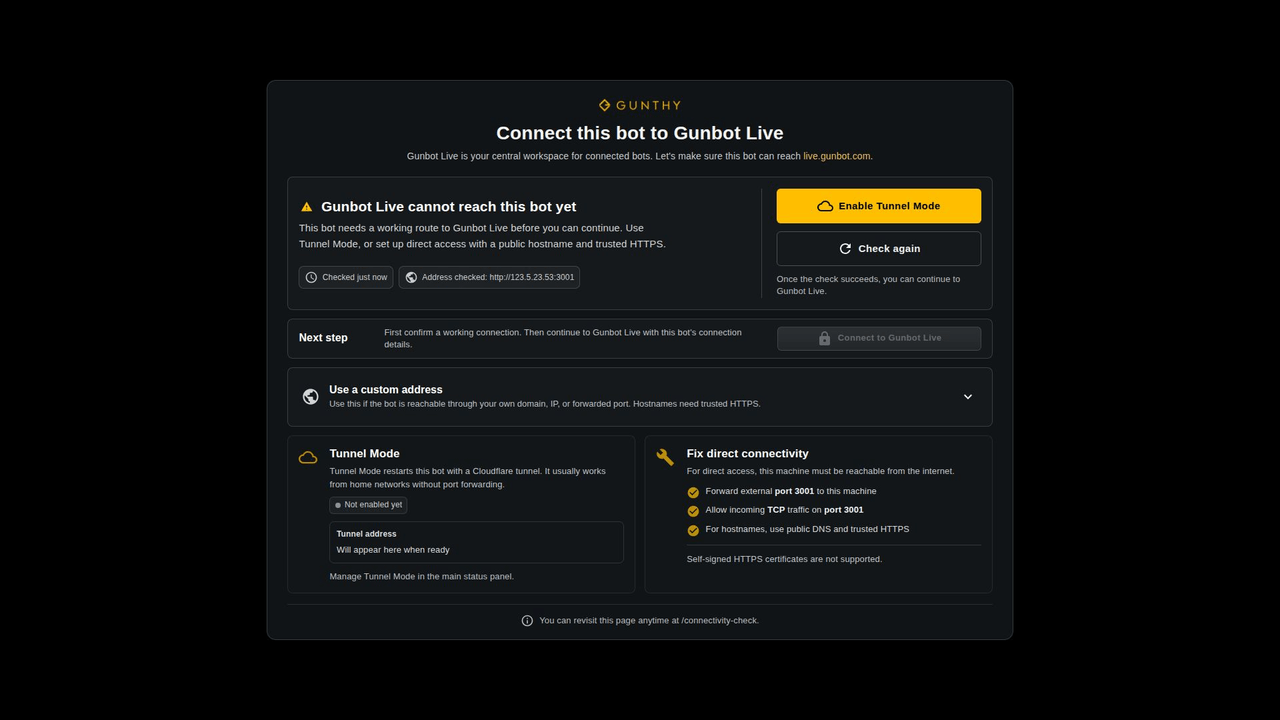
After the password step, Gunbot opens the connectivity check.
For the hosted workspace at live.gunbot.com, Tunnel Mode is usually the easiest option. It lets Gunbot Live reach this Gunbot installation without requiring you to set up remote access yourself.
If you already have an address you use to reach Gunbot remotely, you can use that instead.
For a fully local setup, Gunbot Live is included in the main Gunbot download. You do not need another download for Gunbot Live.
Add the bot to Gunbot Live
Open live.gunbot.com for the hosted workspace. For a fully local setup, open the Gunbot Live interface included with your Gunbot installation.
Add the running Gunbot installation with:
- a recognizable name, such as
Main tradingorSpot simulator - the Gunbot address from the connectivity step
- the local Gunbot password
- a current two-factor authentication code if this Gunbot installation requires one
Select Connect to bot.
For a first-time license, the startup wizard continues with order verification, wallet registration, and the first exchange public API key. The Quickstart covers those steps.
For another bot on an already registered Unlimited license, you can also add the connection from Settings > Gunbot URLs.
Check the connection
The connection appears in the top-bar bot selector. Its status shows whether Gunbot is Running, Stopped, or Offline.
If it shows Offline, check that Gunbot is still running and that the saved address is reachable. If you use Tunnel Mode, also check that the tunnel is active.
Closing Gunbot Live does not stop a Gunbot process that is still running on its computer or server.
See Use multiple Gunbot instances if you are adding a separate simulator or another trading bot.