Build your first trading setup
Start with one market and one strategy. Backtest the setup, add the pair to the Gunbot installation you want to use, then follow it from the Chart.
You need a connected Gunbot instance and complete exchange credentials before adding the pair. See Connect your Gunbot and Connect an exchange if needed.
1. Backtest the market and strategy
Open Backtesting before you create the trading pair.
Choose:
- a historical-data provider
- the market you want to test
- the strategy
- an initial balance and trading fee
- a date range you want to test
For a strategy you have not used before, start with its defaults or a preset you want to evaluate. Run the backtest, then look at the trade sequence, position size, drawdown, fees, and final result.
If the exchange you plan to trade is not available as a historical-data provider, use the same market on one of the available providers. The test still shows how the strategy behaves on that historical market data.
See Backtesting for the full set of analysis and comparison tools.
2. Choose the Gunbot instance
After the backtest, switch to the Gunbot instance where you want to run the pair.
For a strategy you have not run before, you can continue on a dedicated spot simulator. If you already know the strategy, you can also move from backtesting directly to your real-trading bot with the position size you want to use.
Keep the selected instance Stopped while you add the pair. New pairs are saved enabled, so a stopped bot prevents the strategy from trading before you finish checking the setup.
3. Add the market
Open Trading settings > Add pairs.
Select the exchange connection, market type, and market. For example, select USDT-BTC to trade BTC using USDT.
If you need more detail about pair names, see How are Gunbot pair names formatted?.
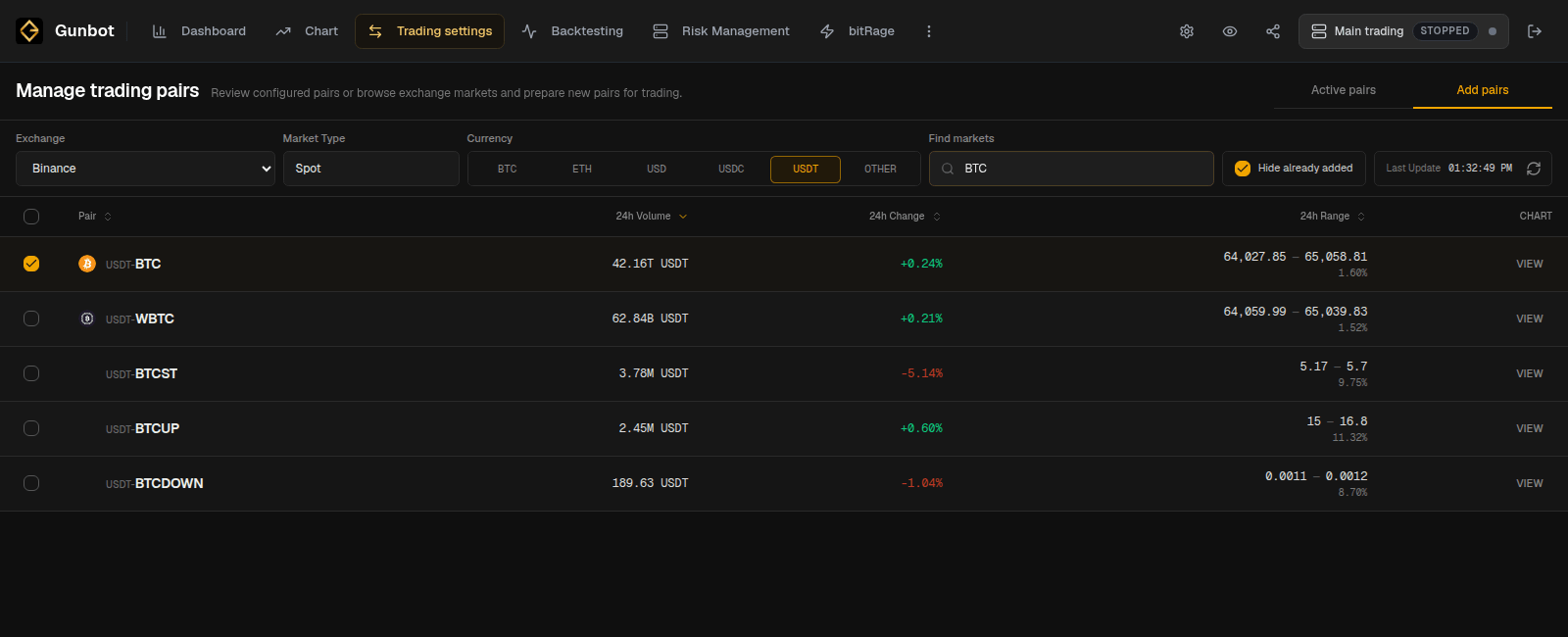
4. Apply the strategy settings you tested
Choose the same strategy you used in Backtesting and apply the settings you want to run.
The strategy library shows a short description before you select it. Use Choose a strategy for an overview of the main strategy types, then follow the links there to the individual strategy documentation for exact settings.
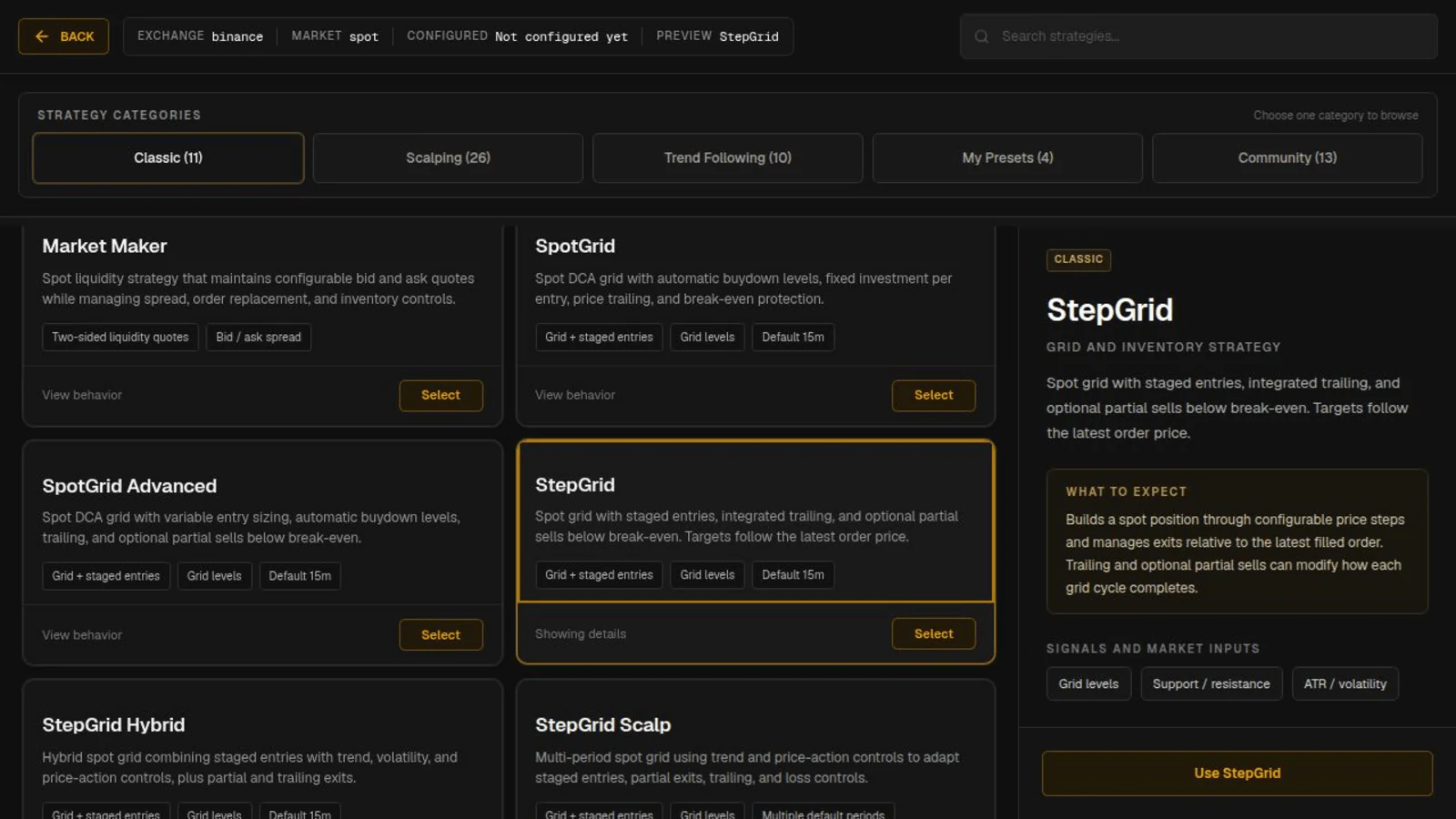
5. Check the position size
Before saving, check the settings that control how much the pair can use.
For many spot strategies:
- Trading limit is the notional value of a typical buy.
- Maximum investment is the usual cap on the total notional position size.
On USDT-BTC, a trading limit of 100 normally means a buy worth around 100 USDT. A strategy that buys repeatedly can build a larger BTC position, so check maximum investment or the strategy's equivalent position-size controls too.
See Choose a strategy and Understanding balance settings.
6. Save the pair while the bot is stopped
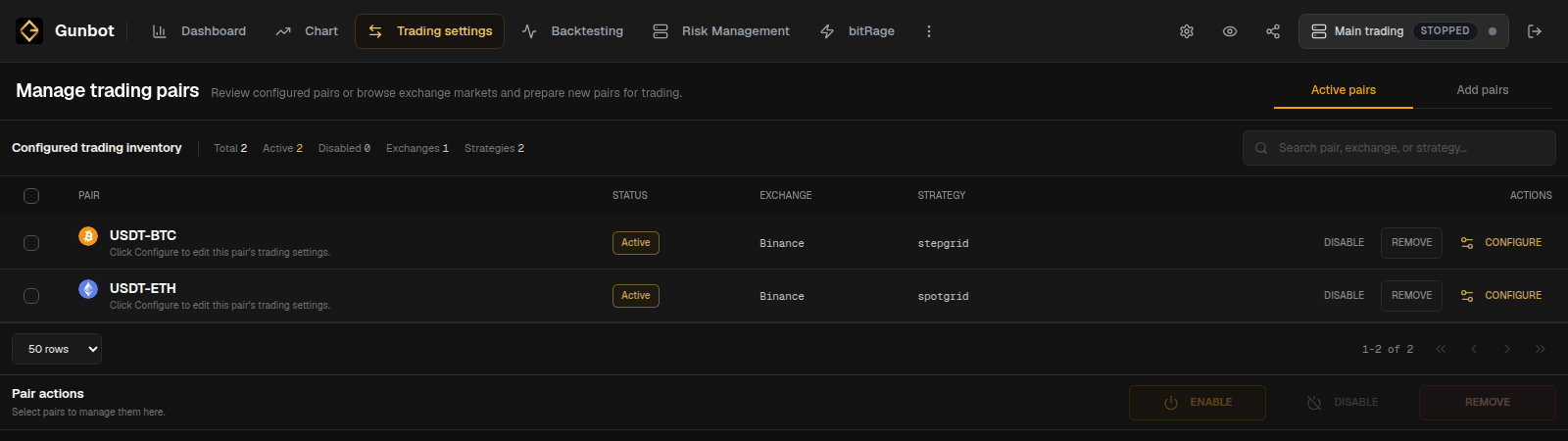
Save the pair and open Trading settings > Active pairs.
A newly added pair is enabled by default. With the Gunbot instance stopped, you can review the saved configuration without letting the strategy trade yet.
If you want to start the bot without this pair, disable the pair first.
7. Start simulator or real trading
For simulator testing, confirm that Simulator is enabled on the selected spot simulator instance and that its virtual starting balances are set. Start the bot and check the sim marker in the top bar. See Simulator mode.
For real trading, confirm the exchange account, balances, pair settings, and position size, then start the real-trading instance.
A pair only runs when both the Gunbot instance and the pair are enabled.
8. Open the Chart
Open Chart and select the new pair.
Check that:
- the expected exchange and pair are selected
- candles are loading
- the correct strategy is attached
- the current holdings or position match the account and market you selected
- strategy targets and active orders appear as expected
A strategy does not have to place an order immediately. Waiting for its entry or exit conditions is normal.
See How to read the Chart for the full page.
Add more pairs
Repeat the same process for additional markets. Manage pairs and strategies covers copying settings, presets, bulk pair actions, and strategy changes.