Troubleshoot Gunbot Live
When a pair is quiet or trading looks different from what you expected, start with the bot and pair state before opening raw logs.
Check the Gunbot instance
Look at the instance selector and status in the top bar.
Confirm that you have the intended bot selected, then check its state:
- Offline: Gunbot Live cannot currently reach the bot.
- Stopped: the bot is connected, but trading is paused for that Gunbot installation.
- Running: enabled pairs can evaluate their strategies.
- sim: the selected bot is running in spot simulator mode.
If the bot is offline, check that Gunbot is still running and that its saved URL or tunnel is reachable. See Connect Gunbot Live to your bot.
Check the pair
Open Trading settings > Active pairs and confirm:
- the exchange connection
- the pair
- the assigned strategy
- whether the pair is enabled
A running bot does not trade a disabled pair.
For derivatives exchanges that support separate hedge sides, USDT-BTC-LONG and USDT-BTC-SHORT can be configured separately. Select the exact side you want to inspect.
Check the exchange connection
If several pairs on the same exchange stop working at the same time, check Settings > License.
Confirm that the correct public API key is registered and that the secret, passphrase, or other required exchange credentials are complete on this Gunbot instance.
For a new Unlimited license, the startup wizard registers the first public API key. The secret still has to be added on the bot before Gunbot can use that exchange account.
Check the Chart
If the bot is running, the pair is enabled, and market data is updating, open the Chart.
Look at the current market, holdings or position, strategy targets, active orders, and recent fills. A strategy can spend long periods waiting for an entry, grid step, trailing condition, profit target, or another rule.
The Why Gunbot is not trading article has additional strategy and configuration checks.
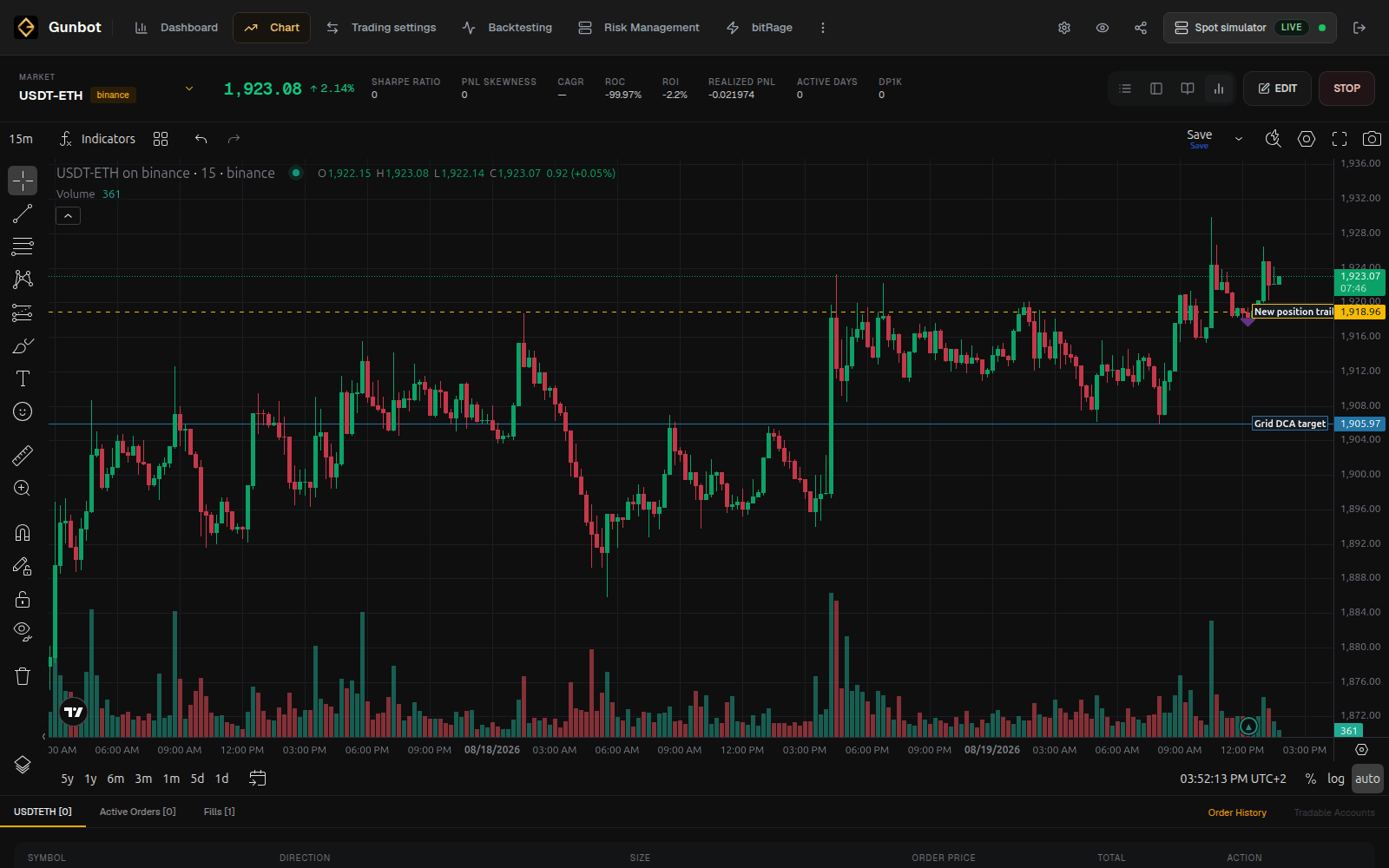
Targets, active orders, and fills
Targets, active orders, and fills are different stages of trading:
- Target: a level or condition the strategy is watching.
- Active order: an order has been submitted and is still open.
- Fill: all or part of an order executed.
A target can be visible without an exchange order being open. Use the Chart order panels and Order History to see which stage the pair has reached.
Check recent changes
If the pair behaved normally before a recent change, check what changed around that time. Common causes include:
- a pair or strategy edit
- a manual order from Chart
- an AutoConfig job
- custom strategy code
- a bot-wide setting in Settings > Trading
- a Risk Management change
Trading Notes can record larger configuration or automation changes with a date so you can compare them with Order History later.
Critical Logbook
When Gunbot Live surfaces a critical runtime problem, the warning badge in the top bar opens the Critical Logbook.
It groups important exchange, authentication, connectivity, order, and strategy errors. Check the instance, pair, timestamp, and message for the event you are investigating.
The Safe report action prepares a reduced report that can be sent to Gunbot support.
Debug Logs
Open Debug Logs when the regular trading views and Critical Logbook do not answer the question.
Search for the exact pair, job, or event you are investigating. For example:
- what did the strategy evaluate around 14:20 for
USDT-BTC? - did this AutoConfig job run at the expected time?
- which custom-strategy condition rejected an entry?
Pause the stream to inspect a stable section. Filter by pair, job, or timestamp to jump to the relevant log lines.
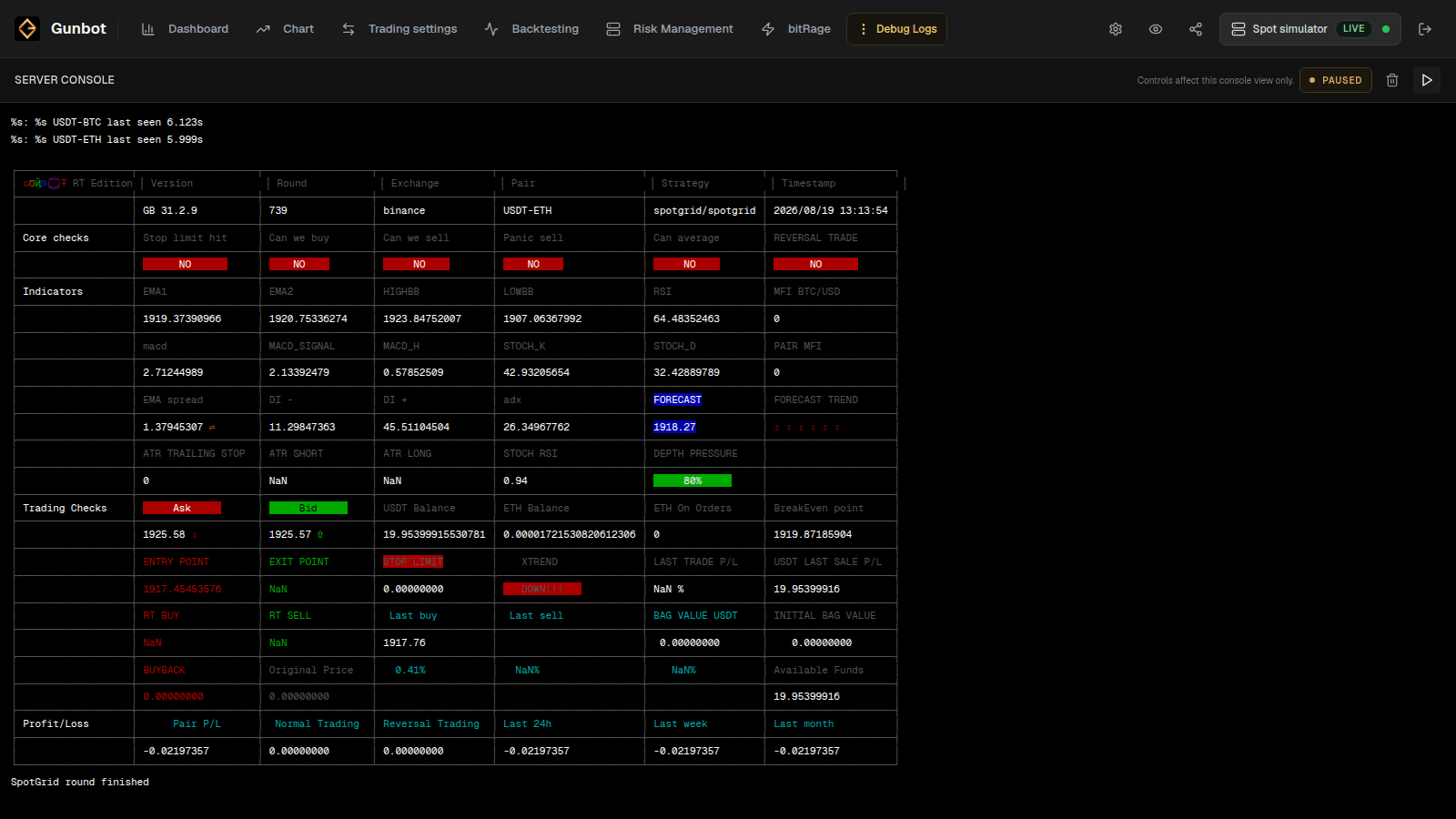
Custom strategies are easier to troubleshoot when their own logs name the condition being checked and include only the values needed for that decision.
Test the fix
Once you find a likely cause, change the setting or condition connected to that cause and check the result.
Examples include enabling a disabled pair, correcting exchange credentials, restoring a strategy value, narrowing an AutoConfig job, or fixing one custom-strategy condition.
When the bot is technically healthy but you are unsure whether the strategy behavior is desirable, use Backtesting. For spot strategies, a dedicated simulator instance lets you watch the same setup under current market conditions without changing the real-trading bot.