Gunbot Live settings and security
Open Settings for controls that apply outside a single trading pair.
The main sections are:
- License for registered exchange API keys and credentials
- Gunbot URLs for connected Gunbot instances
- Trading for bot-wide trading behavior, including Simulator mode
- Interface for chart and Dashboard presentation
- Notifications & integrations for Telegram and optional community-data sharing
- Security & data for sessions, 2FA, safe configuration exports, restore, and local data maintenance
- Devices for browsers signed in to your Gunbot Live account
License
Use Settings > License to review your Unlimited license and the exchange API keys registered to it.
Register a new public API key before Gunbot can use that exchange account. Gunbot Unlimited does not limit the number of registered keys, including multiple keys for the same exchange.
On a newly registered license, the startup wizard has already registered the first public API key. Complete that exchange connection here by adding its secret and any other required credentials.
See Connect an exchange.
Gunbot URLs
Settings > Gunbot URLs stores the Gunbot instances available in your Gunbot Live workspace.
Each saved connection has a name, URL, and the authentication details Gunbot Live needs to reach it. Active connections appear in the instance selector at the top of the workspace.
Removing a saved connection from Gunbot Live does not uninstall or delete Gunbot on the other machine.
Names such as Main trading and Spot simulator make it easy to recognize the bot you are selecting. See Multiple Gunbot instances.
Trading
Settings > Trading contains settings that can affect the selected Gunbot instance as a whole.
Bot-wide settings include Simulator mode and its virtual starting balances, plus order-handling options that apply across the installation.
Pair-specific strategy settings belong in Trading settings. Use Simulator mode for the full simulator setup.
Interface
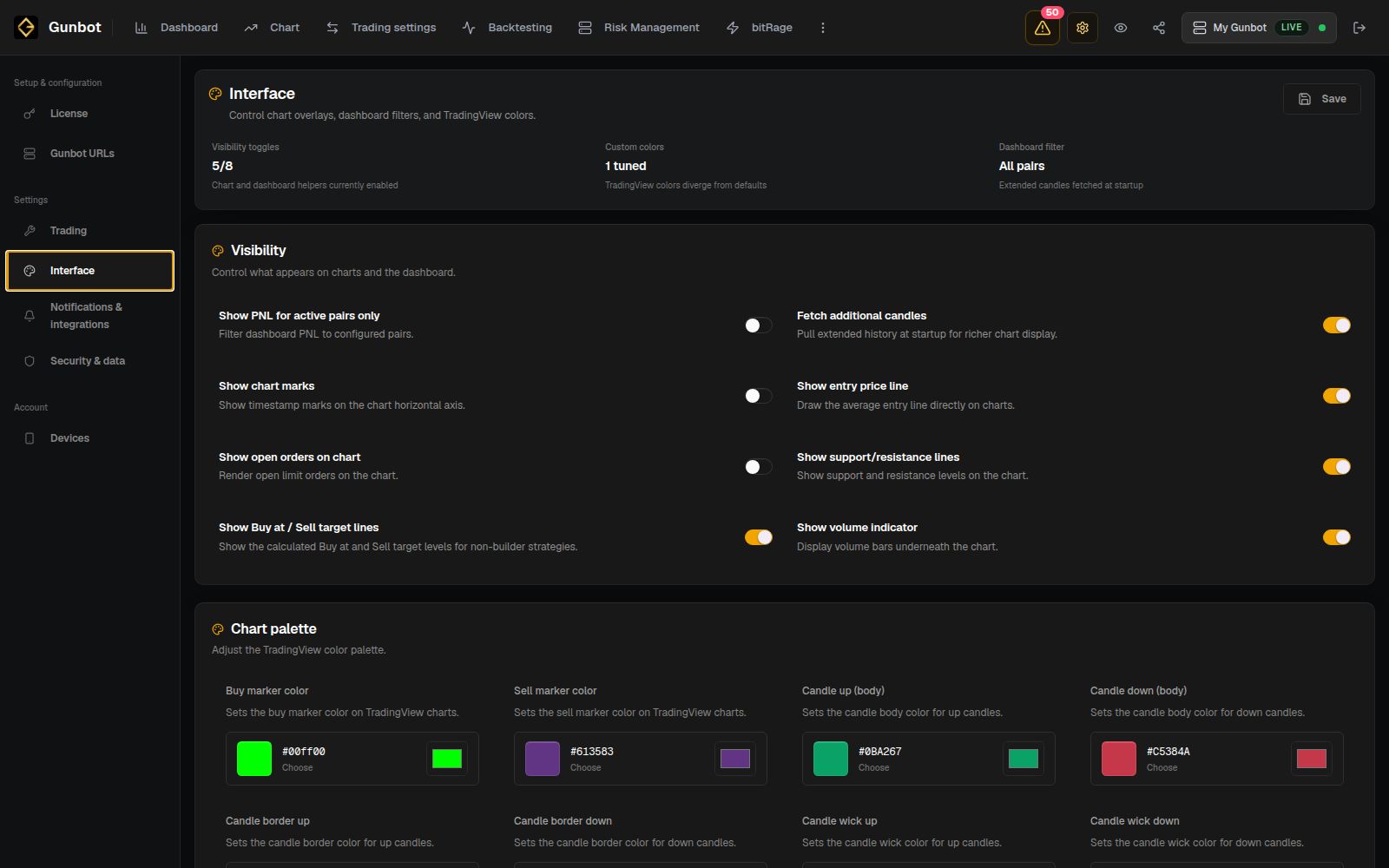
Use Settings > Interface to change how Gunbot Live displays trading information. Options include chart overlays, target and support/resistance visibility, order display, Dashboard presentation, and chart colors.
Hiding a target line changes only the chart display. It does not disable the target in the strategy.
Change strategy behavior from the pair configuration in Trading settings.
Notifications & integrations
Telegram integration can send Gunbot notifications outside Gunbot Live. Enable the alerts you want and keep the Telegram bot token private.
The same section contains Community stats settings for the public leaderboard and tournaments. Share leaderboard data is optional. When you enable it, Gunbot can share strategy data under the leaderboard name you configure.
Privacy mode
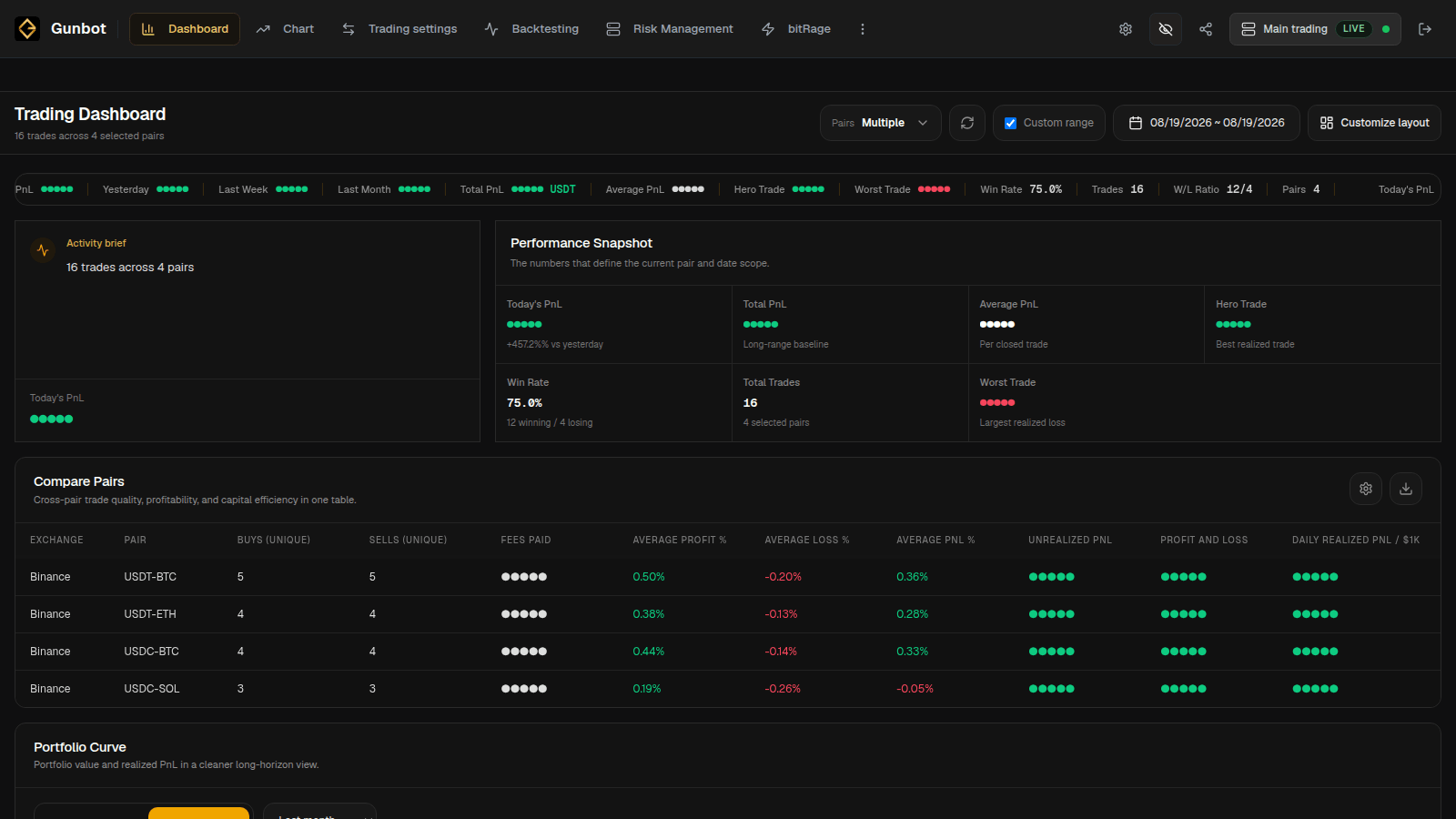
Use the Hide balances / Show balances control in the top bar before screen sharing or capturing screenshots with real account values.
Privacy mode hides supported balance and performance values in Gunbot Live. It does not change anything on the exchange or in the strategy.
Security & data
Session timeout
Session timeout controls how long an inactive Gunbot session stays signed in.
Choose a shorter timeout on a shared or easily accessible computer. A private workstation can use a longer timeout if that suits how you work.
Two-factor authentication
Gunbot Live can manage two-factor authentication for the selected Gunbot instance.
During setup, Gunbot provides an authenticator QR code or secret and verifies the current code before enabling 2FA.
Keep the QR code, setup secret, authenticator URI, and one-time codes private. For recovery steps, see Reset password and 2FA.
Download safeconfig.js
Use Download safeconfig.js when Gunbot support needs your configuration. The export masks sensitive values such as exchange keys and secrets, passwords, passphrases, tokens, and wallet identifiers. Pair names, strategy choices, and other non-secret configuration values remain readable so the configuration can still be diagnosed.
You can open the exported file before sending it to see the non-secret configuration it contains.
Import old config
Import old config accepts a previous config.js or JSON backup. Gunbot Live inspects the file in your browser and lets you choose which parts to restore to the selected bot.
Review the proposed changes before importing, especially when the old file contains exchange connections or bot-wide settings that differ from the current installation.
Local trading data
The same section contains maintenance actions for the local database and stored pair data.
Stored trading data is used by historical charts, Dashboard views, and order review. Reset or remove it only when you are intentionally performing a recovery or maintenance action that requires it.
Devices
Settings > Devices lists browsers that have accessed your Gunbot Live account. Gunbot Live keeps the three most recently signed-in browsers.
Remove an entry you no longer use. If the device limit blocks a new browser, remove an older entry first.
The Devices list belongs to your Gunbot Live account. The local Gunbot password and Gunbot 2FA protect access to each Gunbot installation separately.
Share screenshots and configuration
Use Privacy mode before taking screenshots that contain balances or performance values. For configuration troubleshooting, Download safeconfig.js is the recommended file to send to Gunbot support because it masks credentials and other sensitive values.
Never include exchange API secrets, Gunbot passwords, 2FA setup secrets or one-time codes, Telegram bot tokens, wallet private keys, or other credentials in screenshots or messages. Gunbot support does not need those secrets.