Use the Dashboard
The Dashboard summarizes trading activity and performance for the selected Gunbot instance.
Use the pair selector and date range at the top of the page to choose what the Dashboard includes. You can look at one pair, several pairs, or the complete configured set over a day, week, month, or custom period.
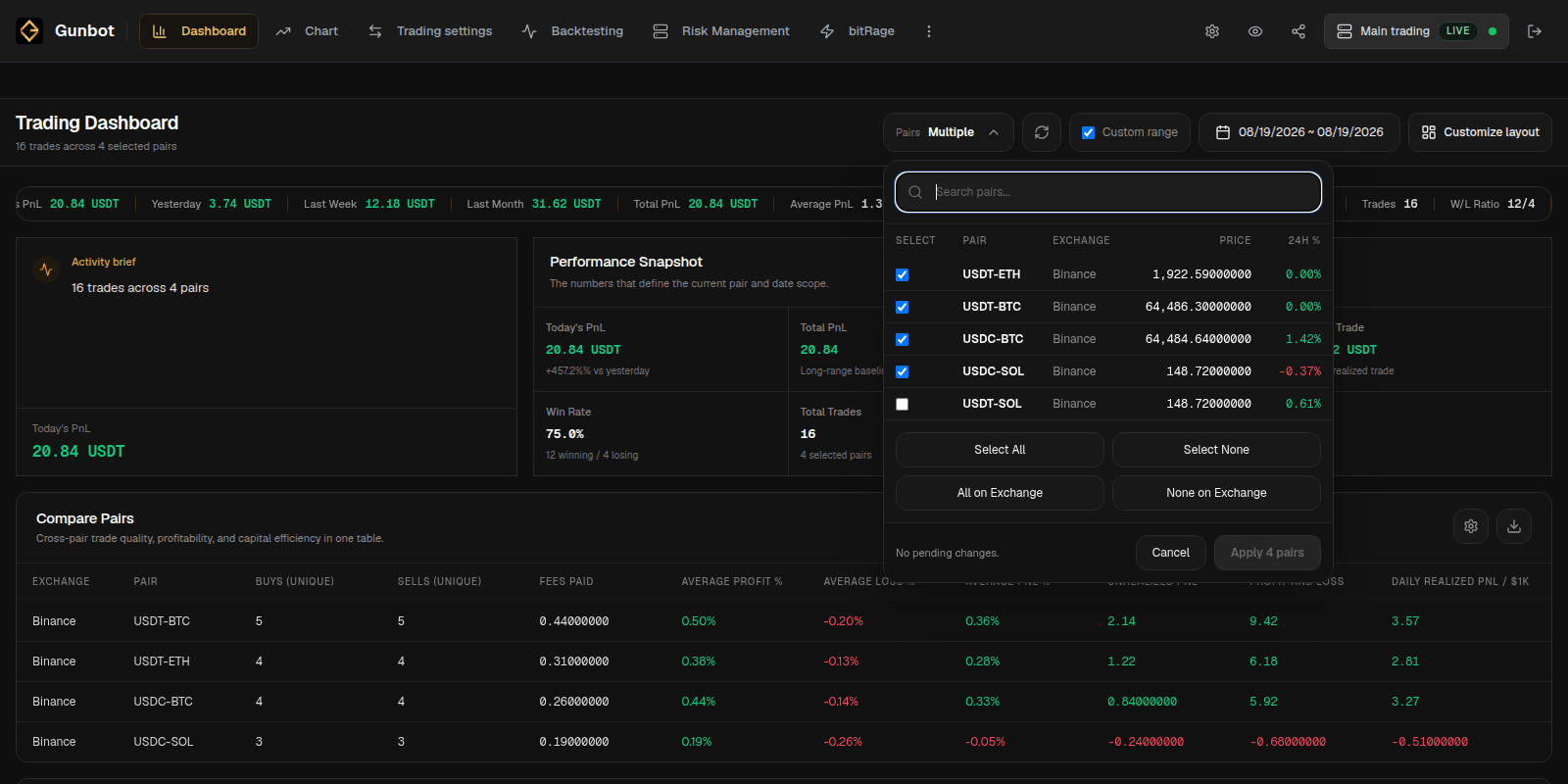
Check performance and activity
The performance views show values such as profit and loss (P&L), trade counts, win rate, average trade information, and other available metrics for the selected period.
Use them to see how the bot has been trading and whether activity has changed. For example, you might notice that one pair has become much more active, one strategy has been quiet, or recent profit is concentrated in a few markets.
A quiet pair can still be operating normally if its strategy conditions have not been met.
Compare pairs
The pair comparison section puts markets next to each other using the same selected period.
Compare profit, activity, fees, and the other displayed metrics across several pairs without opening each Chart separately.
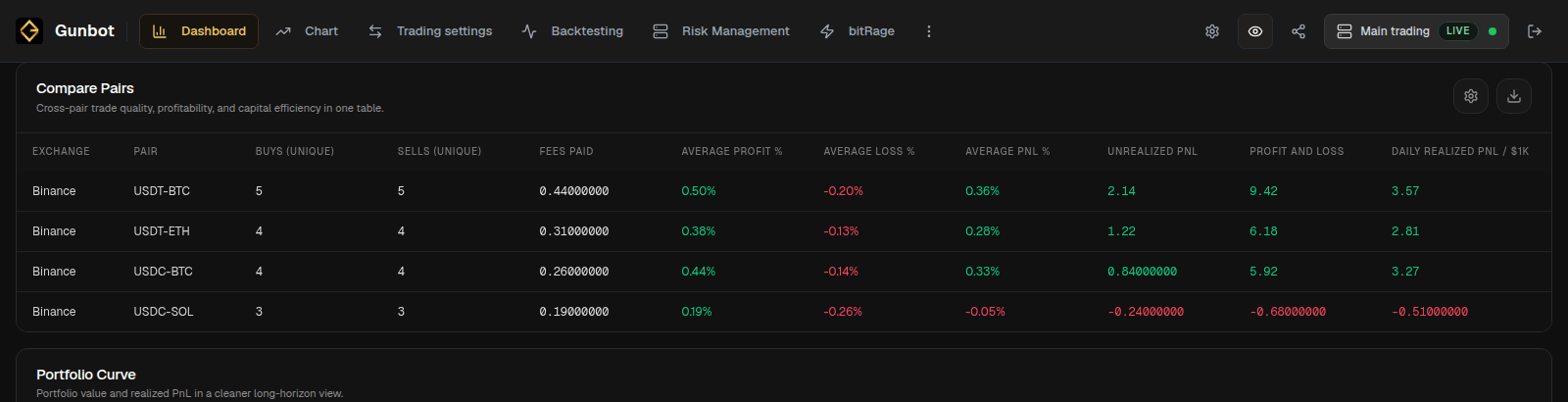
Open a pair in Chart when you want to see the market, current holdings or position, strategy targets, orders, and recent fills behind the Dashboard numbers.
Use Order History when you need the exact execution sequence for a longer period.
Customize the Dashboard
Select Customize layout to change which Dashboard cards are shown and how they are arranged.
The default layout can be rearranged or simplified. Give pair comparison more space when you trade many markets, or keep recent activity prominent when you review executions often.
Dashboard layout changes are stored in the current browser. If you open Gunbot Live in another browser or on another device, that browser can have its own layout.
Custom cards and calculations can display metrics that are not covered by the standard Dashboard cards.
Open the detailed page when needed
- Use Chart for one pair and its current strategy state.
- Use Order History for fills and execution history.
- Use Trading settings to change pairs or strategy settings.
- Use Backtesting to compare strategy configurations on historical data.