Manage pairs and strategies
Open Trading settings to see and change the markets configured on the selected Gunbot instance.
Each configured pair combines an exchange connection, market, strategy, strategy settings, and enabled state.
Active pairs
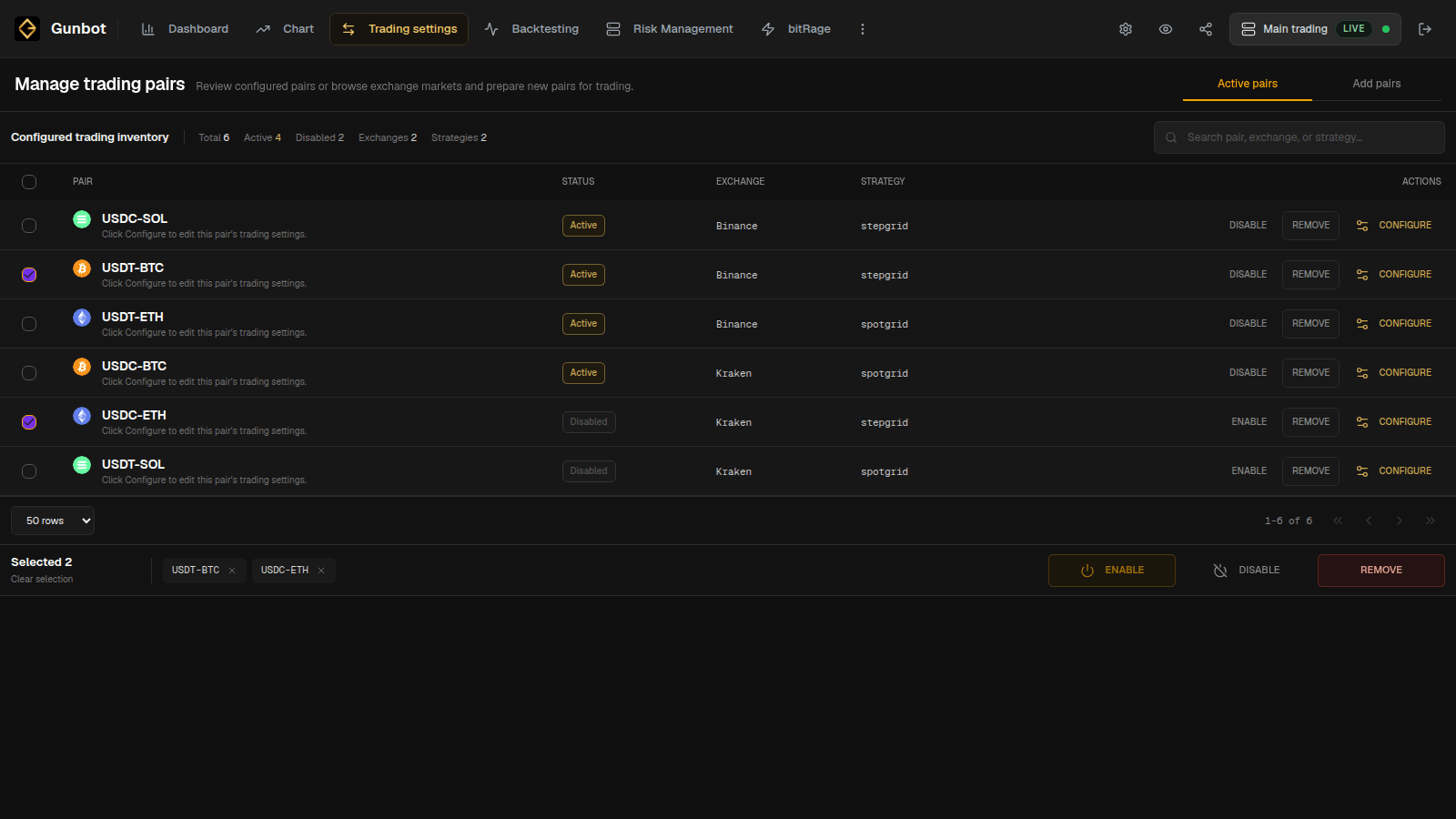
Trading settings > Active pairs lists the markets already configured on the selected bot.
Use the list to check:
- market and exchange connection
- assigned strategy
- enabled or disabled state
- pair actions such as configure, disable, enable, and remove
Use search and bulk selection when the list gets large.
Disable a pair
Disable a pair when you want to keep its configuration but stop Gunbot from trading it.
Use this for a temporary pause, while testing a change elsewhere, or to keep a setup ready for later.
Remove a pair
Remove a pair when you no longer want that configuration on the bot.
If the pair has an open position or relevant orders, open the Chart first and decide how you want to handle them. After removal, Gunbot no longer manages that pair until you add it again.
Add a pair
Open Add pairs, choose the exchange connection and market type, then select the market you want to trade.
Gunbot Live normally provides a searchable market list. If manual entry is available for the selected exchange, enter the Gunbot pair name exactly.
Use BASE-QUOTE notation, with the spending currency first and the traded coin second. For example, buying BTC with USDT uses:
USDT-BTC
New pairs are enabled when you save them
On a running Gunbot instance, a newly saved pair can start strategy evaluation immediately. Keep the bot stopped while adding a new setup, or disable the new pair before leaving it on a running bot.
You can add several markets at once when they will use the same starting configuration.
Choose or change the strategy
The strategy picker groups the available strategies and shows a short preview for each one.
For an overview of the main strategy types, see Choose a strategy. From there you can open the documentation for GridBots, StepGrid, SpotGrid, the Strategy Builder, and other included strategies.
When you change the strategy on a pair that already holds funds or a derivatives position, check the current state in Chart first. The new strategy will take over the pair from that existing state.
Edit pair settings
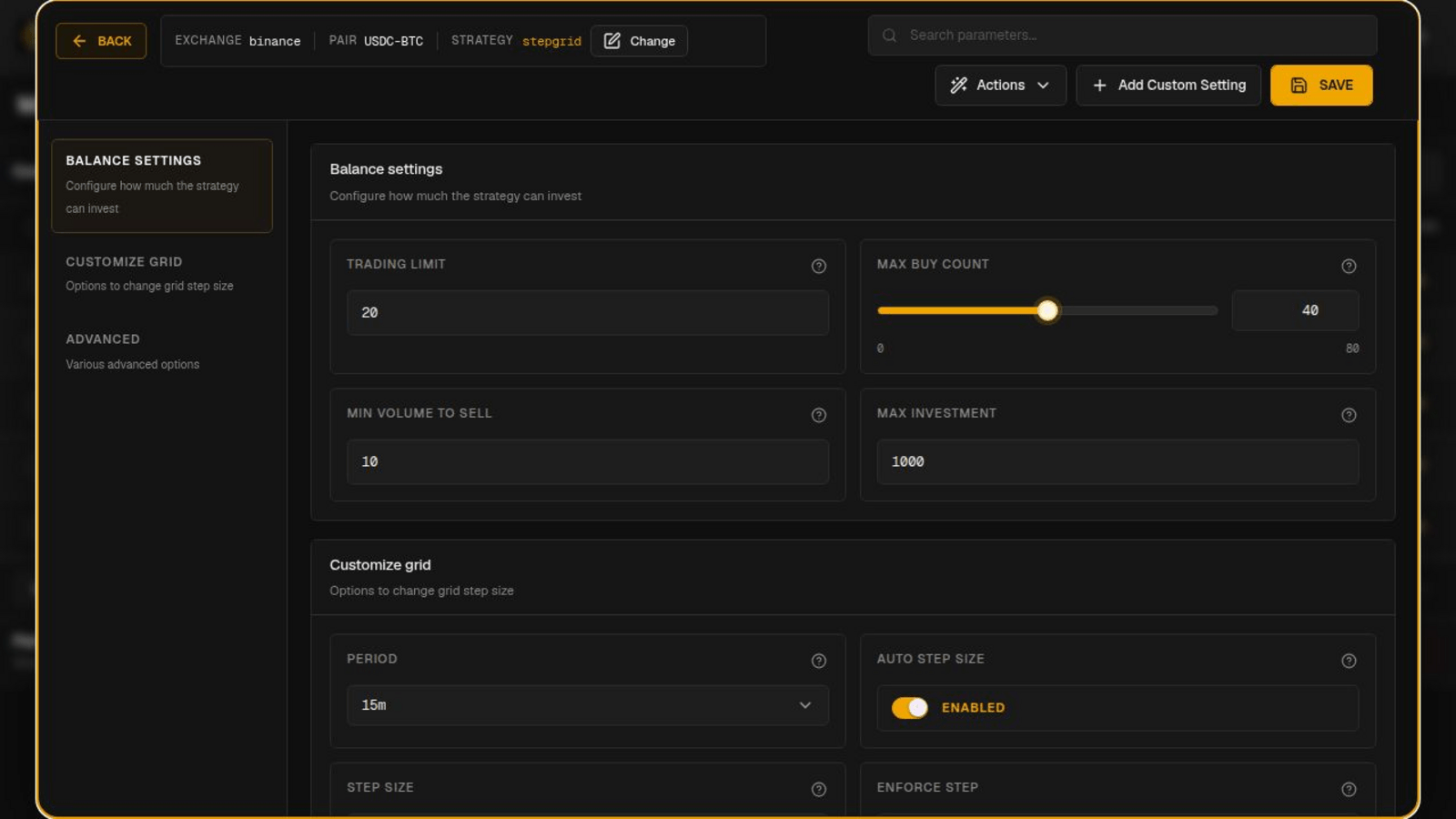
Select Configure on an active pair to open its settings.
The editor groups settings for the selected strategy. Use the search field when you already know a setting by name. The individual strategy page explains what each setting does and its default behavior.
Common changes include:
- changing the normal order size
- limiting the maximum position size
- changing grid or target spacing
- changing candle periods or indicator settings
- adjusting trailing or exit behavior
Saving pair configuration can briefly restart or reload the selected Gunbot runtime. Wait for the bot to reconnect and fresh pair data to appear before checking the result.
Copy settings and use presets
Gunbot Live can copy settings between configured pairs, apply a configuration to several pairs, and save settings as a reusable preset.
Copying settings is convenient when several markets should start with the same strategy setup. Check the destination markets for differences in available balances, exchange minimum order sizes, volatility, liquidity, and derivatives settings where applicable.
A preset is simply a saved configuration you can reuse and edit.
Gunbot Live can also import configurations from the public Gunbot leaderboard. Backtest an imported setup on the market and period you care about before using it for trading.
Add more markets
Once one configuration is working the way you want, adding more pairs is mostly a matter of repeating or copying the setup.
You can add a few markets at a time and review their activity in Dashboard, Chart, and Order History before adding more.
Use Backtesting when you want to compare settings on historical data. For spot strategies, use Simulator mode when you want to forward-test the same kind of setup with current market data.