Forward-test spot trading with Simulator mode
Simulator mode runs a complete spot Gunbot instance with current market data, virtual balances, and simulated order execution.
Configured pairs, strategy logic, AutoConfig, Chart, Dashboard, Order History, and runtime state continue to work normally. You can watch a spot setup over real hours and days before using the same configuration with actual exchange funds.
Keep a separate simulator instance
A simple setup uses two Gunbot connections:
Main trading
Spot simulator
Keep Spot simulator in Simulator mode and use it again whenever you want to test a spot strategy or configuration change.
When you want to use a successful setup with real funds, add the same strategy and settings to the separate real-trading instance.
Backtesting and Simulator mode
Use Backtesting first when you want a quick historical view of a strategy or a repeatable comparison between settings.
Use Simulator mode to see how a spot setup behaves as current market data arrives. For a strategy you have not run before, you can watch active periods, quiet periods, entries, exits, and any automation that changes its configuration.
Simulator is optional. If you already know the strategy well, you can move from backtesting directly to a real setup with the position size you intend to use.
Spot only
Simulator mode is for spot trading.
For futures strategies, use Backtesting to study historical behavior before real derivatives trading. Simulator results do not model leverage, margin, liquidation, funding, or futures position handling.
Enable Simulator mode
Select the Gunbot instance you want to keep as your simulator, then open Settings > Trading and enable Simulator.
The bot still needs its exchange connection because it uses current market data from that exchange. Trading balances and order execution are simulated.
Set virtual starting balances
Add the balances you want the simulated account to start with.
For example, a USDT-BTC test might start with:
USDT: 10000
BTC: 0
The simulator starts with 10,000 USDT to spend and no BTC holdings.
If you want to test how a strategy manages an existing BTC holding, add BTC to the virtual wallet as well.
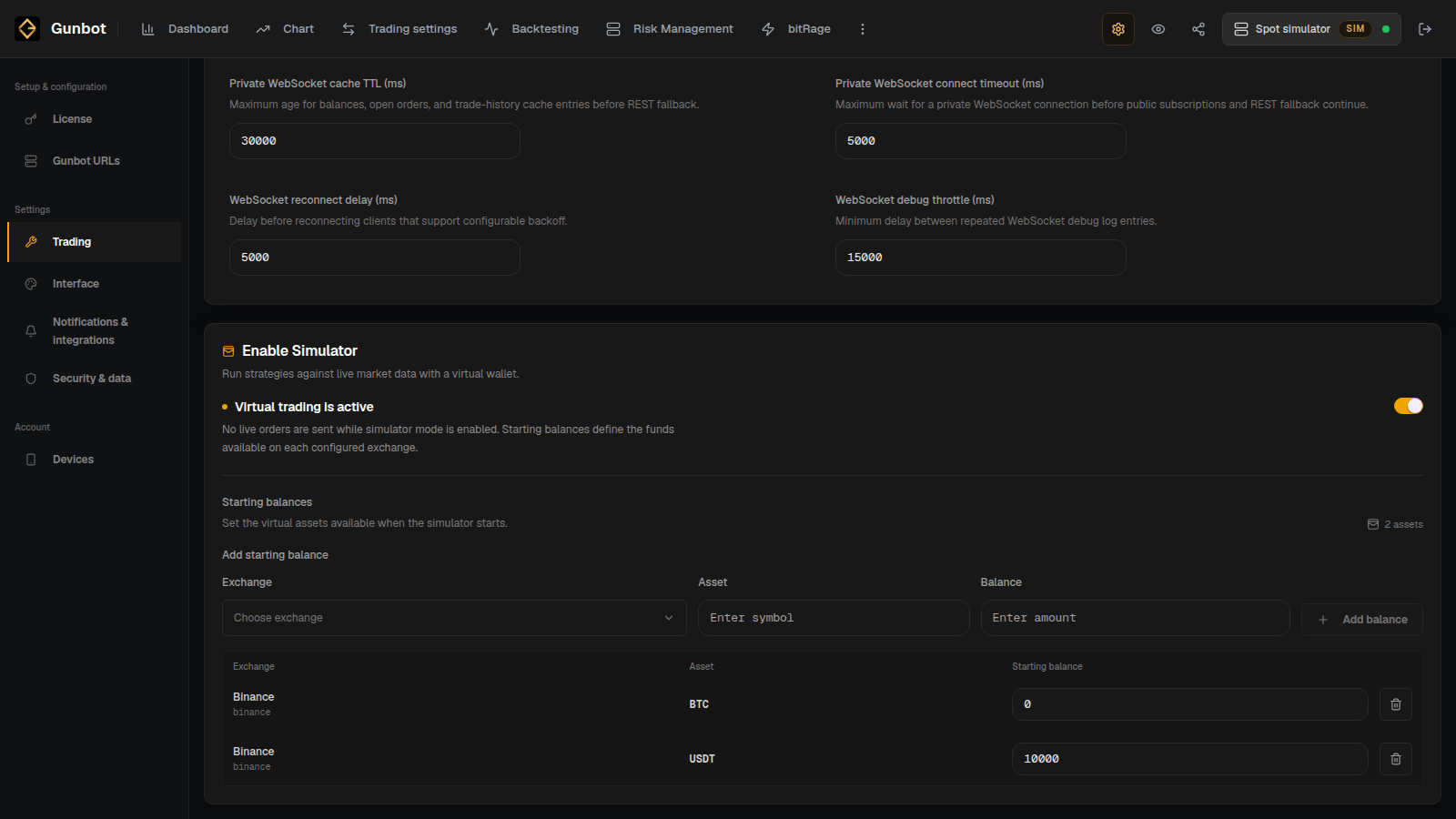
Starting balances affect what a strategy can buy and how large a position it can build. Use amounts that are reasonably close to the account size or test case you want to model.
Check the simulator marker
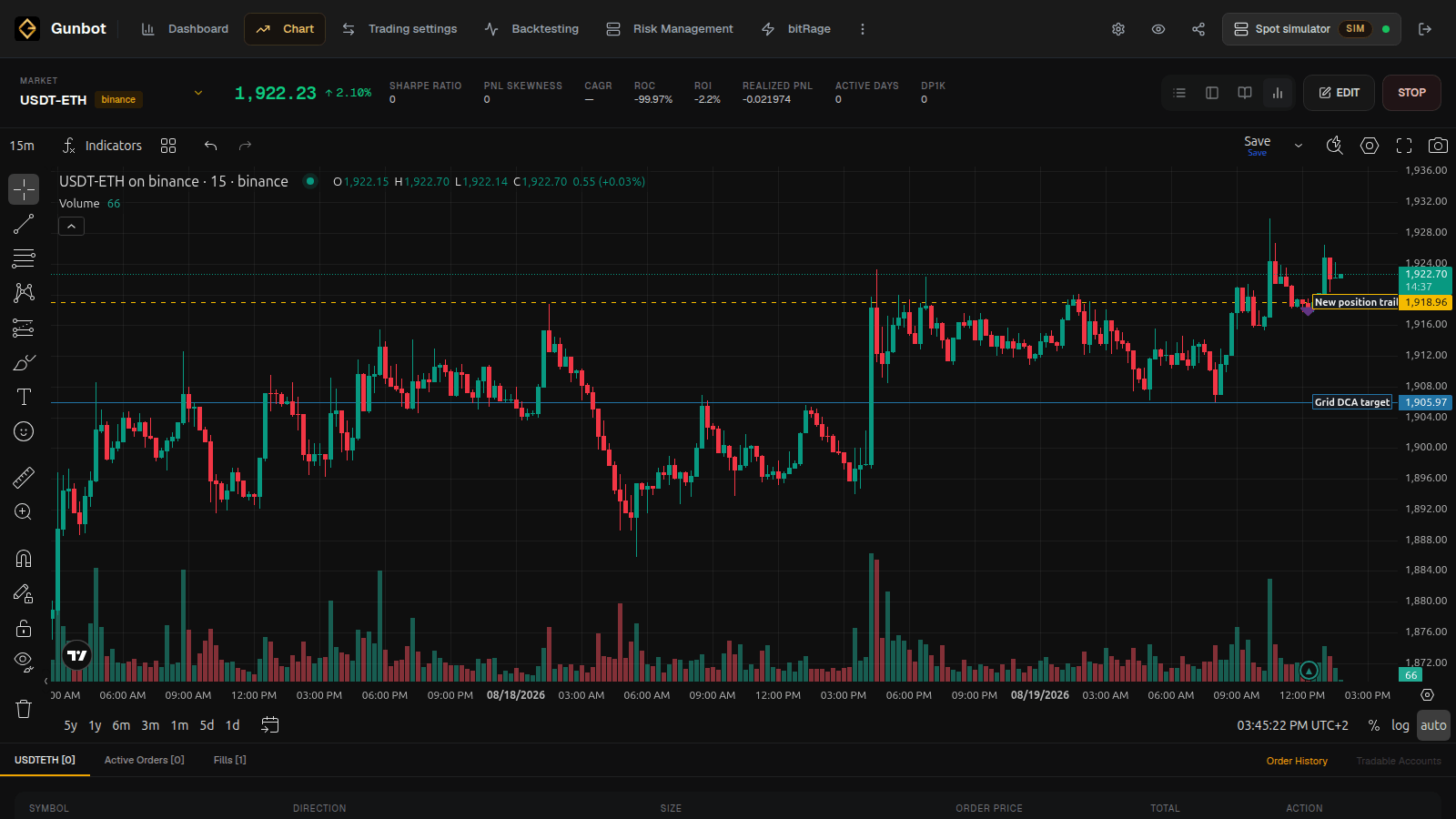
Start the simulator bot and look at the instance selector in the top bar. A running simulator instance shows the sim marker.
Add and run pairs
Use Trading settings to add spot pairs and configure strategies just as you would on a real-trading bot.
A simulated pair still has:
- an exchange connection and market
- a strategy and its settings
- an enabled or disabled state
- the bot's running or stopped state
AutoConfig and custom spot strategies can also run on the simulator.
Forward tests run in real time
A forward test follows the current market as it happens. A strategy that trades only under specific conditions may need days or longer before those conditions appear.
Use Backtesting for faster comparisons across historical periods. Use Simulator mode when you want to observe the setup under current market conditions.
Review the simulator
Use the same Gunbot Live pages you use for real trading:
- Chart for one pair, its virtual holdings, strategy targets, active simulated orders, and fills
- Dashboard for performance and activity across the simulator
- Order History for the simulated fill sequence
- Trading Notes to record when you started a test or changed its configuration
Review profit and loss (P&L) together with position size, waiting behavior, exits, and any changes made by AutoConfig or custom code.
Use the setup on a real-trading bot
When you want to trade the setup with real funds:
- select the real-trading Gunbot instance
- confirm the intended exchange account
- add the market
- apply the strategy or saved preset used in the simulator
- copy the reviewed settings
- check the real order size and maximum position size against the real balance
- start or enable the pair when you are ready for it to trade
Leave the simulator instance available for later tests.
Simulation compared with live execution
Gunbot runs the same strategy logic and normal runtime behavior in Simulator mode. Trading fees can be modeled from the fee settings in the exchange configuration, and simulator results can often resemble live trading closely.
Exact exchange execution is still different. A simulator cannot reproduce every spread, slippage event, partial fill, latency change, exchange minimum, or outage that a real order may encounter.