Connect Your First Bot to Gunbot Unlimited
This guide is for existing Gunbot users who already have Gunbot Unlimited and a working Gunbot instance.
Hosted Dashboard or Local Dashboard
Gunbot Unlimited is a subscription service. Its hosted dashboard runs at:
https://live.gunbot.com
The hosted dashboard lets you manage one or more Gunbot instances from the browser. Your bot still runs on your own machine, VPS, or server. Trading still happens inside that bot.
What stays with your bot
Your exchange credentials, bot configuration, trading pairs, strategy files, and trading behavior stay with the connected Gunbot instance.
Use the hosted dashboard when you want easier remote access, one place to switch between bots, automatic dashboard updates, and hosted services for heavier tasks such as backtesting.
Use the local or self-hosted dashboard when you want the interface to stay close to your own Gunbot installation. This gives you more local control, but you handle remote access, updates, and any extra load from dashboard tasks yourself.
For most existing users, the hosted dashboard is the easiest way to start.
What You Need
Before connecting your bot, make sure you have:
- A running Gunbot instance.
- The Gunthy wallet address configured for that instance. This is the license key equivalent.
- The Gunbot GUI password for that instance.
- One address that Gunbot Unlimited can use to reach the Gunbot GUI.
On the machine running Gunbot, the local GUI commonly opens at:
http://localhost:3001
The port is the value of config.GUI.port in your config.js file. If you configured a different GUI port, use that port instead.
1. Sign In to Gunbot Unlimited
Go to:
https://live.gunbot.com
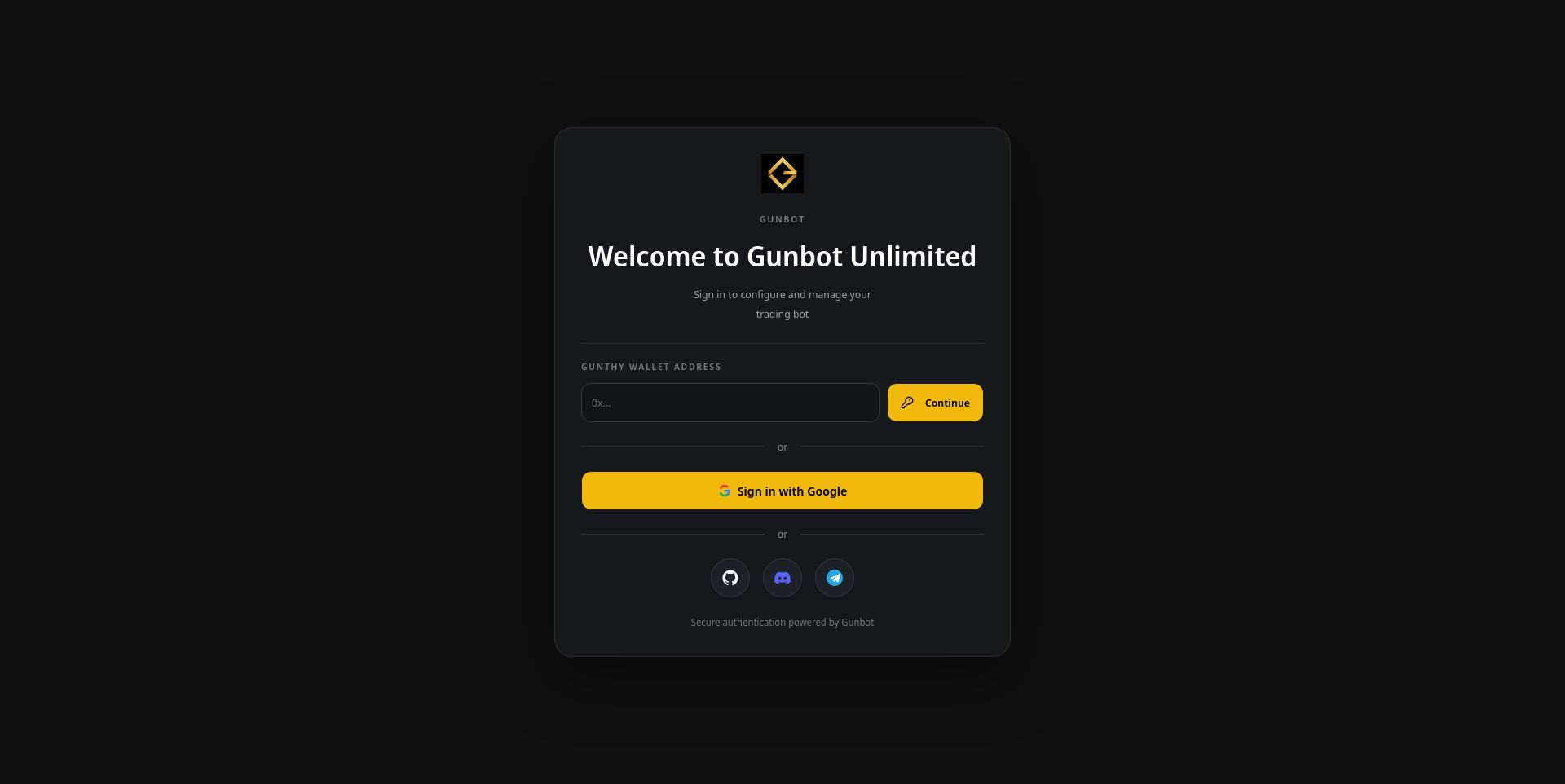
Sign in with your Gunthy wallet. On your first wallet login, Gunbot Unlimited shows a one-time secret key.
Save the secret key
Save the one-time secret key when it appears. It will not be shown again.
You can also sign in with Google, GitHub, Telegram, Discord, or another provider shown on the login screen. These providers are only used to confirm who is signing in. They do not store your Gunbot URL, saved bot profiles, GUI password, exchange credentials, bot configuration, trading pairs, strategy files, trading history, or backtest data.
Your Gunbot data stays in Gunbot Unlimited and in the Gunbot instances you connect. The login provider only handles authentication.
2. Choose the Existing-Bot Path
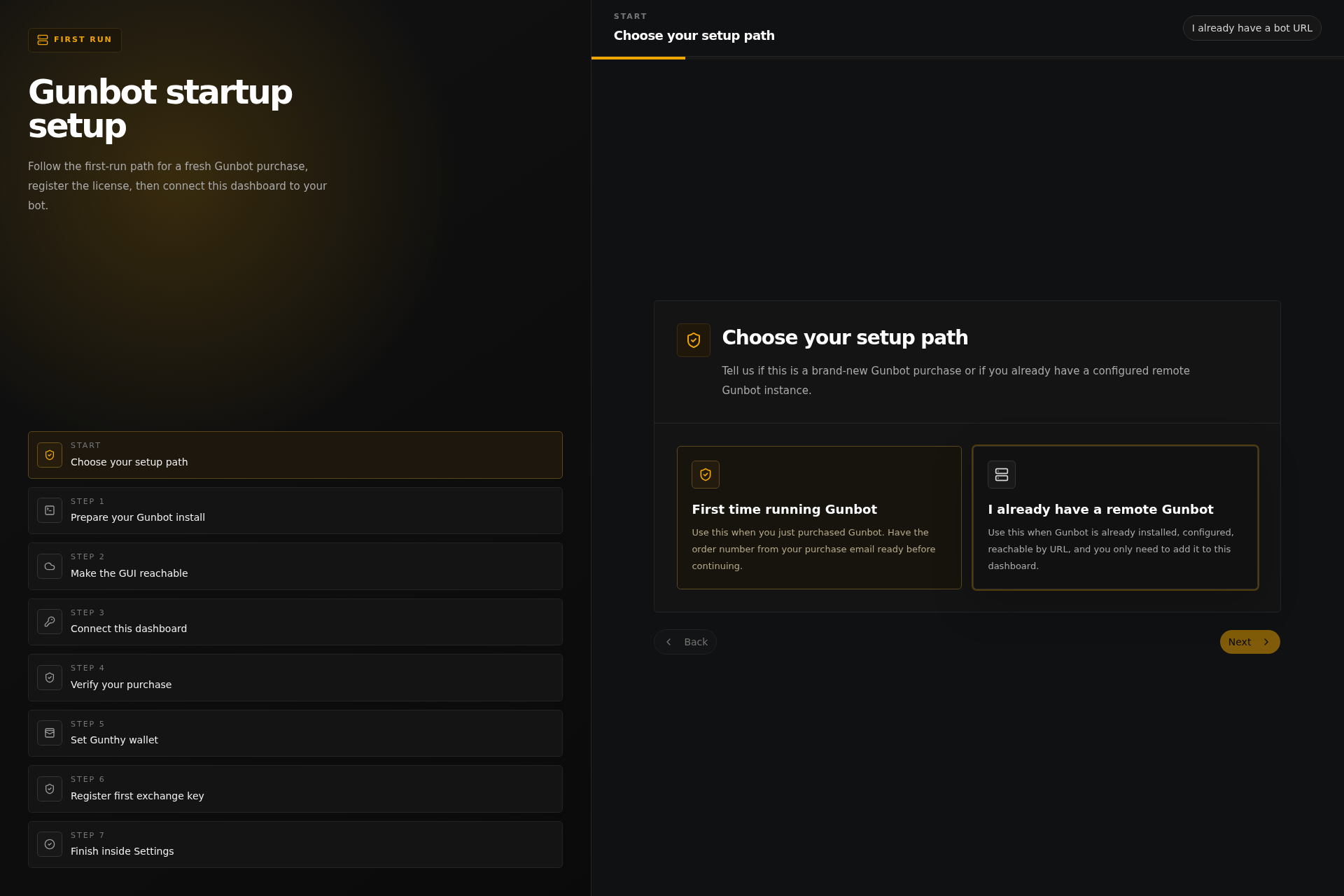
On the startup screen, choose I already have a remote Gunbot.
This opens Settings and shows the form for adding your Gunbot connection.
3. Pick the Address for Your Bot
Gunbot Unlimited needs a publicly accessible address for the remote bot you want to connect. Pick the option that fits your setup.
Option A: Domain or Subdomain
Use this when you already have a domain pointing to the machine that runs Gunbot.
https://bot.example.com:3001
Option B: Public IP and Port
Use this when your server has a reachable public IP address.
1.2.3.4:3001
If the bot runs from a home network, your router usually needs to forward that public port to the Gunbot GUI port on the machine running Gunbot.
Option C: Tunnel URL
Use this if domain or port-forwarding setup sounds like extra work. A tunnel gives you a public URL for your running Gunbot GUI.
For the built-in Gunbot tunnel, start Gunbot with the tunnel command for your operating system:
./gunthy-linux tunnel
gunthy-win.exe tunnel
./gunthy-macos tunnel
Use the tunnel URL that Gunbot prints.
4. Add and Save the Connection
In Settings > Saved Gunbot profiles, add a new connection.
Fill in:
- Connection name: a label you recognize, such as
VPS main bot,Binance spot, orScalping bot. - Gunbot URL: the domain, IP and port, or tunnel URL you chose.
- Password: the Gunbot GUI password for that bot. Leave it blank only if that GUI has no password.
- Active connection: enable this so the profile can be selected and used.
- Two-factor authentication (2FA): enable this only if that Gunbot GUI asks for a 2FA code during login.
Prefer HTTPS
Use HTTPS where possible. If you use a self-signed certificate, first open the Gunbot URL in a normal browser tab and accept the browser warning there.
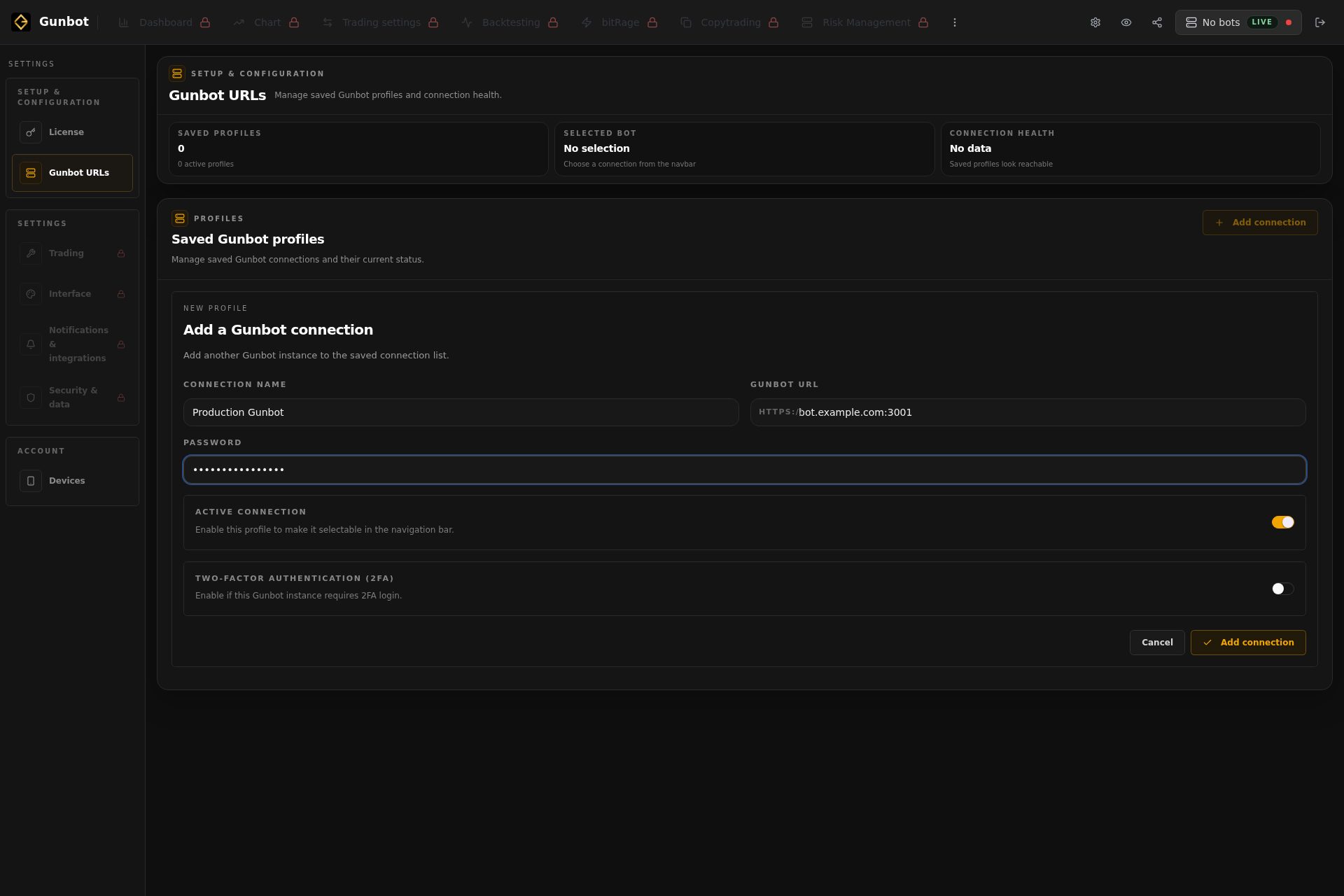
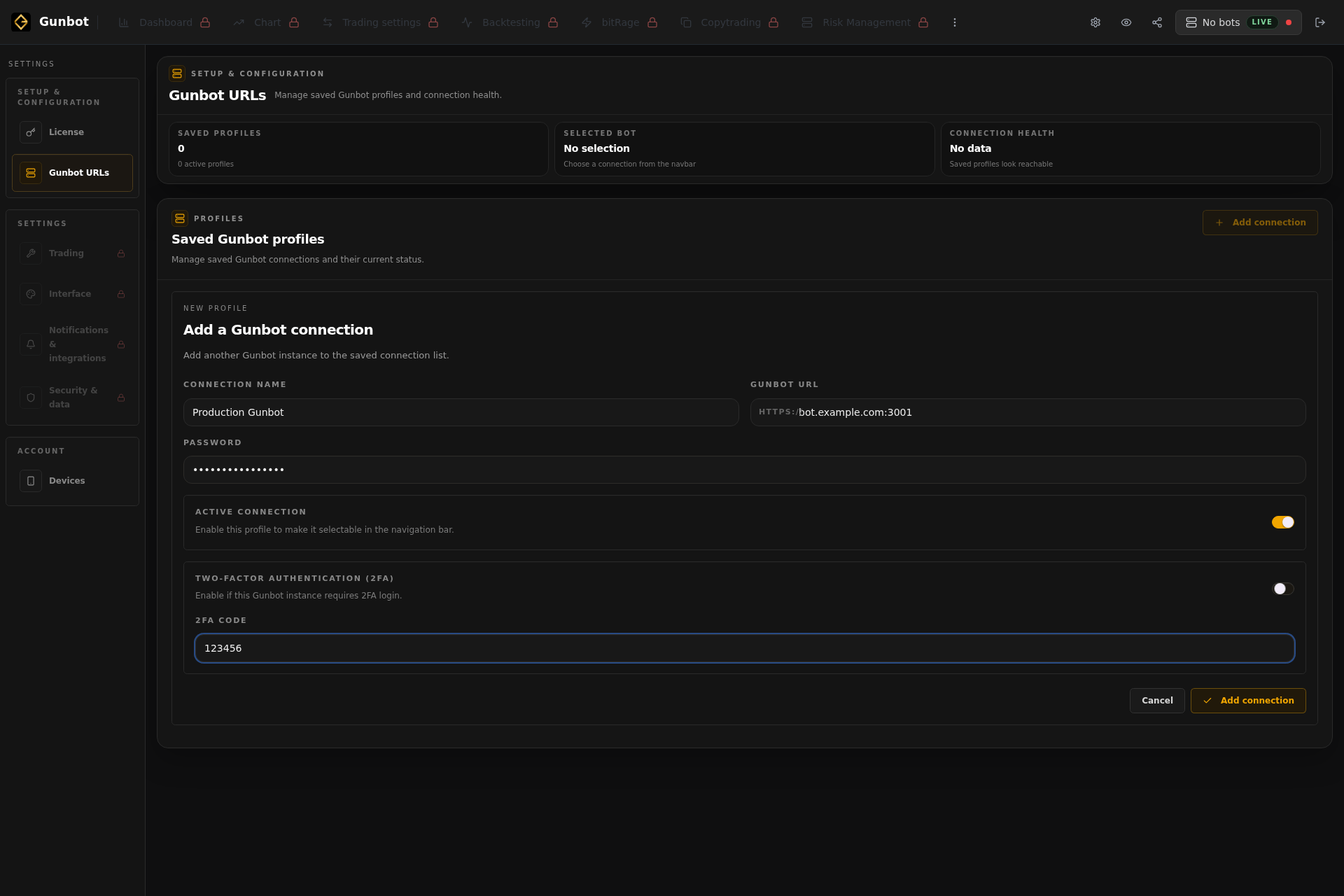
Save the profile. It appears in the saved connection list.
The status badges show whether the bot is active, selected, running, stopped, unreachable, or waiting for 2FA. Once the profile is connected, you can use Gunbot Unlimited to view, configure, and manage that bot.
Bot runtime
If the hosted dashboard is unavailable, that alone does not stop a bot that is already running. The bot keeps running in your own Gunbot instance.
If You Prefer the Local Dashboard
Use the local or self-hosted interface that comes with your Gunbot setup.
- Start Gunbot.
- Open the local GUI, commonly
http://localhost:3001, unlessconfig.GUI.portuses another port. - Sign in with the Gunbot GUI password and 2FA code, if your instance requires one.
Troubleshooting
The Bot Shows as Unreachable
Check the URL saved in the profile. Common causes are DNS, firewall rules, router port forwarding, tunnel state, or certificate warnings that still need to be accepted in the browser.
Login Fails
Use the Gunbot GUI password for that exact bot. If you have multiple bots, they may not all use the same GUI password.
2FA Fails or Keeps Asking Again
Enable 2FA for the saved profile and enter a fresh 6-digit code. Gunbot Unlimited caches successful 2FA authentication for a limited time, so you may need to authenticate again later.
You Are Using a Tunnel
Keep Gunbot and the tunnel process running. With the built-in tunnel option, the tunnel runs when Gunbot is started with the tunnel command.
If the tunnel URL changes, update the saved Gunbot profile with the new URL.