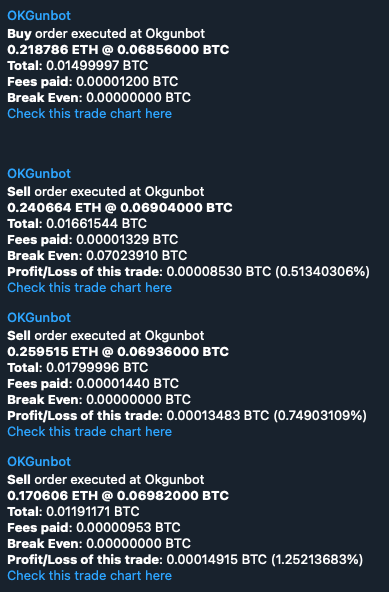
Setting Up Telegram Notifications for Gunbot
Use Telegram notifications to receive Gunbot trade and status updates. This guide walks through enabling the Telegram bot in Gunbot, creating a bot with BotFather, and adding your Chat ID.
Info
Telegram is a popular messaging app that supports bots. Gunbot can use a Telegram bot to send you notifications about your trades and bot status.
Starting with Telegram Settings in Gunbot
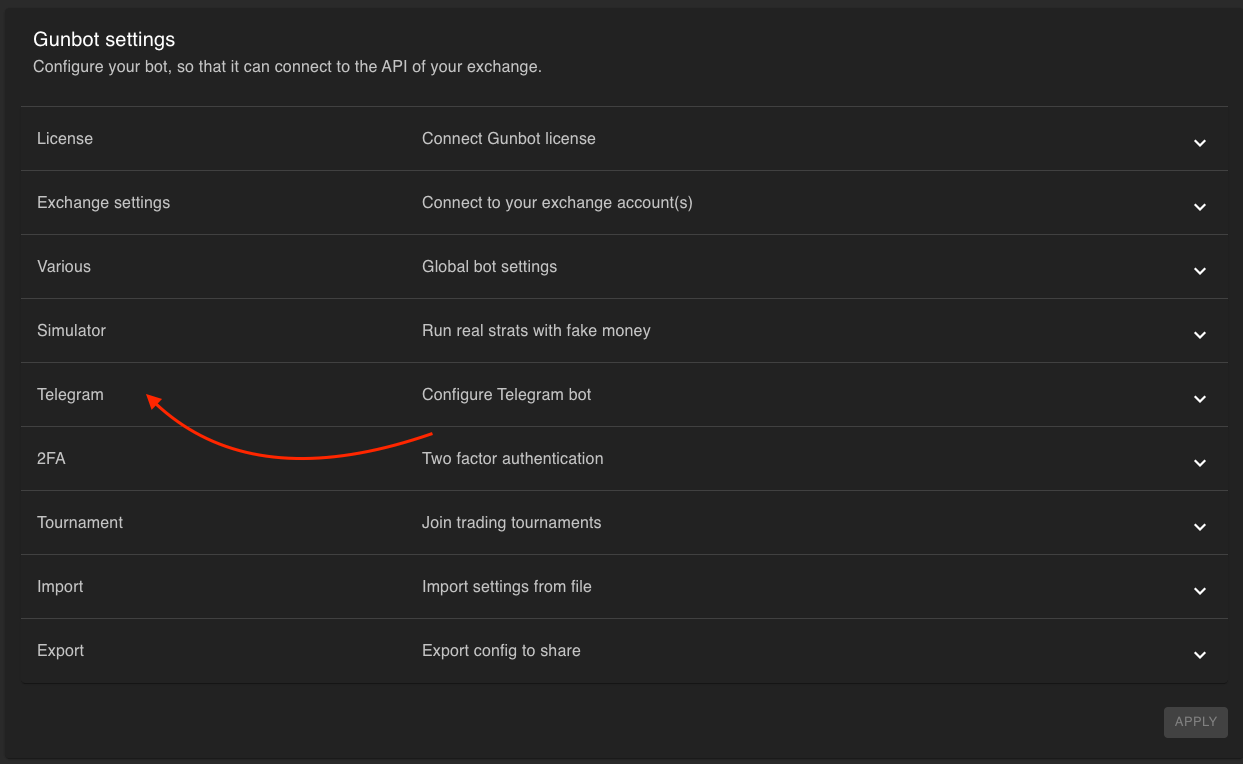
Access Telegram Settings: Click on your profile icon in Gunbot.

Expand the Telegram section to view the settings.
Enable the Telegram Bot:
Toggle the switch to true to activate Telegram bot notifications.
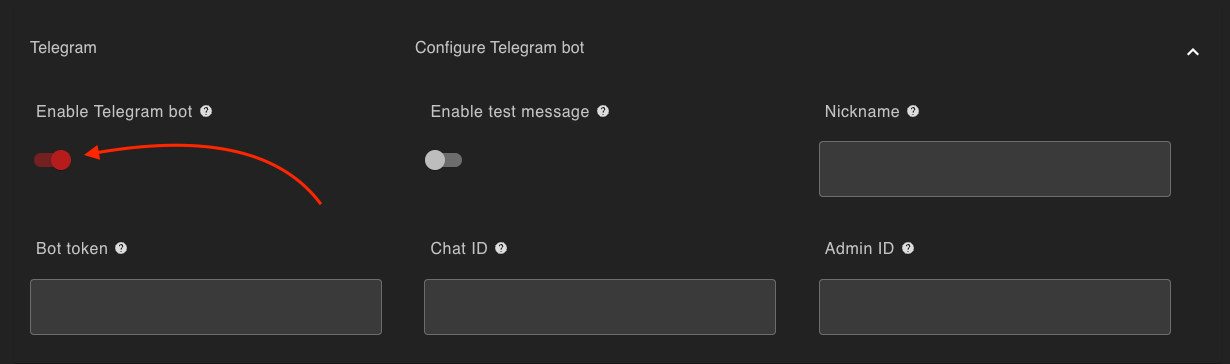
Prepare to enter the required information in the fields that appear.
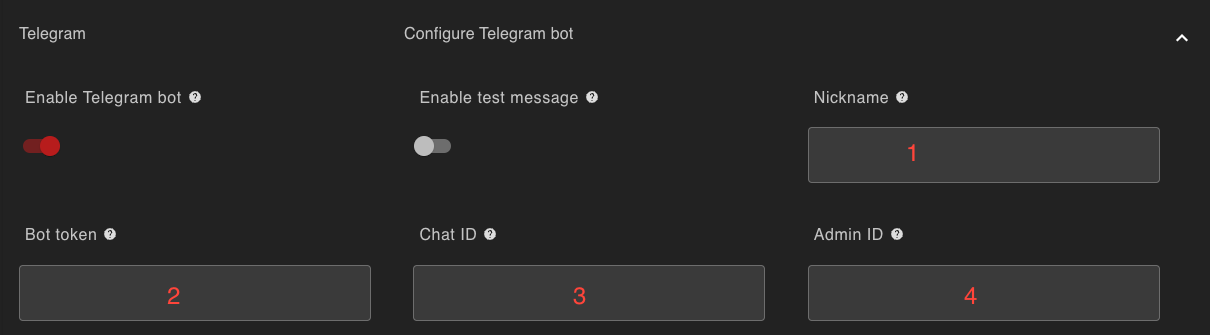
Configuring Your Personal Telegram Bot
Giving Your Bot a Personality: Nickname & Bot Token
Choose a unique nickname for your Gunbot Telegram Bot. Get the Bot Token to connect Gunbot to your bot:
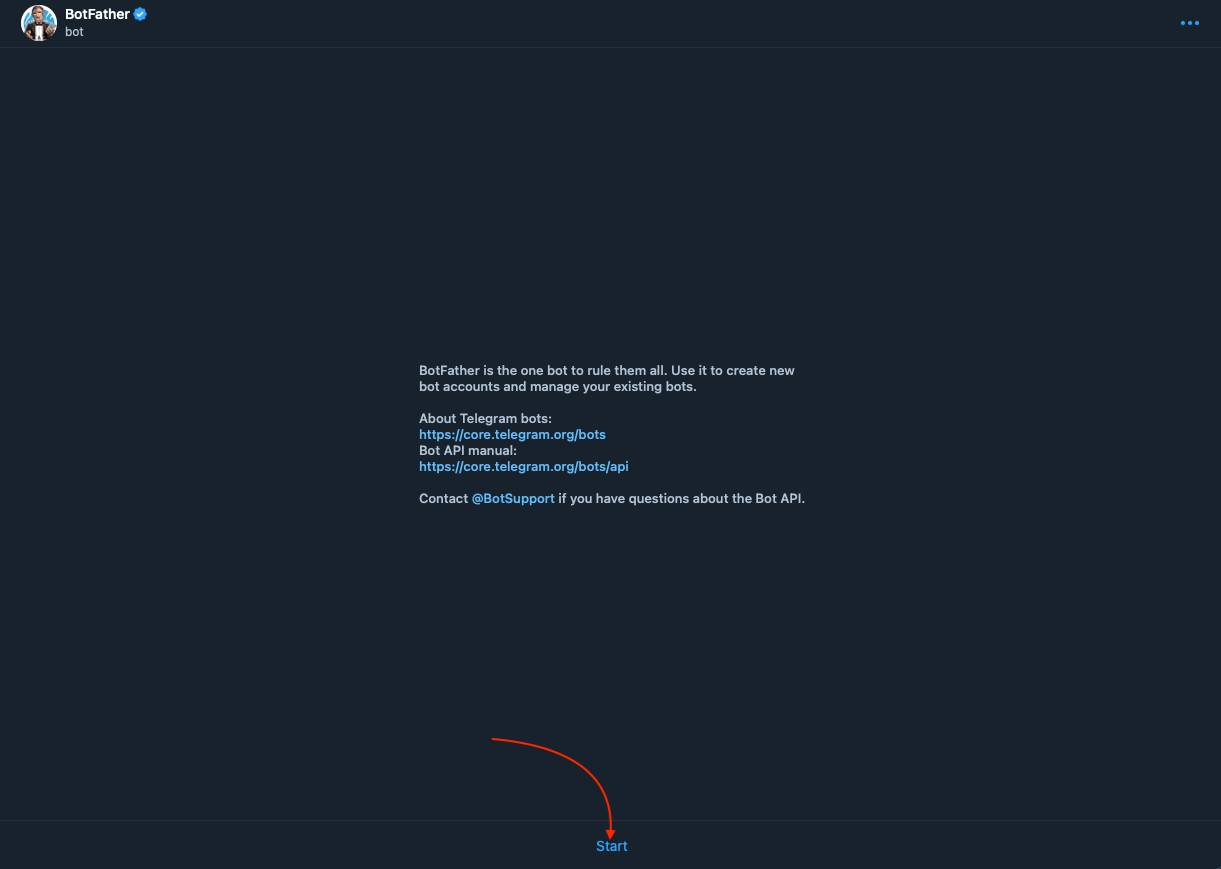
Start a chat with BotFather on Telegram.
Press Start at the bottom of your screen.
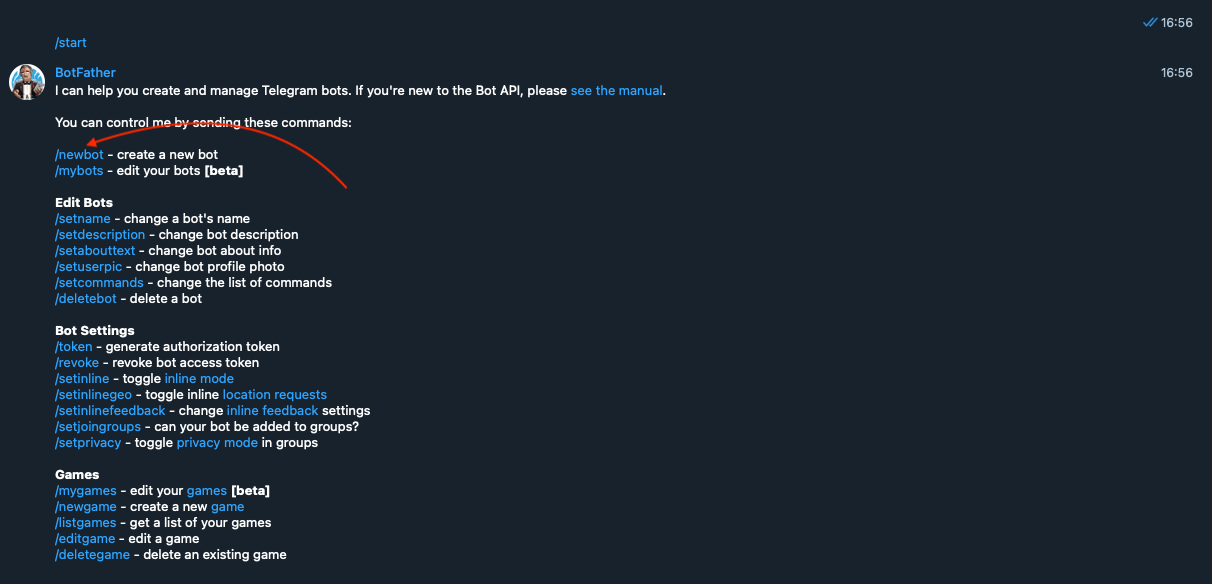
Create a new bot by selecting /newbot.
Name your bot and choose a username for it, ending in _bot or Bot.


Copy the API Token provided by BotFather.
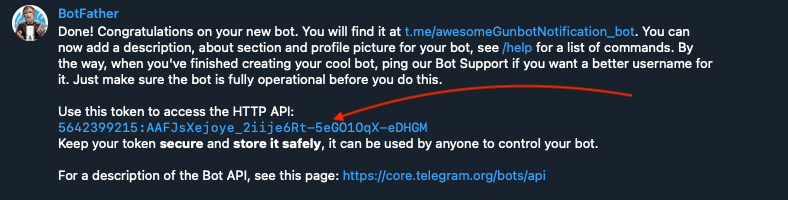
Paste this token into the 'Bot Token' field in Gunbot.
Establishing Your Chat ID
Get your personal Chat ID so Gunbot can identify you on Telegram:
Chat with @myidbot on Telegram.
Send /getid to receive your unique chat ID.
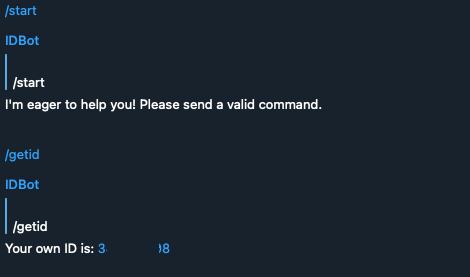
Enter this ID in the 'Chat ID' field in Gunbot.
Group or Channel Notifications
For notifications in a group or channel, add @myidbot there and use /getgroupid to obtain the ID.
Admin ID: Your Exclusive Access
Set the Admin ID to your personal ID so you can interact with the bot. For group or channel setups, use your personal ID, not the group/channel ID.
warning
Remember, for group or channel setups, the Admin ID should be your personal ID, not the group's or channel's.
Activating Your Telegram Bot
Hit 'Apply' and then 'Save settings' in Gunbot.
Wait for the bot to load as indicated in the Gunbot console.

Start a chat with your bot in Telegram by sending the /start command to open the menu.
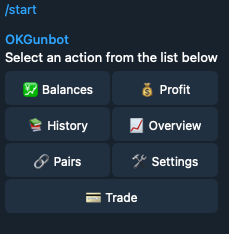
You're all set to receive buy and sell notifications through your Telegram bot.