Creating Your Gunthy Wallet for Gunbot License
Info
A cryptocurrency wallet stores private and public keys and interacts with blockchains to send and receive digital currency and monitor balances. For Gunthy tokens, an Ethereum-compatible (ERC-20) wallet is required.
Lifetime License Registration
If you have a lifetime license for Gunbot, this guide is for you. Subscription users can skip this.
Gunbot uses a blockchain-based license validation system with its ERC-20 utility token, GUNTHY. This system supports flexible API key management and license transfers. Your license links to your wallet address, API keys, and GUNTHY token count.
Automatic Setup
During setup, you can have Gunbot generate a wallet for you. This is the easiest option.
The setup wizard creates a small text file with the credentials you can use in common wallet software to access the Gunthy tokens. Store this credentials file securely.
Wallet Providers
When choosing an ETH wallet for Gunbot, ensure it's not exchange-based and supports ERC-20 tokens. Below are steps for setting up wallets with Metamask, MyEtherWallet (MEW), and Mycrypto.
Exchange Wallets Are Not Compatible
Do not use exchange wallets with Gunbot. Exchange deposit addresses don't reflect actual blockchain holdings, as funds are internally managed.
Metamask
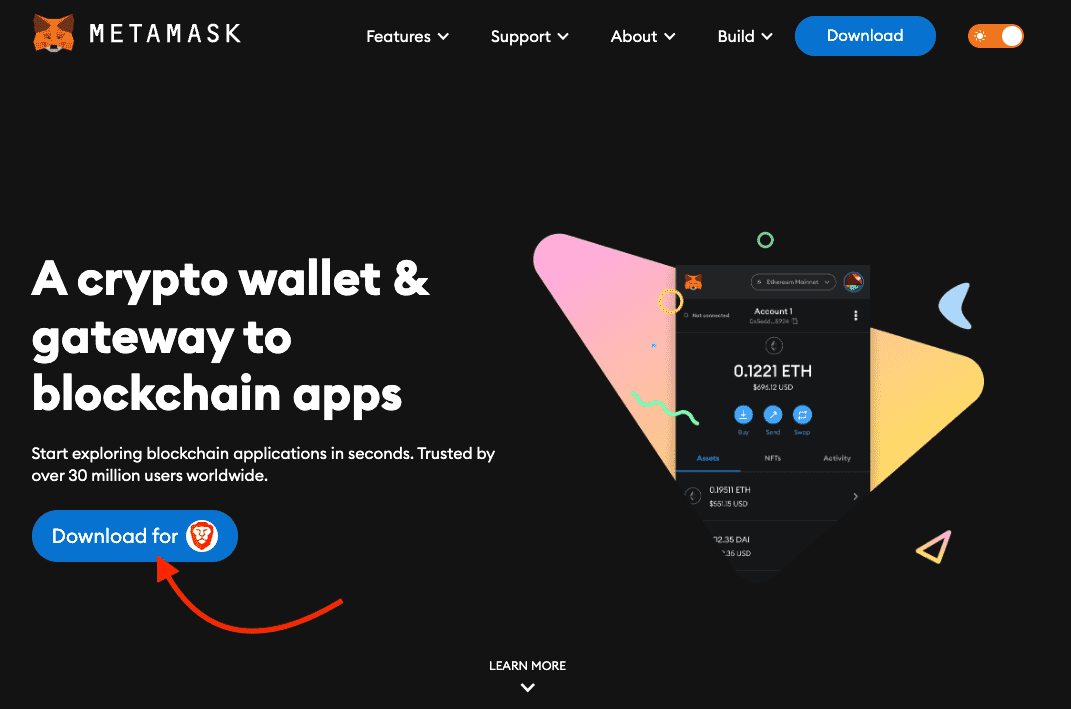
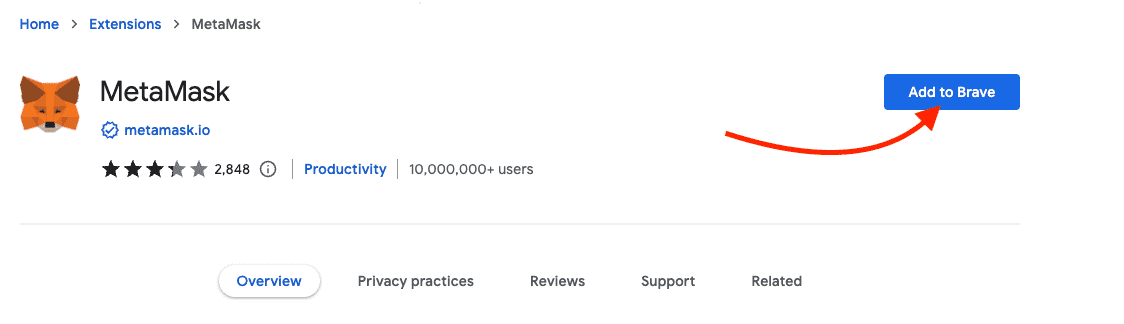
- Visit the Metamask website and download their browser extension.
- Choose "Create a new Wallet" and set a password.
- Important: Safeguard your Secret Recovery Phrase. It's important for wallet access and fund security.
MyEtherWallet (MEW)
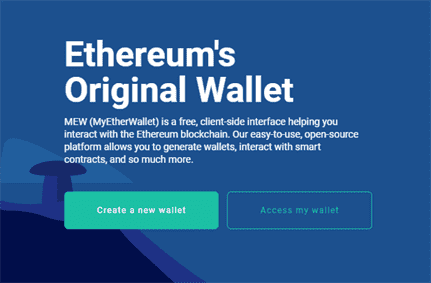
- Go to the MyEtherWallet website.
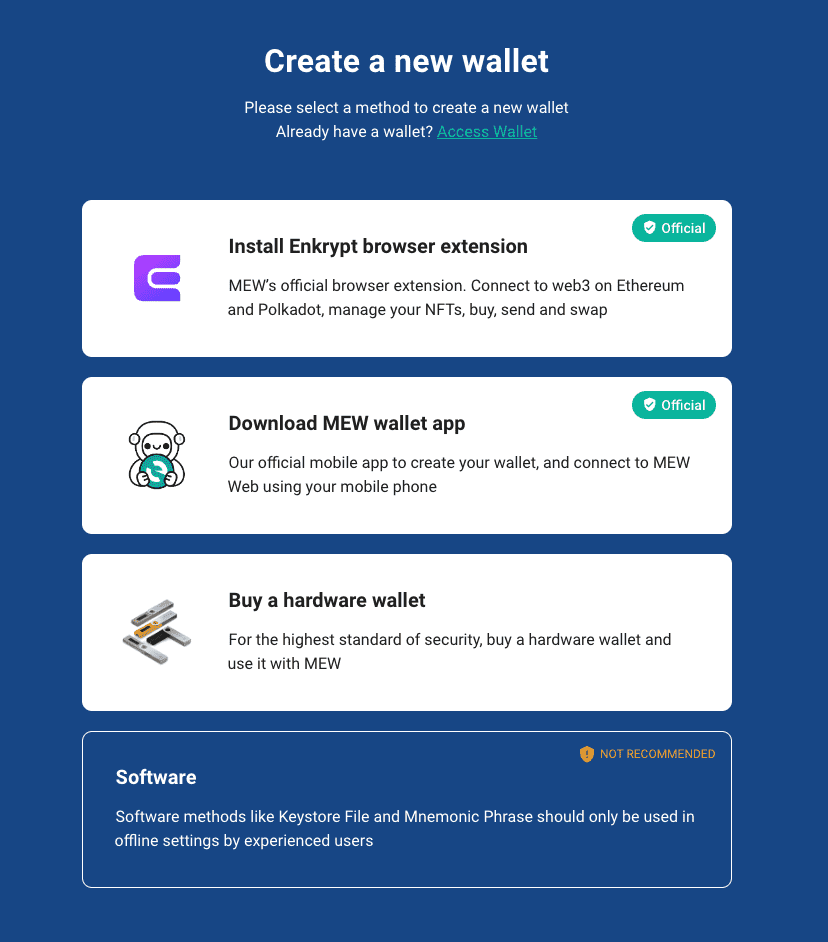
- Choose 'Enkrypt Browser Extension' for wallet creation.
- Follow the installation steps and set a wallet password.
- Important: Record your Secret Recovery Phrase securely.
Mycrypto
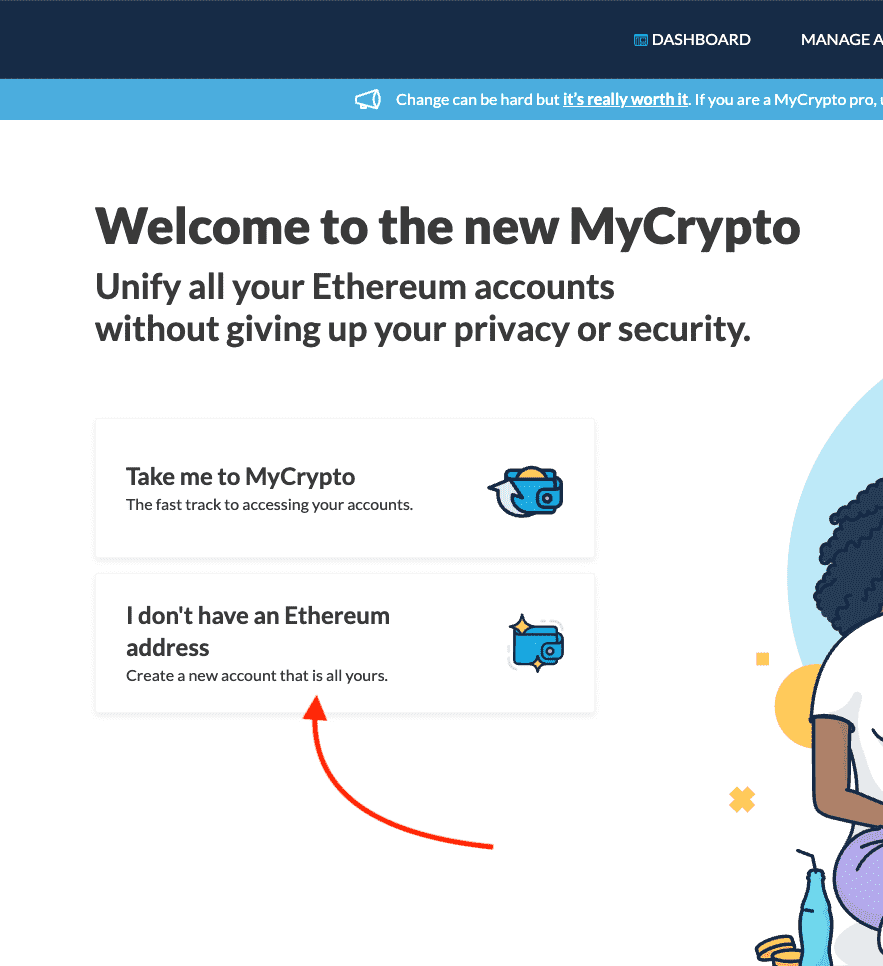
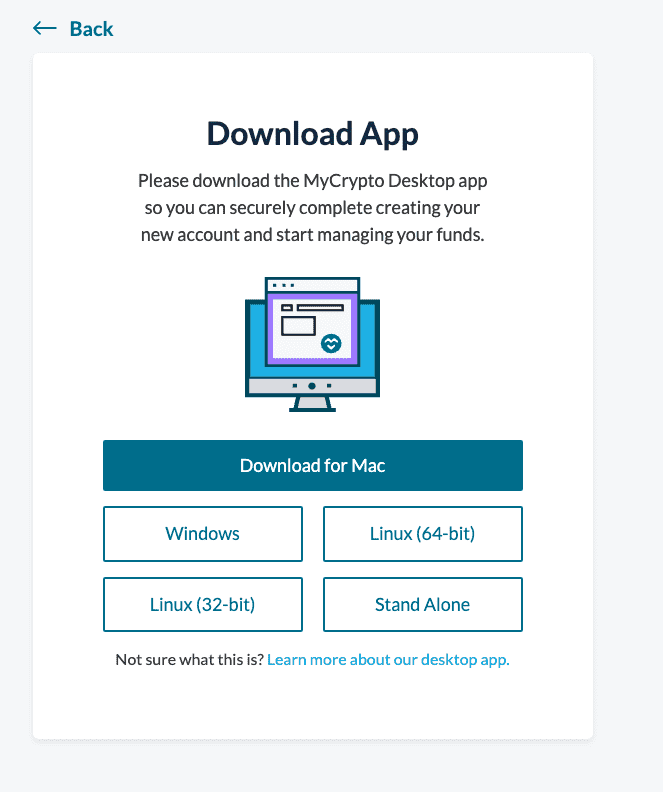
- Download the Mycrypto application from the Mycrypto website.
- Select "Create New Wallet" and follow the setup process.
- Important: The Secret Recovery Phrase is important. Store it safely.
Once your wallet is set up, use your ETH wallet address as your Gunthy wallet for license activation. Keep your wallet and recovery phrases secure at all times.