Installing Gunbot on MacOS
Introduction
This guide walks you through downloading, unzipping, setting permissions, and launching Gunbot on MacOS.
Step 1: Downloading Gunbot
First, download the required files for MacOS:
- Visit the download page.
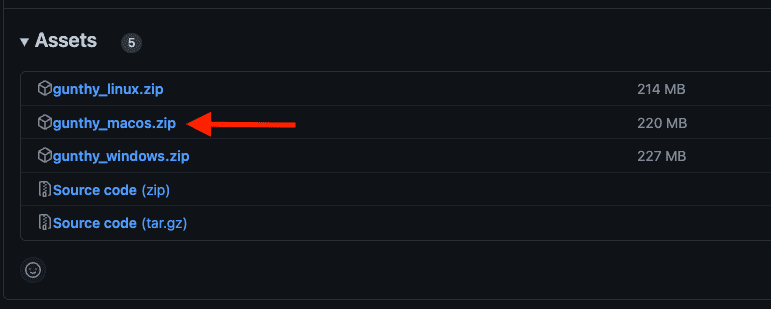
- Download the
gunthy_macos.zipfile.
Step 2: Extracting the File
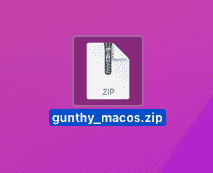
After downloading, locate gunthy_macos.zip in your Downloads folder and extract it:
- Double-click the zip file to unzip it.
- A new folder named
Gunbotwill be created.


Step 3: Setting Up in Terminal
With the files extracted, use Terminal to set permissions and prepare Gunbot for use.
Accessing the Terminal
- Open Terminal (Finder > Applications > Utilities > Terminal).
- Alternatively, use Spotlight search (Command + Spacebar) and type "Terminal".
info
Keep Terminal open during these steps.
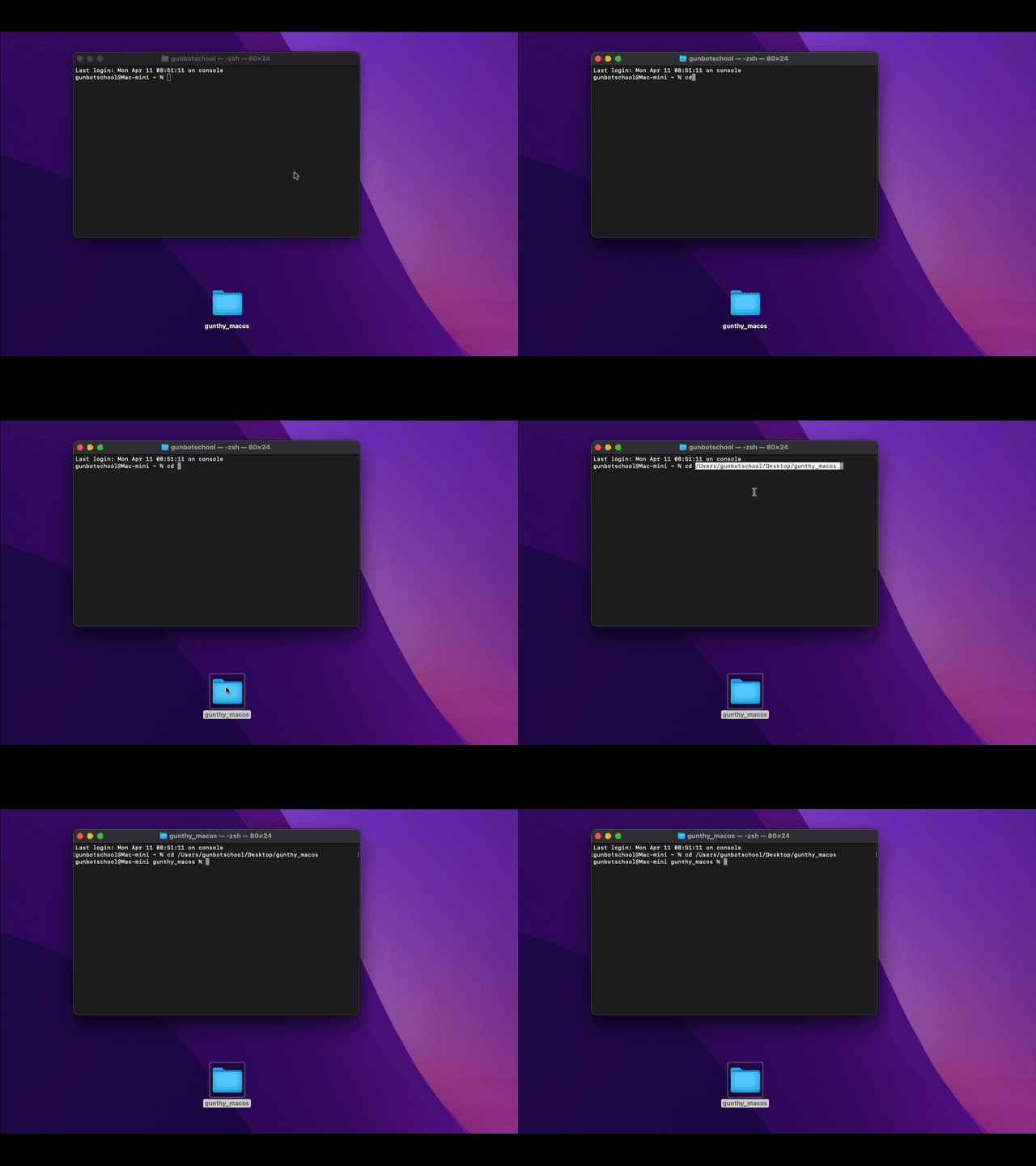
Open the Gunbot Directory
- In Terminal, type
cd(with a space after cd) but do not press enter yet. - Drag and drop the Gunbot folder into Terminal to autocomplete the path.
- Press enter.
Changing File Permissions
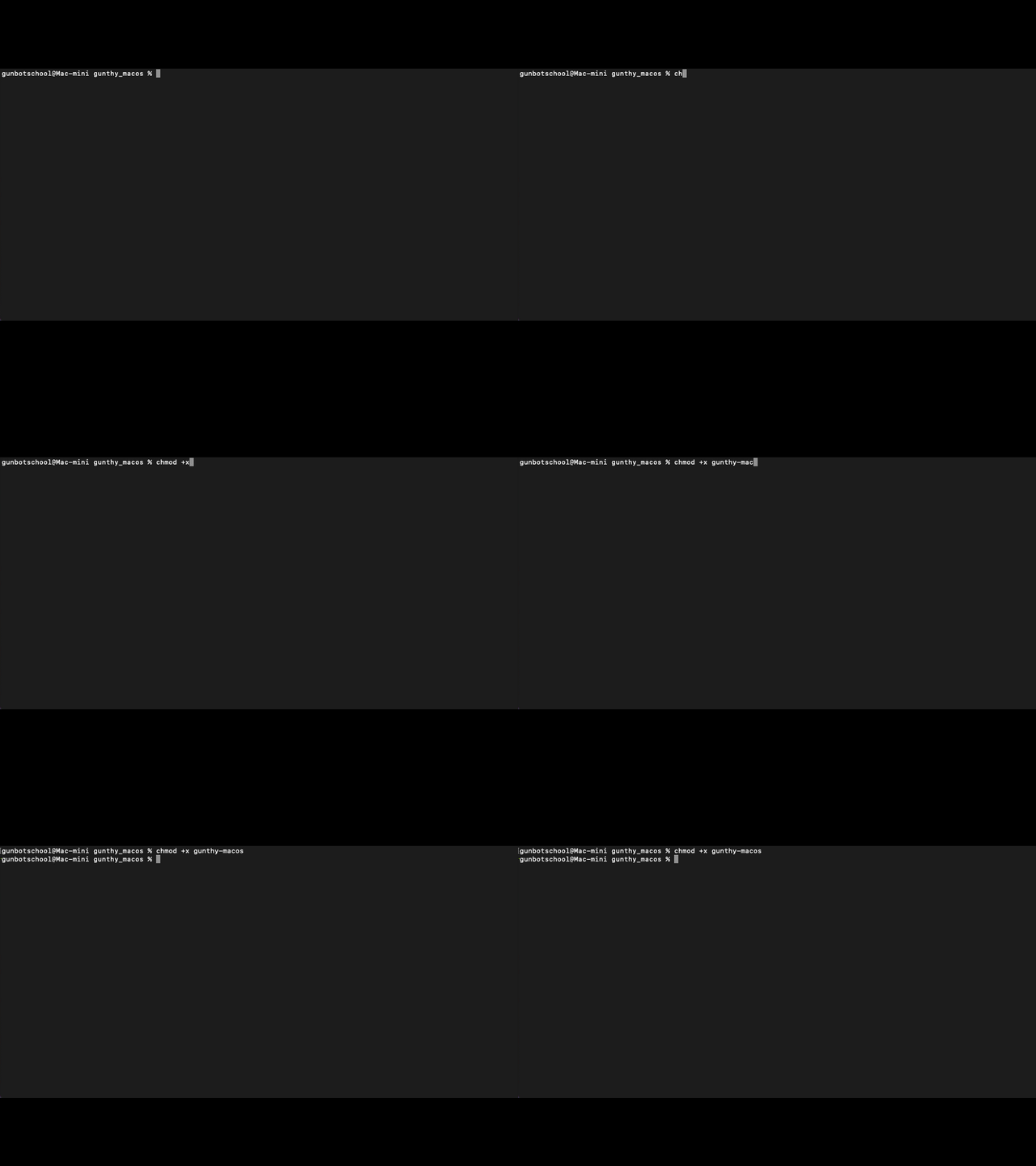
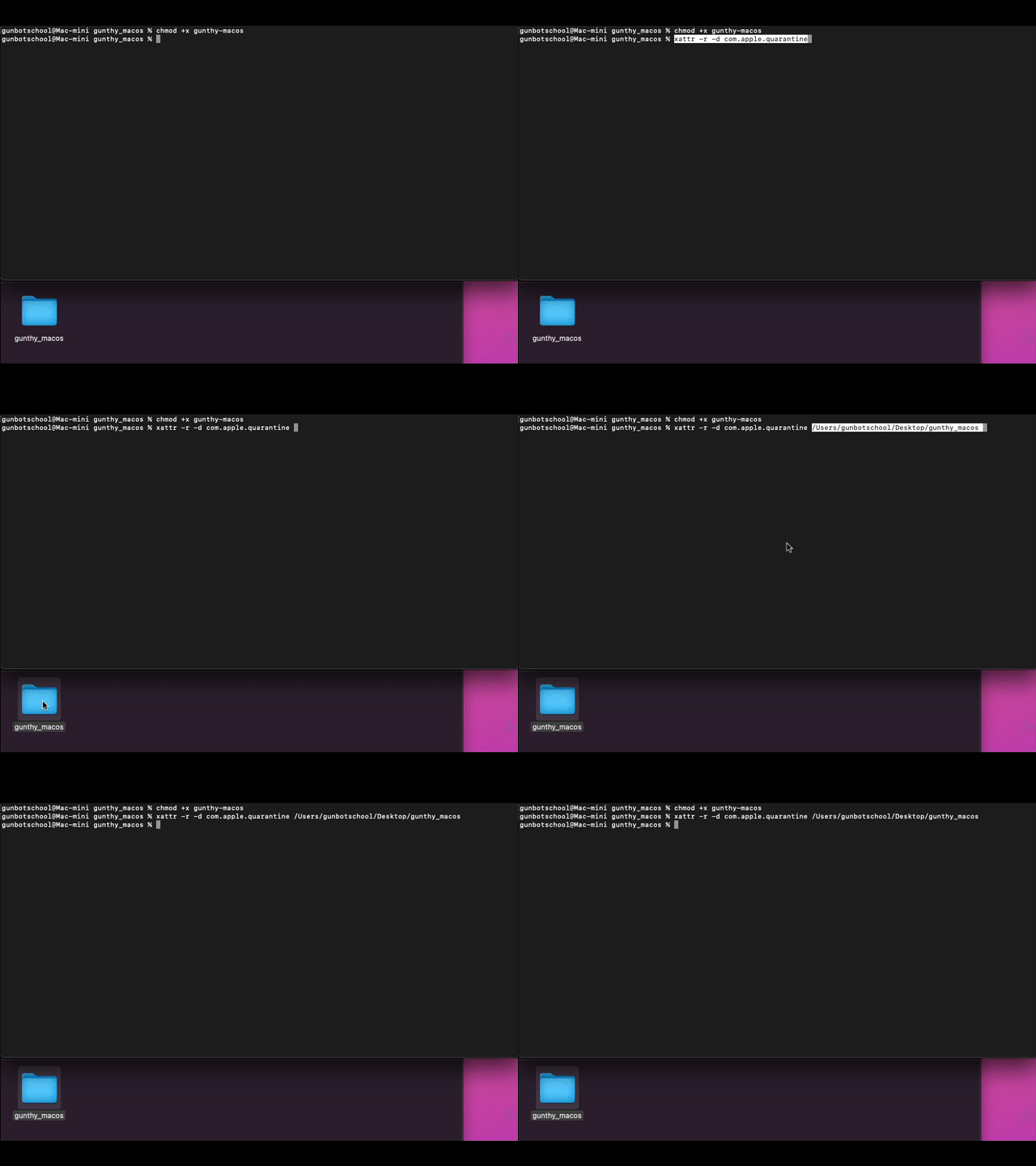
- Run the following command in Terminal to grant execution permissions to Gunbot:
chmod +x gunthy-macos
- Press enter.
Whitelisting Gunbot Folder
- Whitelist the Gunbot folder in Apple Security Settings with this command (replace the placeholder with your Gunbot folder path):
xattr -r -d com.apple.quarantine /path/To/Your/Gunbotfolder
- Terminal may show errors, which can typically be ignored if the path is correct.
Step 4: Launching Gunbot
Now, start Gunbot:
- Enter the following command in Terminal:
./gunthy-macos
- Open a web browser and go to
http://localhost:3001to access Gunbot.

Addressing Port Conflicts
If you encounter an EADRRINUSE error due to port conflicts, follow these steps:
-
Navigate to the Gunbot folder and find
config.js.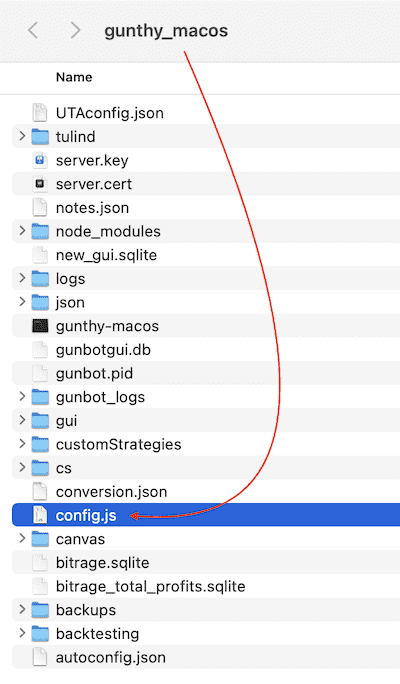
-
Open it with a text editor (like TextEdit).

-
Search for
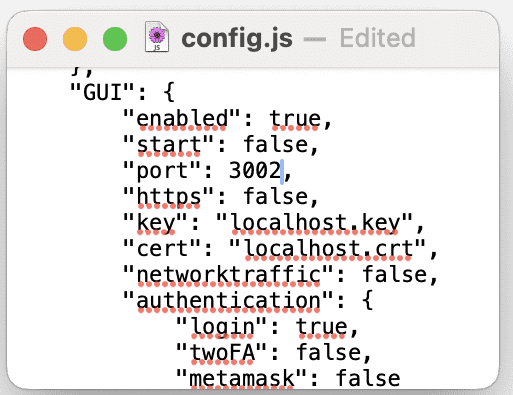
"port": 3001,and change it to"port": 3002,.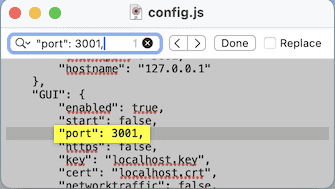
-
Save the changes and restart Gunbot.
-
Access Gunbot at
http://localhost:3002.
Conclusion
You've installed Gunbot on MacOS. For further assistance or troubleshooting, consult the Gunbot support resources or community forums.