How to Turn TradingView Alerts into Trades with Gunbot
The Gunbot TradingView add-on executes alerts generated from custom TradingView strategies. Gunbot can act on trade signals delivered via email or webhooks so you can automate trade execution.
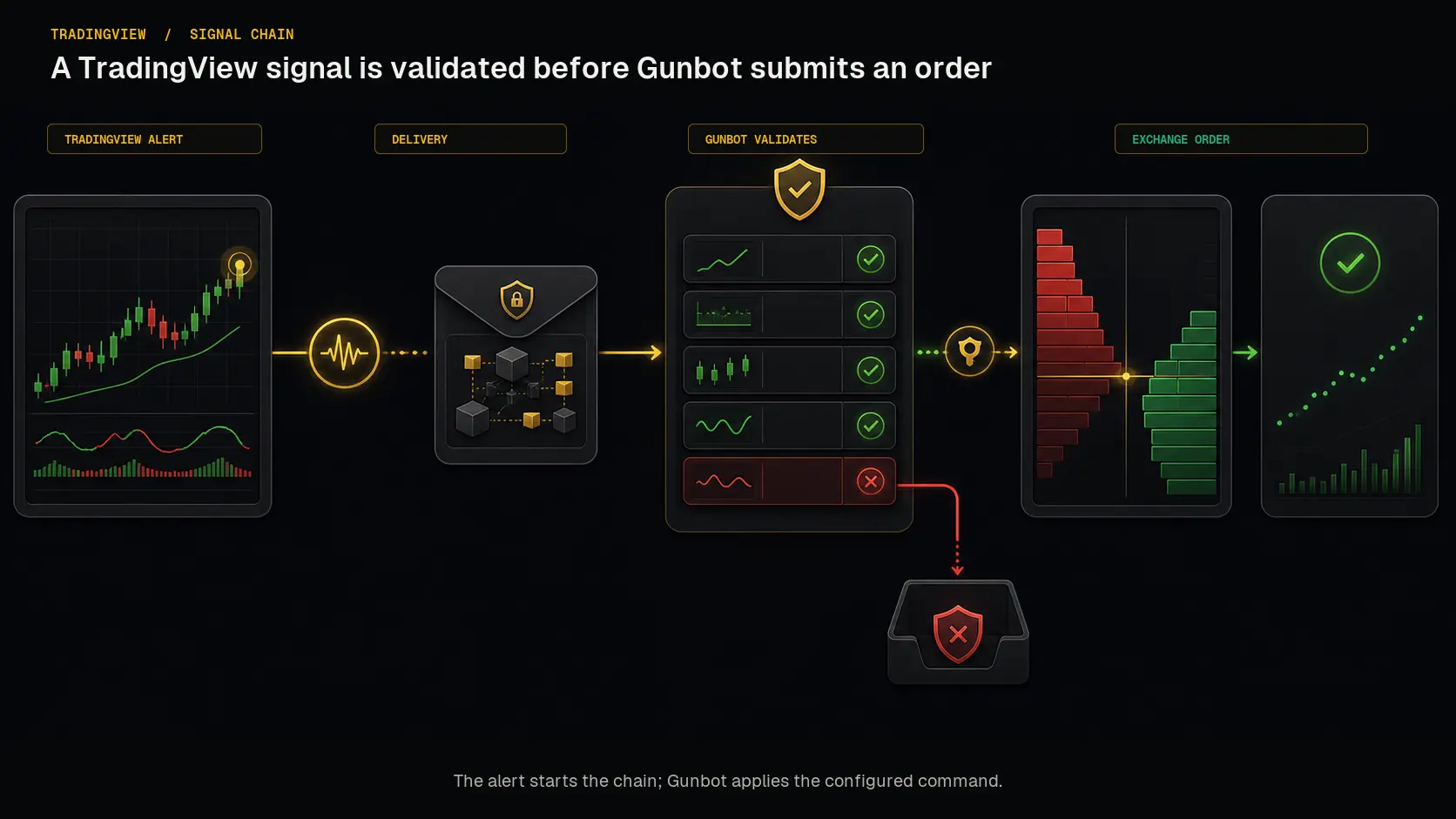 TradingView starts the chain with a signal; Gunbot validates the configured command before submitting an order to the exchange.
Info
TradingView is a popular charting platform that allows users to create custom trading strategies and alerts. Gunbot can integrate with TradingView to execute trades based on these alerts automatically.
Why Automate TradingView Alerts with Gunbot?
- Smooth Integration: Connect your TradingView strategies directly to Gunbot.
- Real-Time Execution: Respond to market changes instantly with automated trades.
- Increased Efficiency: Reduce manual intervention and trade more effectively.
- Enhanced Security: Keep your API secrets and trading strategies secure on your local device.
- Great Exchange Connectivity: Gunbot supports a wide range of exchanges, ensuring you can trade on your preferred platforms. Check out the full list of compatible exchanges here.
Setting Up Your TradingView Alerts
Set up either the Gunbot IMAP listener or the Gunbot Webhooks receiver for TradingView alerts. For required payload fields and command formats, keep the webhook configuration docs handy while configuring alerts.
Gunbot Webhooks Setup
Gunbot webhooks send a POST request to a specified URL when a TradingView alert is triggered. Follow these steps to set up webhooks:
-
Configure Webhooks in Gunbot:
- In the Gunbot interface, click the three dots in the header and select 'TradingView alerts'.
- Go to the Webhooks tab and enter the required
portnumber. Use port 443 for a secure SSL connection. - Enter a unique and secure password in the
webhooks passphrasefield. This passphrase is important for the alerts TradingView sends to Gunbot. - Save your configuration.
-
Enable Webhooks in TradingView:
- Open the chart for which you want to set an alert.
- Right-click and select 'Add Alert'.
- In the alert creation window, check the
Webhook URLbox and inputhttps://[Your_Gunbot_IP]:443(replace[Your_Gunbot_IP]with your actual Gunbot IP). - In the message field, provide the necessary details such as the passphrase, exchange, trade type, pair, amount, and price.
Networking and Security
Make sure that port 443 is open on your firewall or router. Here's how to set it up for different operating systems:
Windows Users
- Open Windows Defender Firewall with Advanced Security.
- Create a new inbound rule for TCP port 443.
- Allow the connection and name your rule.
Linux Users
- Use the
ufwfirewall to allow connections from TradingView's IPs. - Execute
sudo ufw allow from [TradingView_IP] to any port 443for each TradingView IP. - Check your settings with
sudo ufw status.
macOS Users
- Use
opensslto issue the required certificate.
SSL Library Choices
TradingView requires a secure HTTPS connection for webhooks. You can use the default automatically created certificate or follow steps to enable HTTPS in the Gunbot interface.
Setting Up the IMAP Listener
The IMAP listener method allows Gunbot to process TradingView alerts sent via email. Follow these steps to configure it:
- Access 'TradingView alerts' from the Gunbot header menu.
- Provide the necessary details:
- User and Password: Gmail users should generate an 'App Password' as per Google's instructions.
- Host and Port: Default settings are usually correct for Gmail.
- Authorized Froms: Typically
["noreply@tradingview.com"]. Add more emails if needed.
Once configured, Gunbot will wait for TradingView alerts and execute them as they arrive.
Creating and Managing Alerts in TradingView
Creating alerts in TradingView is straightforward. Here's how:
- Open the chart of interest, with your indicators and/or strategy.
- Select and configure the target alert type, often linked to strategies in Pine Script or premium indicators.
- Customize the alert conditions and message. Include essential details for Gunbot to execute the trade correctly, such as the passphrase, exchange, trade type, pair, amount, and price.
Conclusion
With webhooks or IMAP configured, Gunbot can execute trades from TradingView alerts while you manage alert logic in TradingView. Don't forget to check out the full list of exchanges supported by Gunbot here.