Backtesting Trading Strategies in Gunbot
Backtesting lets you run your spot strategy on historical data before risking real capital. Use it to compare settings, find weaknesses, and decide what to adjust.
Info
Backtesting simulates trades with historical market data so you can evaluate a strategy and refine its settings.
Preliminary Considerations
Create a Separate Gunbot Instance for Backtesting (Optional but Highly Recommended)
To avoid interfering with live trading data and configuration, use a dedicated Gunbot instance (a separate folder) for backtests.
Steps to Create a Second Gunbot Folder:
- Copy your entire Gunbot folder to a new directory (e.g.,
gunbot_backtesting). - Open the
config.jsfile within this new folder using a text editor. - In the
guisection, change thePORTnumber to avoid conflicts with your live instance:Ensure the new port is not already in use."gui": {"enabled": true,"host": "localhost","PORT": 3001, // Default is 3001, change to something like 5050"clientport": 3000 // If your primary uses 3000, change this too e.g. 3030}
Tips for Effective Backtesting
- Test One Pair at a Time: Running multiple pairs simultaneously in a single backtesting instance is not supported. If you need to test several pairs in parallel, use separate Gunbot instances for each.
- Isolate Instances: Keep the backtesting instance distinct from live trading to prevent accidental interference.
- Clear State Files: Before a new backtest on the same pair, clear relevant JSON state files (for example, in the
jsonfolder) to start clean. - Custom Strategies: If your custom strategy requires data from multiple timeframes (candles), enable the
MULTI_COMPoverride in your strategy settings for accurate backtesting. - AutoConfig Jobs: AutoConfig jobs that rely on internal data, such as
manageOverridesjobs, are fully supported in backtesting. Gunbot creates a 'mock' schedule based on your job settings before the backtest begins, ensuring jobs execute relative to candles as they would in a live scenario. - Allow Sufficient Time: Backtests run the same strategy code as live trading (without order placement), so long histories can take time.
Setting Up Backtesting in Gunbot
Enable the Backfester Feature
- Navigate to
http://localhost:YOUR_PORT/setup#advancedin your web browser (replaceYOUR_PORTwith the port number configured for your backtesting instance, e.g.,5050). Enable the "Backfester" feature.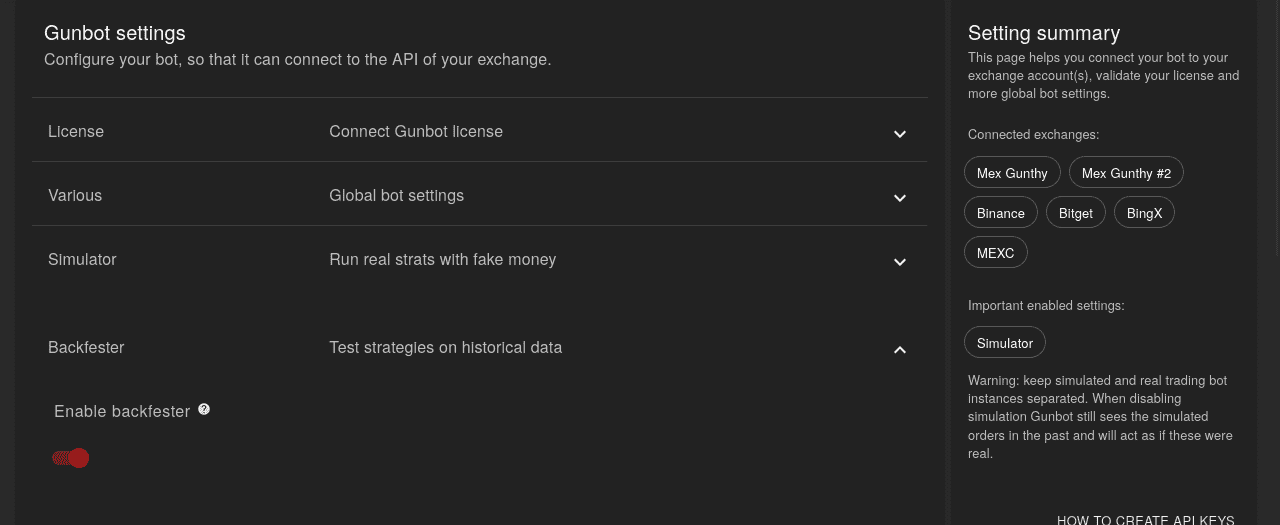 (Note: "Backfester" appears to be the term used in the Gunbot interface for its backtesting engine.)
Configure Starting Balances
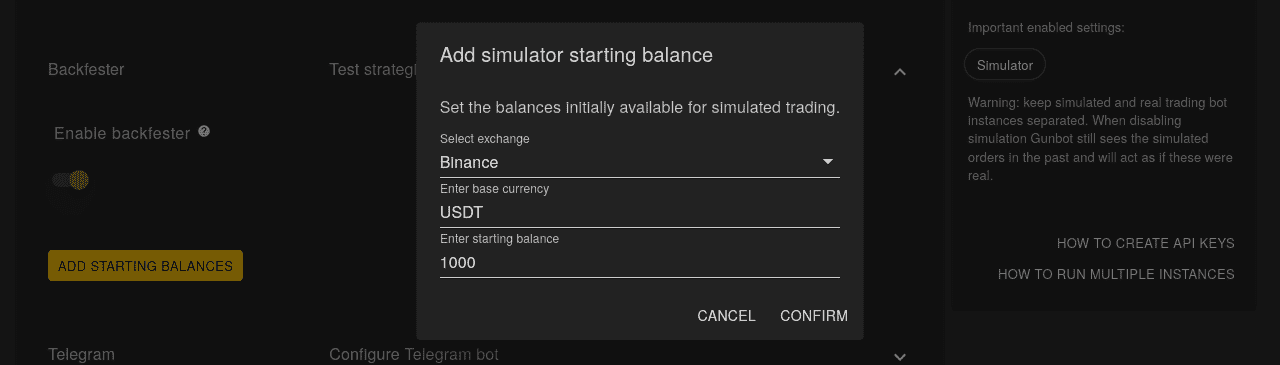
- In the same setup dialog, configure the initial balances for your backtests. Select the exchange, specify the base currency, and enter the starting balance for that currency.
Steps to Run Backtests
Select a Trading Pair
- On the trading settings page of your backtesting instance, select the spot trading pair you wish to test.
Configure Start and End Times
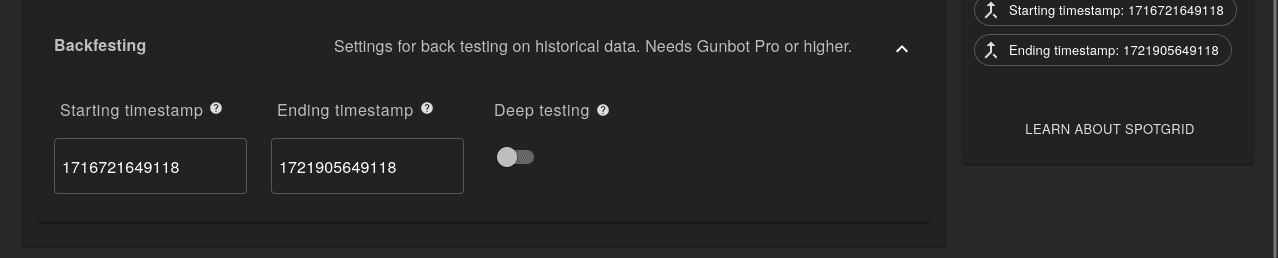
- Set the target start and end timestamps for the historical data range your backtest will cover.
Methodology
Gunbot executes backtests with the same strategy logic and core code as live trading. The main differences are no exchange balance changes and the use of historical data instead of live feeds.
Without Deep Testing
- Gunbot fetches historical candle data for the selected trading pair and timespan.
- The strategy logic iterates through each candle of the chosen timeframe, performing one evaluation per candle.
With Deep Testing
- Gunbot collects the public trading history (tick data) for the selected pair and timespan.
- It then reconstructs candles from this detailed trade history. This allows the strategy code to run multiple times within a single candle's duration if several trades occurred that led to price changes within that candle, offering a more granular simulation.
Viewing and Interpreting Results
While a backtest runs, the chart and dashboard update in real time. When it completes, each run writes a JSON report in the backtestingReports folder inside your Gunbot directory.
These JSON files are valuable for detailed analysis and can be shared with the Gunbot community, for example, on Gunbot's Backtesting Archive.