Creating and Running AutoConfig Jobs
In Gunbot's AutoConfig, all job configurations live in a single JSON file named autoconfig.json. The file can hold multiple jobs. Whenever Gunbot restarts or autoconfig.json is modified, jobs defined in the file are rescheduled and any previously scheduled jobs are cleared to avoid conflicts.
Running Jobs
Running AutoConfig jobs requires two conditions:
- Enabled jobs: Each job has an option to enable or disable it.
- AutoConfig itself enabled: This can be done through the browser interface on the AutoConfig page.
Creating Simple Jobs Without Writing Code
To create a simple AutoConfig job, such as modifying a single strategy parameter using pre-built filter options, use the editor in the browser interface. The editor guides you through each step. Before you start, review the filter and job type documentation so you know what each job can do and how it selects pairs.
Info
Familiarity with [Job Types/docs/autoconfig/ac-job-types) and Filter Types is important before creating jobs, as these define what a job can do and how it selects pairs or conditions.
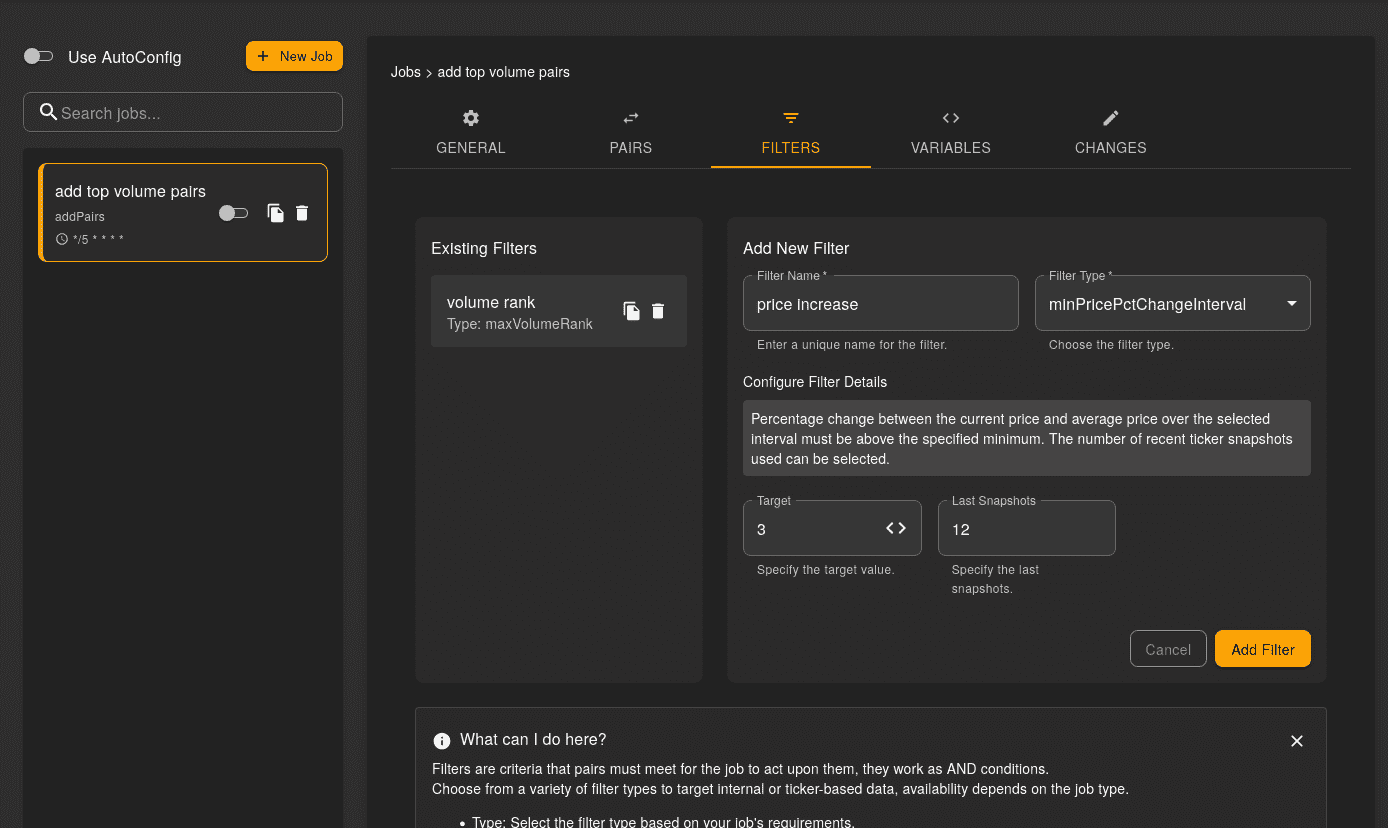 Use the tabs to move from job scope and pair selection to filters, variables, and the changes the job should apply.
Creating More Complex Jobs
To create more complex AutoConfig jobs, use the built-in Gunbot code editor. It is best suited for users comfortable with JSON.
The code editor offers auto-suggest templates for job types and filters. You can also use any text editor, since the format is plain JSON.
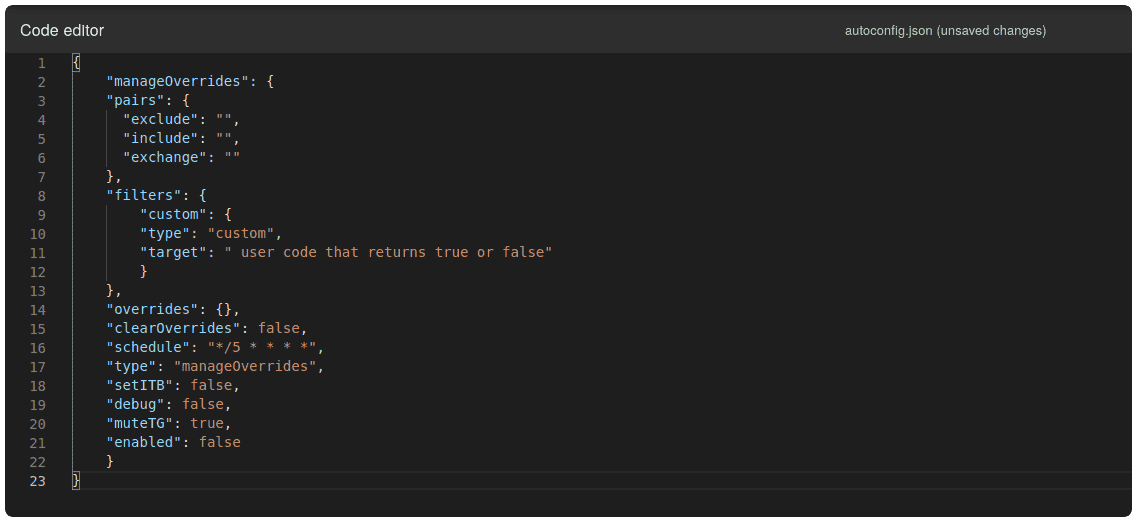
General Information About Jobs
When a job is processed, changes to config.js apply only to pairs that pass all filters in a filter set.
You can include one or many jobs in autoconfig.json, each with its own schedule. A job applies to a single exchange and can include one or multiple filters that determine which trading pairs it targets.
If a job completes successfully, the changes are written to config.js, and Gunbot starts using the new settings. Most configuration changes, such as pair override changes, apply without restarting the bot. If a job does not cause any changes (for example, because it attempts to place already existing overrides), it does not trigger a restart.
You can set schedules per job in a format similar to how cron jobs are set. If you are not familiar with the format, you can use a website like crontab-generator.org to generate it.
All AutoConfig configuration options are available in the browser interface. Even if you prefer manually editing autoconfig.json, generate a configuration example in the interface first to ensure all required parameters are included.
tip
To avoid unexpected configuration changes when using a very fast schedule (e.g., jobs that update your bot configuration every few seconds), avoid making manual setting changes in the browser while AutoConfig jobs are running. Make this a habit to maintain consistent settings.